3332
performances. In this case, it is suggest-
ed not to use output channels 15-16,
(which are disabled in the B.Beat manag-
er) because everything you want to hear
from the headphone will come through
those channels. Basically, if you want to
use headphones, channels 15-16 cannot
be used as outputs to the stage Mixer.
Through the B.Beat manager you can se-
lect which tracks to send to the head-
phones.
Mono Headphones:Mono Headphones: selects the headphone
mode from two options, Mono or Stereo.
Display Brightness: Display Brightness: adjusts the bright-
ness level of the Display. Press Enter and
change the level via Alpha Dial.
Key Brightness: Key Brightness: adjusts the brightness
level of the keyboard. Press Enter and
change the level via Alpha Dial.
Midi Clock:Midi Clock: B.Beat can send a MIDI Clock
signal to synchronise other Midi devices
on stage. To send the Midi Clock, it is
necessary to insert a Midi file into the Au-
dio project to be played. In addition, the
MIDI Clock function must be enabled. MIDI
CLOCK is enabled when selected in ENA-
BLE mode.
Sync Mode:Sync Mode: selects the Sync mode of
B.beat. By default it is set to Main- When
a device is set to Spare, the device will
search at start-up for a Main device to
synchronise with. For further clarification,
please read the SYNC MODE chapter.
Prompter Theme:Prompter Theme: choice of theme for the
prompter on video output, may be one
among: Custom, Default, Inverted, Big,
Small, Left. The configuration of the Cus-
tom theme is executed via B.Beat Manag-
er.
Prompter Scroll: chooses the speed of
vertical scrolling of the lyrics, possible op-
tions are Slow, Medium, Fast.
Time Format:Time Format: you can select the display
mode of the Timer, which has two options:
countdown - duration from start.
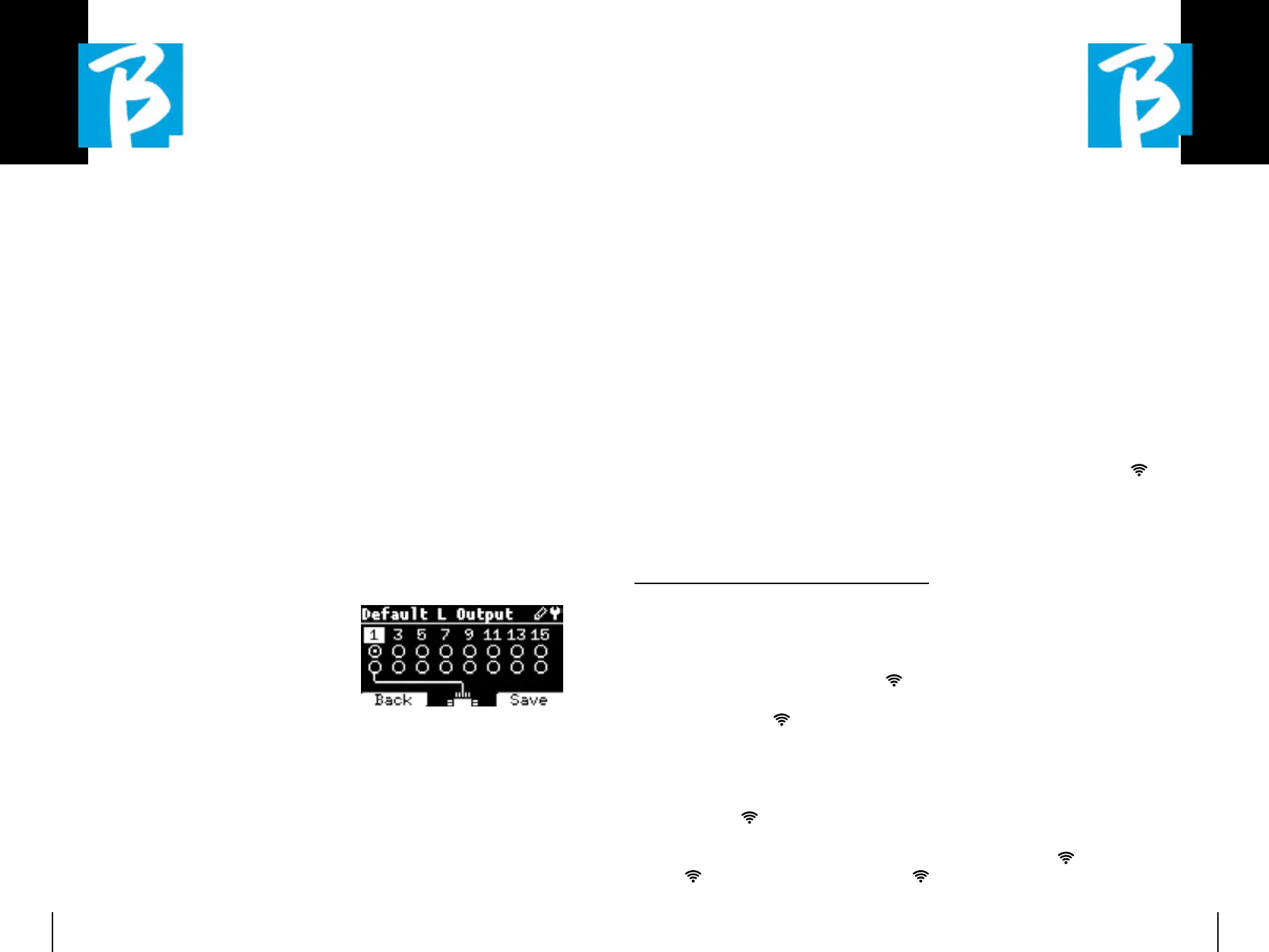
Default L Output: Default L Output: B.Beat PRO16 has 16
Audio outputs. You can select which of
these is assigned to the LEFT channel of
a stereo Audio track. Press Enter to enter
the configuration screen and rotate the
Alpha Dial to choose the desired output.
Press Enter or F3 [SAVE] to set. Output 1
is selected upon purchase.
Default R Output:Default R Output: B.Beat PRO16 has 16
Audio outputs. You can select which of
these is assigned to the RIGHT channel of
a stereo Audio track. Press Enter to enter
the configuration screen and rotate the
Alpha Dial to choose the desired output.
Press Enter or F3 [SAVE] to set. Output 2
is selected upon purchase.
Default Clic Output:Default Clic Output: B.Beat PRO16 has 16
Audio outputs. You can select which of
these is assigned to the CLIC track of a
multitrack backing track. Press Enter to
enter the configuration screen and rotate
the Alpha Dial to choose the desired out-
put. Press Enter or F3 [SAVE] to set. Out-
put 3 is selected upon purchase.
Default Guide Output:Default Guide Output: B.Beat PRO16 has
16 Audio outputs. You can select which
of these is assigned to the GUIDE track
(voice prompts) of a multi-track backing
track. Press Enter to enter the configu-
ration screen and rotate the Alpha Dial to
choose the desired output. Press Enter
or F3 [SAVE] to set. Output 6 is selected
upon purchase.
NETWORKNETWORK
B.Beat PRO16 connects to different enti-
ties, in different ways.
B.Beat PRO16 can connect to a computer
via Ethernet cable, or via Wireless
(op-
tional M-Pen required) and can also gener-
ate a Wireless
Hot Spot to connect to
Smart Devices (Tablet or Smartphone) for
using the Prompter App and reading out
lyrics and sheet music.
Wireless
or Hot Spot connection are
alternatives, if B.Beat PRO16 is used as
a Hotspot it cannot connect to a Wireless
network, and vice versa. Wireless
connection and Hot Spot generation are
only possible with the optional M-Pen.
From the Network page you can check
how B.Beat PRO16 is connected and
change its settings. In addition, you can
get the data to enter its Hot Spot.
Ethernet:Ethernet: this entry indicates the connec-
tion via network cable to a PC or network.
By pressing F2 [INFO] you can see the IP
address of the current connection.
Hotspot: Hotspot: this item indicates whether or
not the private Wireless
network is
activated (with optional M-Pen). With the
function keys you can change settings:
1.F1 [BACK] to exit this page.
2.F2 [INFO] displays the IP and password
to enter the network "12345678" by de-
fault; from the B.Beat Manager Software
you can change this Password in the
options area. To connect to the B.Beat
PRO16 Hot Spot, the QR code can be
used by pressing F3 [QR-code] on the Info
page. It is necessary to connect to the
B.Beat PRO16 hot spot in order to use the
Prompter App for the purpose of displaying
lyrics and scores in the Backing tracks.
3.F3 [ENABLE - DISABLE] to activate or
deactivate the hot spot. NOTE: when the
hot spot is active, it is not possible to use
the Wireless
connection to a public
network.


 To Next Page
 Loading...