Application usage
32
3.5 Wireless LAN
3.5.1 WLAN configuration
How to connect
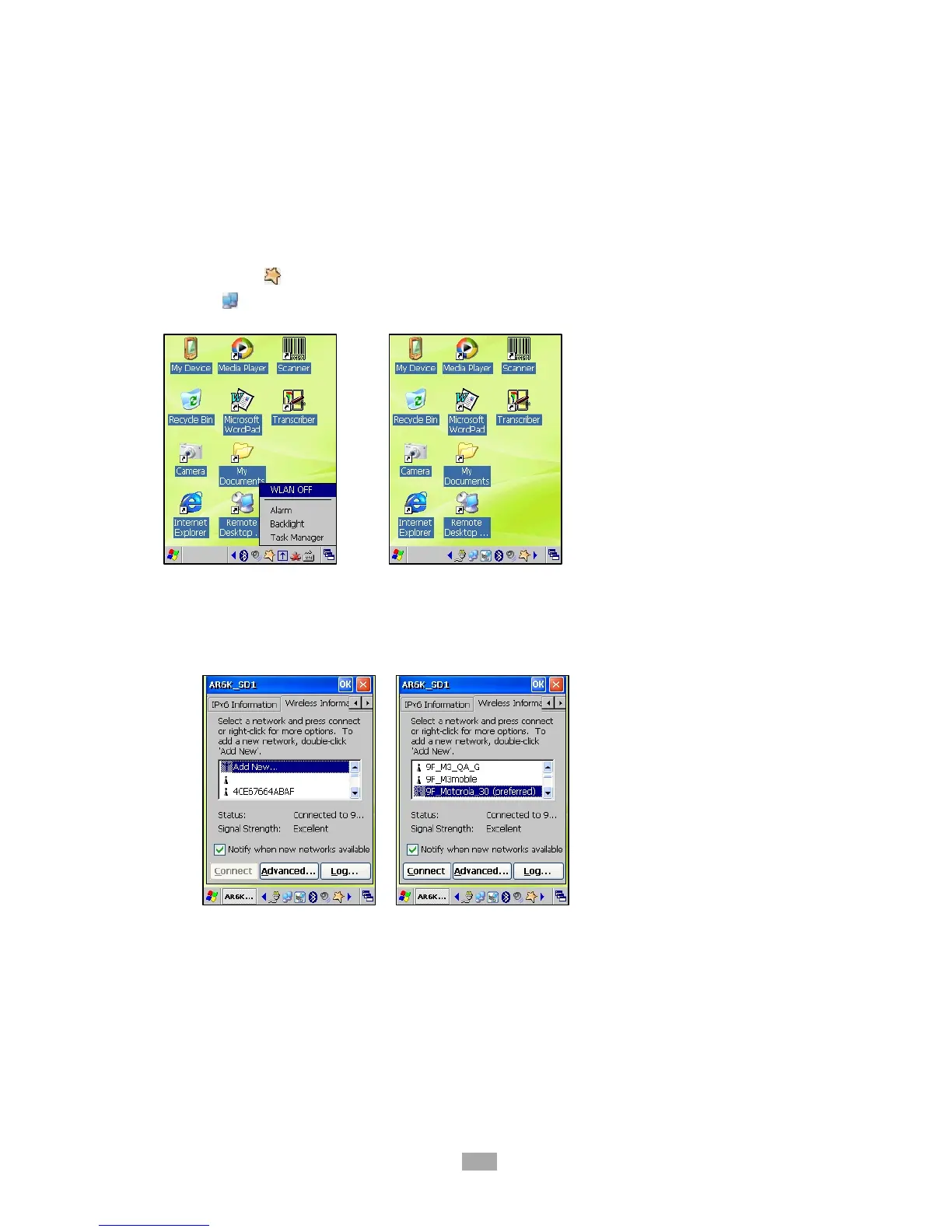
Click shortcut ( ) on taskbar, and choose ‘WLAN ON’, Network icon will be
produce ( ) and ‘AR6K_SD1’ window will pop-up.
To connect to an AP, follow steps below.
i. Click ‘Wireless Information’ tab and choose the network to be connected.
ii. Click on [Connect] button will change Status and Signal strength shown on
the window, and will connect to wireless LAN. (Note: Secured AP may request
PIN number or password to qualify user.)
iii. Once a profile is created, click ‘Commit’ to save the profile and move to the
main tab to change the active profile.



 To Next Page