SP260 2x6 Speaker Processor
12
SP260 2x6 Speaker Processor
SP260 2x6 Speaker Processor Features: Front Panel
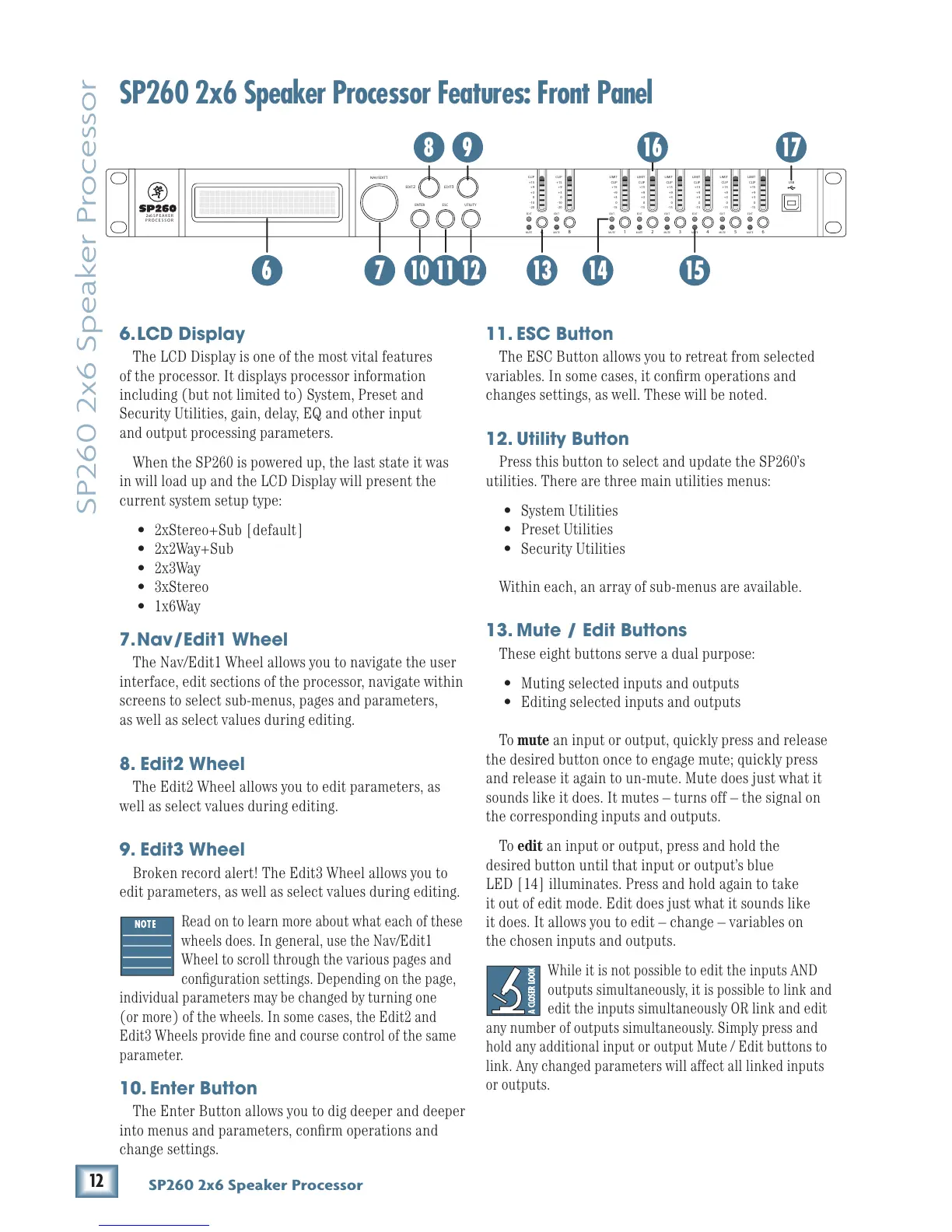
6. LCD Display
4HE,#$$ISPLAYISONEOFTHEMOSTVITALFEATURES
of the processor. It displays processor information
including (but not limited to) System, Preset and
3ECURITY5TILITIESGAINDELAY%1ANDOTHERINPUT
and output processing parameters.
When the SP260 is powered up, the last state it was
INWILLLOADUPANDTHE,#$$ISPLAYWILLPRESENTTHE
CURRENTSYSTEMSETUPTYPE
s X3TEREO3UB;DEFAULT=
s X7AY3UB
s X7AY
s X3TEREO
s X7AY
7. Nav/Edit1 Wheel
The Nav/Edit1 Wheel allows you to navigate the user
interface, edit sections of the processor, navigate within
screens to select sub-menus, pages and parameters,
as well as select values during editing.
8. Edit2 Wheel
The Edit2 Wheel allows you to edit parameters, as
well as select values during editing.
9. Edit3 Wheel
"ROKENRECORDALERT4HE%DIT7HEELALLOWSYOUTO
edit parameters, as well as select values during editing.
Read on to learn more about what each of these
wheels does. In general, use the Nav/Edit1
Wheel to scroll through the various pages and
configuration settings. Depending on the page,
individual parameters may be changed by turning one
(or more) of the wheels. In some cases, the Edit2 and
Edit3 Wheels provide fine and course control of the same
parameter.
10. Enter Button
The Enter Button allows you to dig deeper and deeper
into menus and parameters, confirm operations and
change settings.
NAV/EDIT1
ENTER ESC
CLIP
+15
+9
+3
0
-10
-20
LIMIT
CLIP
+15
+9
+3
0
-15
USB
EDIT
MUTE
UTILITY
A
CLIP
+15
+9
+3
0
-10
-20
EDIT
MUTE
B 1
EDIT
MUTE
LIMIT
CLIP
+15
+9
+3
0
-15
2
EDIT
MUTE
LIMIT
CLIP
+15
+9
+3
0
-15
3
EDIT
MUTE
LIMIT
CLIP
+15
+9
+3
0
-15
4
EDIT
MUTE
LIMIT
CLIP
+15
+9
+3
0
-15
5
EDIT
MUTE
LIMIT
CLIP
+15
+9
+3
0
-15
6
EDIT
MUTE
2x6 SPEAKER
PROCESSOR
EDIT2 EDIT3
6
17
7 10 11 12 151413
16
11. ESC Button
4HE%3#"UTTONALLOWSYOUTORETREATFROMSELECTED
variables. In some cases, it confirm operations and
changes settings, as well. These will be noted.
12. Utility Button
Press this button to select and update the SP260’s
UTILITIES4HEREARETHREEMAINUTILITIESMENUS
s 3YSTEM5TILITIES
s 0RESET5TILITIES
s 3ECURITY5TILITIES
Within each, an array of sub-menus are available.
13. Mute / Edit Buttons
4HESEEIGHTBUTTONSSERVEADUALPURPOSE
s Muting selected inputs and outputs
s Editing selected inputs and outputs
To mute an input or output, quickly press and release
the desired button once to engage mute; quickly press
and release it again to un-mute. Mute does just what it
SOUNDSLIKEITDOES)TMUTESnTURNSOFFnTHESIGNALON
the corresponding inputs and outputs.
To edit an input or output, press and hold the
desired button until that input or output’s blue
LED [14] illuminates. Press and hold again to take
it out of edit mode. Edit does just what it sounds like
ITDOES)TALLOWSYOUTOEDITnCHANGEnVARIABLESON
the chosen inputs and outputs.
While it is not possible to edit the inputs AND
outputs simultaneously, it is possible to link and
edit the inputs simultaneously OR link and edit
any number of outputs simultaneously. Simply press and
hold any additional input or output Mute / Edit buttons to
link. Any changed parameters will affect all linked inputs
or outputs.
8 9



 To Next Page