EasyManua.ls Logo

MacroAir Technologies AirVolution-D 780 - User Manual

Default Icon
16 pages
Print Icon
To Next Page IconTo Next Page
Loading...
Operation Manual
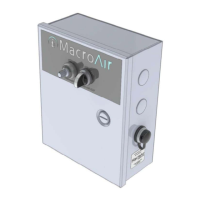
MacroAir Local
Override Remote

Other manuals for MacroAir Technologies AirVolution-D 780

Questions and Answers

  • E
    ericawhitakerSep 6, 2025
    How to resolve Phase Current Following Error in MacroAir Technologies Fan?
    • P
      Patricia RobertsonSep 6, 2025
      To resolve a Phase Current Following Error in your MacroAir Technologies Fan, follow these steps: 1. Ensure that the blade length is properly set. 2. Perform a drive calibration. 3. Confirm that the incoming power is within the fan’s specifications. 4. Confirm motor values and perform power calibration if possible/necessary. 5. If the fan shuts off above 95%, set fine tuning to 5. If it shuts off above 90%, use a fine tuning of 10.
  • M
    Matthew CamposAug 22, 2025
    What to do if MacroAir Technologies AirVolution-D 780 shows a Supply Voltage High Fault?
    • G
      Gregory JohnsonAug 22, 2025
      If your MacroAir Technologies Fan indicates a Supply Voltage High Fault, take the following steps: First, turn the incoming power off for two minutes, then turn it back on. Next, confirm that the power supply is within the fan's specified limits. Check for any power spikes using a power quality recorder. Finally, ensure that the motor wiring is correct, with A being white, B being black, and C being red.
  • K
    Kelsey WernerSep 3, 2025
    What to do if MacroAir Technologies Fan has Phase Current A High Fault?
    • J
      jamie25Sep 3, 2025
      If your MacroAir Technologies Fan is experiencing a Phase Current A High Fault, here are the steps to take: 1. Turn the incoming power off for two minutes, then turn it back on. 2. Confirm that the power supply is within the fan’s specifications. 3. Perform a drive calibration. 4. Confirm motor values, and perform a motor calibration if possible or necessary.
  • W
    wangsheilaSep 2, 2025
    How to troubleshoot PCB Temperature High Warning in MacroAir Technologies Fan?
    • K
      Kevin DominguezSep 2, 2025
      To troubleshoot a PCB Temperature High Warning in your MacroAir Technologies Fan: 1. Ensure the PCB temperature is below 75C. 2. Check that the end caps are open and there are no blockages in the blades. 3. Confirm the quick link on the safety cable is not pulling the rubber boot closed. 4. Verify the ambient temperature is below 60C. 5. Start the fan earlier in the day before the ambient temperature rises.
  • K
    Kathleen ThomasSep 1, 2025
    What should I do if my MacroAir Technologies AirVolution-D 780 shows a PCB Temperature High Fault?
    • C
      Cassie Hamilton PhDSep 1, 2025
      If your MacroAir Technologies Fan is showing a PCB Temperature High Fault, try the following: 1. Ensure that the PCB temperature is below 80C. 2. Check that the end caps are open and there are no blockages in the blades. 3. Confirm that the quick link on the safety cable is not pulling the rubber boot closed. 4. Verify that the ambient temperature is below 60C. 5. Start the fan earlier in the day before the ambient temperature rises.
  • D
    dbaileyAug 30, 2025
    What causes Heatsink Temperature High Warning on MacroAir Technologies Fan?
    • S
      Steven HernandezAug 30, 2025
      A Heatsink Temperature High Warning on your MacroAir Technologies Fan means the controller is reducing the torque command because the heatsink has reached 75C. To resolve this: 1. Check that the heatsink temperature is below 75C. 2. Ensure that the end caps are open and there is no blockage in the blades. 3. Confirm that the quick link on the safety cable is not pulling the rubber boot closed. 4. Verify that the ambient temperature is below 60C. 5. Start the fan earlier in the day before the ambient temperature rises.
  • E
    Edward MillerAug 29, 2025
    How to resolve a Heatsink Temperature High Fault in MacroAir Technologies AirVolution-D 780 Fan?
    • J
      Jeffrey FordAug 29, 2025
      To resolve a Heatsink Temperature High Fault in your MacroAir Technologies Fan, follow these steps: 1. Check that the heatsink temperature is below 85C. 2. Ensure the end caps are open and there is no blockage in the blades. 3. Confirm that the quick link on the safety cable is not pulling the rubber boot closed. 4. Verify that the ambient temperature is below 60C. 5. Start the fan earlier in the day before the ambient temperature rises.
  • T
    Tommy LaneAug 27, 2025
    What to do if MacroAir Technologies AirVolution-D 780 displays a Motor Temperature High Warning?
    • C
      Cynthia SantosAug 27, 2025
      If your MacroAir Technologies Fan displays a Motor Temperature High Warning, it means the controller is reducing the torque command because the motor has reached 100C. To address this: 1. Confirm that the motor temperature is below 100C. 2. Check that the end caps are open and there is no blockage in the blades. 3. Make sure the quick link on the safety cable is not pulling the rubber boot closed. 4. Verify that the ambient temperature is below 60C. 5. Consider starting the fan earlier in the day before the ambient temperature rises.
  • J
    Joseph HardyAug 27, 2025
    What to do for Motor Temperature High Fault in MacroAir Technologies AirVolution-D 780 Fan?
    • A
      Anthony WileyAug 27, 2025
      If you are facing a Motor Temperature High Fault in your MacroAir Technologies Fan, here are some steps to take: 1. Make sure the motor temperature is below 110C. 2. Check that the end caps are open and there's no blockage in the blades. 3. Ensure the quick link on the safety cable isn't pulling the rubber boot closed. 4. Verify the ambient temperature is below 60C. 5. Start the fan earlier in the day before the ambient temperature rises.
  • M
    Michelle MurrayAug 25, 2025
    How to fix a Supply Voltage High Warning on MacroAir Technologies Fan?
    • Y
      ybennettAug 25, 2025
      To address a Supply Voltage High Warning on your MacroAir Technologies Fan: First, turn off the incoming power for two minutes, then turn it back on. Next, check that the power supply is within the fan’s specified limits. Use a power quality recorder to check for spikes. Finally, make sure the motor wiring is correct, ensuring A is white, B is black, and C is red. The controller monitors the bus voltage to ensure it remains below the threshold.

Summary

Introduction

Safety and Precautions

General safety, qualified technicians, environmental considerations, code compliance, and electrical hazards.

Installation and Service Warnings

Warnings on damage, death, injury, power disconnection, moving parts, and technician qualifications for installation.

Enclosure Diagrams

Visual representation of the remote and control panel enclosure dimensions and features.

Wiring the Fan

Remote Panel Overview

Diagram and identification of components on the override remote panel, including Speed Pot and PLC.

Control Panel Overview

Diagram of the single-phase, low-voltage control panel, showing VFD, disconnect switch, and connection ports.

3-Phase Control Panel Diagrams

Wiring diagrams for both low and high voltage three-phase control panels, detailing VFD and power supply.

Control Panel Wiring Notes

Important notes and specifications regarding control panel wiring, cable types, and installation practices.

Wiring Diagrams

Remote Panel Schematic

Detailed schematic of the remote panel, illustrating PLC connections and component wiring.

Single Phase Control Panel Schematic

Wiring schematic for the single-phase, low-voltage control panel, detailing VFD, power supply, and connections.

Three Phase (Low Voltage) Control Panel Schematic

Wiring schematic for the three-phase, low-voltage control panel, detailing VFD, power supply, and connections.

Three Phase (High Voltage) Control Panel Schematic

Wiring schematic for the three-phase, high-voltage control panel, detailing VFD, power supply, and connections.

Operation

Basic Operation and Troubleshooting

Guide to fan operation modes (OFF, AUTO), AirLynk, fan manual, and remote failure diagnosis.

Appendices

Product Warranty Information

Details on MacroAir product warranty, coverage periods, and terms for different fan types.

Technical Support Contact

Contact details for MacroAir technical support, including address, phone number, and website.

MacroAir Technologies AirVolution-D 780 Specifications

General IconGeneral
BrandMacroAir Technologies
ModelAirVolution-D 780
CategoryFan
LanguageEnglish

Related product manuals