Firmware Update
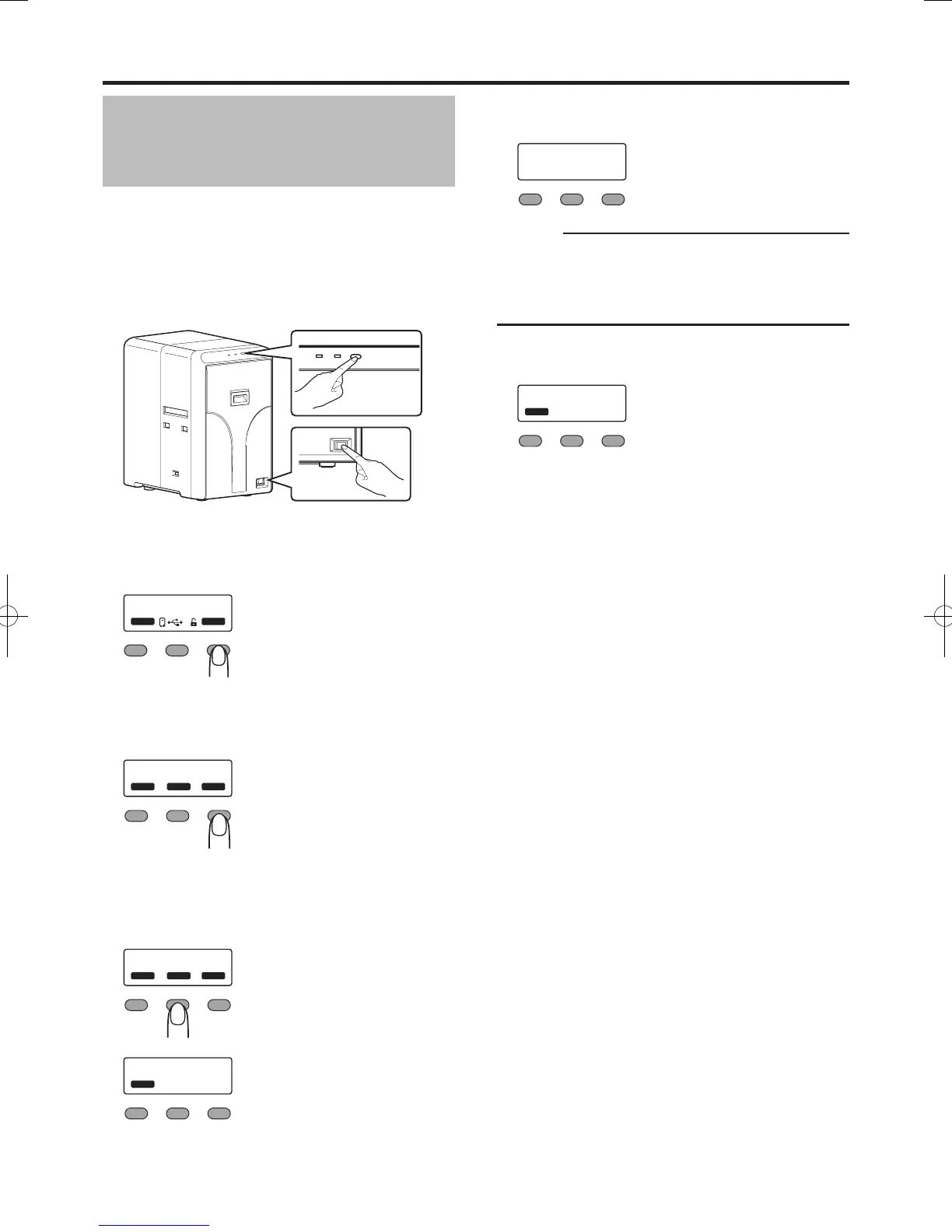
Setting the laminator and card printer to download mode
enables you to update the firmware for the laminator by
using a PC through card printer connection.
1
Press and hold down the operation button, and turn
on the power at the same time
Both the LED displays are lit.
2
Turn on the power of the card printer
3
Press
I
Enter the setting mode.
R e a d y
D o w n l o a d
Reset Menu
4
Press
J
to set to [Download]
Pressing the [Next] button each time displays the next
screen.
Exit NextEnter
>
C l e a n i n g
>
5
Press
G
A [Download Ready] message appears, indicating that
the card printer is ready to download data from the
computer.
Exit NextEnter
>
D o w n l o a d
>
Exit
>
D o w n l o a d
R e ad y
●
●
●
●
●
6
Data download from the computer starts
A [Downloading..] message appears.
D o w n l oa d in g . .
K e e p P o w e r O n
Cautions:
It takes time to download the data.
Do not turn off the power during data download from the
computer. Doing so may damage the laminator firmware
and cause malfunction.
A [Download Ready] message appears when data
download from the computer is complete.
Exit
>
D o w n l o a d
R e ad y
7
Press
H
when [Download Ready] is displayed
8
Turn off the power for the card printer when [Please
Power Off] is displayed
9
Turn off the power of the laminator
The firmware is updated after the power is turned on
again.
When download fails and the laminator
cannot start up
Update the firmware again.
●
●
●
●
●
■
●


 To Next Page