EasyManua.ls Logo

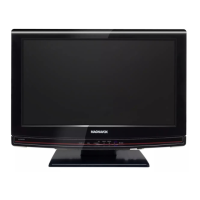
Magnavox 19MD357B - User Manual

Magnavox 19MD357B
56 pages
Print Icon
To Next Page IconTo Next Page
Loading...
P41T9015-813-1A
English
Español
User Manual
Manuel de lutilisateur
Guía del usuario
19MD357B LCD TV
built-in DVD player
with DivX
®
Quick Use Guide Inside!
Guide d’usage Rapide Incluse!
Guía de Uso Rápido Incluida!
For Customer Use / À l’usage du client /
Para Uso del Cliente
Model/Modle/ModeloNo. :
Serial/Srie/Serie No. :

Other manuals for Magnavox 19MD357B

Questions and Answers

  • C
    Cory HarrisAug 14, 2025
    How to fix a Magnavox TV DVD Combo with no power?
    • J
      Joseph WalterAug 14, 2025
      If your Magnavox TV DVD Combo has no power, ensure the AC power cord is properly plugged into the mains socket. If that doesn't work, unplug the TV, wait 60 seconds, then plug it back in and turn it on again.
  • A
    Anita FarmerAug 17, 2025
    Why is there no sound on my Magnavox TV DVD Combo?
    • A
      Anna CantrellAug 18, 2025
      If your Magnavox TV DVD Combo has no sound, first, increase the volume. If there's still no sound, check if the TV is muted by pressing the MUTE button on the remote control. Note that if no signal is detected, this is normal and not a malfunction.
  • J
    Jennifer KlineAug 21, 2025
    What to do if my Magnavox 19MD357B has no picture?
    • R
      Robin Taylor MDAug 21, 2025
      If your Magnavox TV DVD Combo has no picture, verify the antenna connections at the bottom of the TV are properly connected. Also, try another channel in case there is a broadcast station issue. Additionally, adjust the contrast and brightness settings, try another auto picture setting, check the Closed Captions control (some TEXT modes could block the screen), and check if you selected the correct AV source.
  • F
    Francisco HarrellAug 25, 2025
    Why is my Magnavox 19MD357B remote not working?
    • C
      charlesbarnesAug 25, 2025
      If your Magnavox TV DVD Combo is not responding to the remote control, first, check if the batteries are working and replace them if necessary. If that doesn't work, clean the remote control sensor lens on the TV. Note that the operating range between the TV and remote should be approximately twenty feet. You can still use the buttons on the top of your TV. Check if the remote control is in the correct mode.
  • K
    kathleen20Aug 27, 2025
    How to fix snowish picture and noise on Magnavox 19MD357B?
    • O
      Olivia BakerAug 27, 2025
      If your Magnavox TV DVD Combo shows a snowish picture and noise, check the antenna connection.
  • J
    Jeremiah RaymondAug 30, 2025
    What causes ghost images on Magnavox TV DVD Combo?
    • A
      Abigail LongAug 30, 2025
      If your Magnavox TV DVD Combo displays “ghost” or double images, it may be due to obstructions like high-rise buildings or hills affecting the antenna signal. Using a highly directional antenna may improve the picture.
  • A
    Ashley RhodesSep 2, 2025
    Why won't my Magnavox 19MD357B play media files correctly?
    • I
      iwilkinsonSep 3, 2025
      If your Magnavox TV DVD Combo won't play photos, music, or videos, or the quality is poor, check if the source complies with a supported code. When using the DVD function, it is recommended to choose Widescreen (ensure Source DVD is selected).
  • T
    Tiffany BaileySep 6, 2025
    Why PC modes do not work on Magnavox 19MD357B TV DVD Combo?
    • J
      John FrazierSep 6, 2025
      If your Magnavox TV DVD Combo PC modes do not work, check whether the connections are correct and whether the source is correctly selected. Press the SOURCE button to select the correct source and check whether you have configured the computer on a compatible display resolution.
  • W
    william25Sep 9, 2025
    What happens after an improper shutdown of Magnavox 19MD357B?
    • B
      Brian ThorntonSep 9, 2025
      If your Magnavox TV DVD Combo was improperly shut down (e.g., power drop, power cord pulled out), starting the TV again will take longer than usual.

Summary

Optimal Connection Types

HDMI Connection

High-Definition Multimedia Interface for uncompressed digital audio/video connection.

Component Video Input

Separates color signals for superior picture quality, typically uses YPbPr.

Important Safety Instructions

General Safety Guidelines

Comprehensive list of safety precautions for appliance operation, installation, and handling.

Precautions and Disposal

Additional Safety Precautions

Specific warnings on screen care, positioning, and handling the TV.

Positioning the LCD Television

Guidelines for placing the TV to ensure proper ventilation and stability.

Preparation and Initial Setup

Initial Setup and Connections

Instructions on making initial power and connection setup before use.

Cable TV Connections

Direct Cable Connection

How to connect cable directly to the TV's antenna jack.

Remote Control Operation (TV)

Basic Button Functions

Explanation of POWER, INFO, VOL, MUTE, SOURCE, SLEEP buttons.

Navigation and Selection Buttons

Details on MENU, OK, and cursor buttons for menu navigation.

Remote Control Operation (DVD)

DVD Playback Controls

Buttons for STOP, FF, RWD, PLAY/PAUSE, EJECT during DVD playback.

DVD Menu Navigation

Buttons for DISC MENU, AUDIO, SUBTITLE, ANGLE, REPEAT.

Navigating TV Menus

Menu Introduction and Navigation

How menus display information and use of color buttons.

Understanding Settings Menu Structure

How to navigate the Settings menu using cursor and OK buttons.

TV Installation and Setup

Selecting Menu Language

Steps to choose the on-screen display language.

Storing TV Channels (Autoprogram)

Procedure for automatic channel scanning and storage.

Channel Tuning and Software

Weak Channel Installation

Feature to improve reception of weaker signals.

TV Features and Captions

Accessing Feature Settings

How to enter the TV Features menu.

Picture Settings

Accessing the Picture Menu

How to navigate to the Picture settings menu.

Adjusting Smart Picture Modes

Using predefined picture settings like Personal, Rich, Natural, Soft, Power saver.

Picture and Sound Adjustments

Adjusting Picture Details

Fine-tuning Contrast, Brightness, Color, Sharpness, Tint, Noise Reduction.

Parental Control Features

Accessing Parental Controls

How to enter the Parental Control menu.

Movie Rating Restrictions

Setting Movie Rating Locks

Setting locks for movies based on MPAA ratings.

Regional Lock and PIN Management

DVD Menu and Operations

DVD Disc Playback

Inserting and Playing Discs

Steps for inserting and starting DVD playback.

DVD Playback Features

Advanced DVD Playback Features

DVD Picture Settings

Accessing the DVD Picture Menu

How to navigate to the DVD Picture settings menu.

DVD Picture and Sound Adjustments

Sound Menu and Smart Sound

Accessing DVD Sound menu and Smart Sound modes.

DVD Parental Control

Accessing DVD Parental Controls

How to enter the DVD Parental Control menu.

DVD PIN Management

DVD Installation and Setup

PC Input Setup

PC Picture Settings

PC Sound Settings

Recording and Device Selection

Recording TV Programs

How to use an external recorder to record TV programs.

Troubleshooting Common Issues

Picture Problems

Addressing issues like ghosting, no picture, and picture position.

Power and Responsiveness Issues

Resolving no power, remote control, or device control problems.

Sound and Connectivity Problems

Troubleshooting no sound, poor sound, or connectivity issues.

Troubleshooting DVD Playback Issues

DVD Picture and Sound Problems

Resolving distorted pictures or no sound during DVD playback.

Disc Compatibility and Playback Errors

Addressing issues with disc compatibility or playback failures.

Remote Control and Menu Issues

Troubleshooting unresponsive remote controls or menu selection problems.

Care and Cleaning of the TV

Magnavox Limited Warranty

Warranty Coverage Details

Information on who is covered and what the warranty entails.

What is Covered and Not Covered

Exclusions and limitations of the warranty.

Obtaining Warranty Service

Contact information and procedures for warranty claims.

Magnavox 19MD357B Specifications

General IconGeneral
Screen Size19 inches
Resolution1366 x 768
DVD PlayerYes
Aspect Ratio16:9
Audio OutputStereo
Display TechnologyLCD
HDMI Input1
USB Input1
VGA InputYes
InputsHDMI, Composite, Component
Weight8.4 lbs
Display TypeLCD
Built-in TunerATSC

Related product manuals