EasyManua.ls Logo

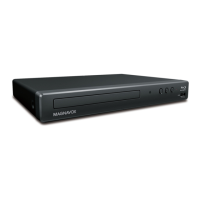
Magnavox MBP5220F - User Manual

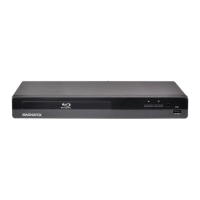
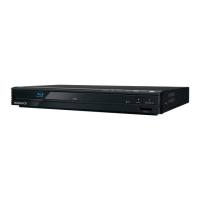
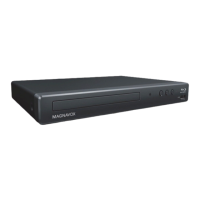
Magnavox MBP5220F
68 pages
Print Icon
To Next Page IconTo Next Page
Loading...
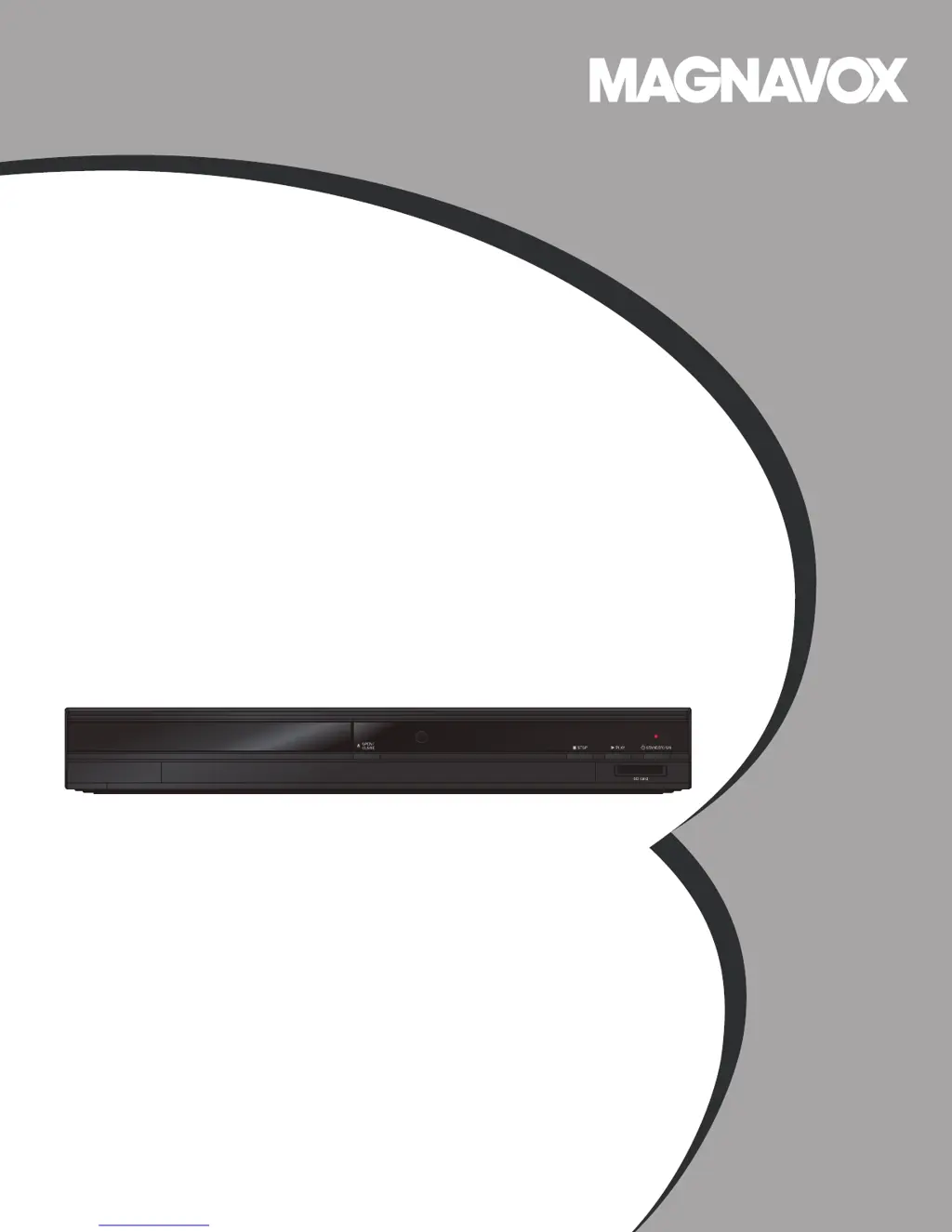
Owner’s Manual
MBP5220F
Blu-ray Disc™ / DVD Player with Built-in WiFi
© 2011 Funai Electric Co., Ltd.

Table of Contents

Other manuals for Magnavox MBP5220F

Questions and Answers

  • C
    Cassandra LambertSep 10, 2025
    What to do if software update screen appears on Magnavox Blu-ray Player?
    • E
      Eric MooreSep 10, 2025
      When the software update screen appears after turning on your Magnavox Blu-ray Player, please complete the software update. If the software update fails repeatedly, try using a blank SD Memory Card with the update software installed to its root directory.
  • M
    Meghan HallAug 22, 2025
    What to do if Magnavox MBP5220F does not respond to remote control?
    • S
      Shannon JonesAug 23, 2025
      If your Magnavox Blu-ray Player unit isn't responding to the remote control, aim the remote control directly at the infrared sensor window on the front panel. Try reducing the distance to the infrared sensor window. Check the +/– polarity of the batteries and replace both batteries in the remote control if required.
  • P
    paul35Aug 25, 2025
    How to troubleshoot no power on Magnavox Blu-ray Player?
    • R
      Ricardo MckinneyAug 25, 2025
      If your Magnavox Blu-ray Player has no power, first ensure the power cord is properly connected. If it is, try plugging the player into another power outlet. As a last resort, unplug the power cord, wait 5-10 seconds, and then plug it back in to try powering it on again.
  • C
    Craig PowellAug 26, 2025
    What to do if there is no sound or picture on Magnavox MBP5220F Blu-ray Player?
    • T
      thomas81Aug 27, 2025
      If you're getting no sound or picture from your Magnavox Blu-ray Player, start by making sure both the TV and the Blu-ray player are turned on. Next, confirm that the connections to the TV are properly connected. Also, verify whether the connected TV or device supports HDCP, as the unit won't output a video signal without HDCP support. If the player's output resolution is set too high for your TV, press and hold [PLAY] on the front panel for 5 seconds to revert to the default output.
  • C
    celliottAug 27, 2025
    What to do if no audio or video signal via HDMI on Magnavox MBP5220F Blu-ray Player?
    • B
      Bailey Holder PhDAug 28, 2025
      If you're not getting any audio or video signal on your display device via HDMI cable with your Magnavox Blu-ray Player, first check that the unit is connected to a certified HDMI device, as non-certified devices may not output the signal. Make sure the display device is set to the correct input or video channel. Try performing an HDMI hotplug by disconnecting the HDMI cable from the display device, turning on both devices, and then reconnecting the HDMI cable. Check with the TV manufacturer for any available software updates for your TV and verify that your HDMI cable is a certified version.
  • H
    Hailey ClarkAug 29, 2025
    How to fix no sound or distorted sound on Magnavox Blu-ray Player?
    • L
      Lisa WilliamsAug 29, 2025
      If you are experiencing no sound or distorted sound with your Magnavox Blu-ray Player, try the following: 1. Adjust the volume. 2. Check if the speakers are connected correctly. 3. Check the HDMI connections. 4. Ensure the HDMI cable is not plugged into the HDMI-DVI TV connector. 5. Check the settings in the “Audio Out” menu.
  • H
    Hannah CraigSep 18, 2025
    What to do if Magnavox MBP5220F Blu-ray Player stuck in loading mode?
    • J
      Jennifer MorrisonSep 18, 2025
      If your Magnavox Blu-ray Player is stuck in “Loading…” mode and the disc tray won't open to eject the disc, unplug the unit from the AC outlet for 20 seconds. Then, plug the unit back in and press the OPEN/CLOSE button on the unit to eject the disc.
  • A
    andrew06Sep 12, 2025
    How to reset Magnavox MBP5220F Blu-ray Player when buttons don't work?
    • W
      watkinstylerSep 12, 2025
      If the buttons on your Magnavox Blu-ray Player do not work or the unit stops responding, try a soft reset by pressing and holding the STANDBY/ON button on the front panel for 10 seconds to shut down the unit, or perform a hard reset by unplugging the AC cord from the AC outlet for 5-10 seconds.
  • A
    acampbellSep 8, 2025
    How to fix no return to start-up screen on Magnavox MBP5220F?
    • R
      Renee BlairSep 8, 2025
      If your Magnavox Blu-ray Player does not return to the start-up screen when the disc is removed, try soft resetting the unit by turning it off for 30 seconds, then on again. If that doesn't work, completely reset the unit by pressing and holding the STANDBY/ON button on the front panel for 10 seconds to shut down the unit, or unplug the AC cord from the AC outlet for 5-10 seconds.
  • S
    Steven DeanSep 5, 2025
    Why is the picture distorted on Magnavox MBP5220F Blu-ray Player?
    • M
      Mark NelsonSep 5, 2025
      If you're experiencing a distorted picture with your Magnavox Blu-ray Player, connect the unit directly to the TV. If the audio/video cables are connected to a VCR, the pictures may be distorted due to the VCR copyright protection system.

Summary

SAFETY INSTRUCTIONS

Safety Precautions and Handling Guidelines

Essential guidelines for safe operation, installation, and handling of the device, including electrical hazards and environmental considerations.

SUPPLIED ACCESSORIES

FEATURES

Key Product Features

Overview of the player's capabilities, including media support, upscaling, connectivity, and interactive functions.

Product Information and Symbols

Details on accessing unit software information and explanations of symbols used in the manual.

FUNCTIONAL OVERVIEW

Front Panel Overview

Identification and description of the player's physical controls and indicators on the front panel.

Rear Panel Overview

Identification and description of the player's connection ports on the rear panel.

Remote Control Functions

Detailed explanation of each button and its function on the remote control for playback and menu navigation.

On-Screen Display Navigation

Guide to navigating the player's home menu, setup menu, and play menu interfaces.

CONNECTIONS

HDMI Video; Audio Connection

Instructions for connecting the player to a TV using an HDMI cable for high-definition output.

Standard Video + Standard Audio Connection

Instructions for connecting the player using standard composite video and audio cables.

Connection to an Audio System

Connection to the Network

BEFORE YOU START

Finding the TV Video Source Input

How to locate the correct video source input on your television set after connecting the player.

Initial Setup Wizard

Step-by-step guide to complete the initial configuration of the player, including language and network settings.

INFORMATION ON PLAYBACK

Playable Media, Formats, and Region Codes

Details on supported discs, file formats, media card compatibility, recommended specs, and region code restrictions.

File List Navigation

Disc Insertion Procedure

BASIC PLAYBACK

Playing Back Discs

Instructions for playing back Blu-ray, DVD, and audio discs, including using disc menus and playback controls.

Playing Back SD Memory Cards

How to play AVCHD, MP3, WMA, and JPEG files from an SD memory card.

Resume-On-Stop Mode and File Notes

Explanation of resume-on-stop functionality and notes for specific file types like JPEG.

DLNA Home Media Server Playback

Steps to stream media content from DLNA certified home media servers over the network.

Using Title, Disc, or Pop Menu

How to navigate title, disc, or pop-up menus for disc content and general playback notes.

SPECIAL PLAYBACK

Fast Forward; Fast Reverse and Slow Forward

Using controls for fast playback speeds, slow motion, and step-by-step advancement.

Step by Step Playback and Repeat Modes

How to perform step-by-step playback and utilize various repeat playback functions.

Slide Show Feature

How to set up and view JPEG files as a slideshow.

PiP (BONUSVIEW) Setting

How to use the Picture-in-Picture feature to display secondary video content.

Enjoying BD-Live Discs Using Internet

Instructions for connecting to the internet to access interactive features on BD-Live discs.

Title; Chapter Search

How to search for and navigate to specific titles or chapters on a disc.

Track Search

How to search for and navigate to specific tracks or files on audio CDs or other media.

Time Search

How to jump to a specific time point within a video playback.

Switching Subtitles

How to select and switch between different subtitle languages available on a disc.

Switching Audio Soundtrack

How to select and switch between different audio soundtracks or languages available for a disc.

Switching Camera Angles

How to change the camera angle for scenes shot from multiple perspectives.

Black Level Adjustment

How to adjust the black level to enhance picture contrast and brightness.

Noise Reduction

How to activate noise reduction to improve the clarity of the playback picture.

Virtual Surround Sound

How to activate virtual surround effects for an enhanced audio experience.

NETWORK FEATURES

Before Using Network Features

Steps required before utilizing network capabilities, including internet connection and setup.

Information on Network Services

Details and links for third-party internet services such as Netflix and VUDU.

LIST OF SETTINGS

SETUPS

Network Connection Setup

Detailed guide for configuring wired and wireless network connections, including auto and manual modes.

fun-Link (HDMI CEC) Functionality

Explanation of how HDMI CEC enables integrated system control between connected devices.

HDMI Video Resolution Settings

How to select and set the video output resolution via the HDMI connection.

Parental Control Settings

Setting up parental locks for discs, including rating levels and password management.

Software Update Procedures

Instructions for updating the player's software using discs, SD cards, or network connections.

Network Software Update Process

Step-by-step guide for downloading and installing software updates via the internet.

Device Initialization and Reset Options

How to reset player settings, format SD cards, and clear network configurations.

TROUBLESHOOTING

Common Issues and Solutions

A troubleshooting guide to help diagnose and resolve common problems encountered with the player.

LANGUAGE CODE LIST

SPECIFICATIONS

Technical Details and Connectivity

Specifications for signal system, power, dimensions, weight, operating conditions, and connection interfaces.

NETWORK SERVICE DISCLAIMER

MAINTENANCE

Unit Cleaning and Disc Care

Guidelines for cleaning the player's cabinet and discs, and handling optical media.

Remote Control Signal Check

Procedure to verify if the remote control is transmitting an infrared signal correctly.

TRADEMARK INFORMATION

GLOSSARY

ESPAÑOL

Remote Control Functions (Spanish)

Explanation of remote control buttons and their operations in Spanish.

TV Input Source and Initial Setup (Spanish)

Spanish instructions for finding the TV video input and completing the initial player configuration.

LIMITED WARRANTY

Magnavox MBP5220F Specifications

Power IconPower
power supply120V
frequency60Hz
Weight and Dimensions IconWeight and Dimensions
packaging dimensions446 x 96 x 328 mm
set dimensions360 x 50 x 215 mm
set weight1.67 kg
weight including packaging2.5 kg

Related product manuals