
EasyManua.ls Logo

MAJORITY SCH-DVD-BLK - User Manual

MAJORITY SCH-DVD-BLK
27 pages
Print Icon
To Next Page IconTo Next Page
Loading...
SCH-DVD-BLK
SCHOLARS
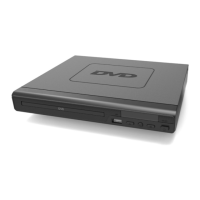
DVD PLAYER
Instructions Guide

Questions and Answers

  • A
    aaronlandryAug 3, 2025
    Why does my MAJORITY DVD Player have no power?
    • L
      laura67Aug 3, 2025
      If your MAJORITY DVD Player has no power or function, verify that the power is switched on at the wall and that the power adapter is properly connected to the power outlet.
  • H
    Henry WrightAug 9, 2025
    What to do if the MAJORITY DVD Player remote control does not work?
    • C
      Cynthia GonzalezAug 9, 2025
      If the MAJORITY DVD Player remote control isn't working, make sure you're aiming it at the front panel of the player and that you are close enough to the DVD player. Also, check the battery level of the remote's batteries.
  • A
    Amanda WilliamsAug 15, 2025
    Why is there no video on my MAJORITY SCH-DVD-BLK?
    • N
      nicholas96Aug 15, 2025
      If your MAJORITY DVD Player shows no video, ensure the video cables are correctly connected. You may also need to reset the DVD player's settings and verify that the input selection on your TV is correct.
  • A
    aaron59Aug 20, 2025
    Why is there no audio on my MAJORITY DVD Player?
    • S
      smithrobertAug 20, 2025
      If your MAJORITY DVD Player has no audio, check that the audio cables are properly connected and that any connected stereo system is powered on. Resetting the DVD player's settings might also help.
  • J
    Jamie HamiltonAug 27, 2025
    What to do if my MAJORITY SCH-DVD-BLK is unable to play?
    • J
      Jason MooreAug 27, 2025
      If your MAJORITY DVD Player is unable to play a disc, first, ensure a DVD disc is correctly placed in the disc tray with the correct side up. Clean the DVD disc to remove any dust or dirt. Also, ensure the DVD player setup is closed and the file is compatible with the unit.

Summary

DVD Player Panel Layout

Front Panel Components

Details the components located on the front of the DVD player unit.

Rear Panel Components

Details the components located on the rear of the DVD player unit.

Remote Control Button Identification

Remote Control Button Layout

Illustrates and labels the various buttons found on the remote control.

Remote Control Function Details Part 1

Remote Control Button Functions (1-11)

Explains the functions of remote control buttons numbered 1 through 11.

Remote Control Function Details Part 2

Remote Control Button Descriptions (12-28)

Explains the functions of remote control buttons numbered 12 through 28.

Remote Control Operation Guide

Battery Installation and Usage

Details battery requirements and proper usage for the remote control.

Whats In The Box?

Box Contents List

Lists all items included in the package with the DVD player.

Product Support Information

Contacting Support

Provides contact information and website for further assistance.

Getting Started

Setting Up the DVD Player

Instructions on connecting the power and cables for initial setup.

Cable Connection Options

Details different ways to connect the player to a TV using various cables.

DVD Operation

Supported Media Formats

Lists the types of discs and digital formats the player can read.

Basic Playback Steps

Guides through turning on the player and initiating disc playback.

USB Media Playback

USB Port Functionality

Explains the use of the USB port for playing MP3 or movie files.

Navigating USB Files

Describes how to browse and select files from a connected USB drive.

Playing JPEG and Picture CDs

Supported JPEG Formats

Lists compatible JPEG and CD Photo formats for playback.

Picture Viewing Controls

Details controls for viewing pictures, including zoom and rotation.

Playing MP3 and Audio CDs

Supported Audio Formats

Lists compatible MP3, WMA, CD Audio, and CD-R/RW formats.

MP3 Playback Navigation

Guides through selecting tracks and folders for MP3 disc playback.

System Setup Menu Navigation

Accessing the Setup Menu

Explains how to enter the system setup menu using the remote control.

Setup Menu Options Overview

Lists the five main setup categories: General, Audio, Dolby, Video, Preference.

General Setup Options

TV Display Settings

Options for aspect ratio: 4:3/PS, 4:3/LB, and 16:9.

Angle Mark Function

Feature for viewing DVDs from different camera angles.

On-Screen Display Language

Setting the language for the on-screen display (OSD).

General Setup Configurations

Closed Captions Setting

Setting for displaying available closed captions.

Screen Saver Activation

Option to activate a screen saver when the display is idle.

HDCD Audio Output Selection

Selecting the digital filter for HDCD audio output.

Last Memory Feature

Memorizing the last playback position upon power off.

Audio Setup Menu

Stereo Output Configuration

Selecting between LT/RT and Stereo audio output modes.

Dolby Digital Setup Menu

Dual Mono Audio Modes

Options for stereo, L-Mono, R-Mono, and Mix-Mono audio outputs.

Dynamic Sound Mode

Setting for reduced bass/treble to minimize disturbance during night viewing.

Video Setup Menu

Component Video Output Settings

Adjusting video output for YUV component terminals.

HDMI Resolution Settings

Choosing resolution levels for HDMI output (e.g., 720p, 1080p).

Video Quality Adjustments

Setting sharpness, brightness, and contrast preferences.

Preference Setup Menu

TV Type and Region Settings

Selecting TV type (PAL/NTSC) for different regions.

Audio Preference Settings

Initial audio settings based on user preference and disc content.

Subtitle Preference Settings

Initial subtitle settings based on user preference and disc content.

Disc Menu Preference Settings

Initial disc menu settings based on user preference and disc content.

Parental Control Configuration

Setting parental level restrictions for disc playback.

Preference Setup Configurations

Password Setup and Change

Changing the initial factory default password.

Restore Default Settings

Reverting all settings back to their original factory defaults.

Troubleshooting Common Issues

Power, Video, and Audio Problems

Solutions for issues related to no power, no video, or no audio output.

Playback and Video Quality Issues

Solutions for distorted video or problems preventing disc playback.

Remote Control Not Working

Troubleshooting steps for a malfunctioning remote control.

Product Specifications

Power and Consumption Details

Details about power supply voltage, frequency, and consumption.

Compatible Connections and Formats

Lists supported connections and compatible media formats.

Physical Dimensions and Weight

Information on the product's physical size and weight.

Product Warranty Information

Standard Warranty Period

Details the standard 12-month warranty period for the product.

Warranty Registration Process

Instructions on how to register the product to validate the warranty.

Safety Information and Precautions

General Operation Instructions

Key instructions for safe operation and handling of the DVD player.

Additional Operational Warnings

Specific warnings regarding environmental exposure and usage.

Electrical Safety Precautions

Information regarding electric shock risk and unit access.

Recycling Electrical Products

Guidance on proper disposal of electronic waste and batteries.

MAJORITY SCH-DVD-BLK Specifications

General IconGeneral
TypeDVD Player
ColorBlack
Supported FormatsDVD, CD, MP3, JPEG
Remote ControlYes
Region CodeRegion Free
Supported Disc FormatsDVD, CD
Output Resolution1080p
Power SupplyAC 100-240V, 50/60Hz
Playable Media FormatCD, DVD
OutputComposite Video, Stereo Audio
ConnectivityUSB