• Select 4:3 LETTER BOX for a black bars appears on top
and bottom of the screen.
• Select 4:3 PAN & SCAN for a full height picture with both
sides trimmed.
STILL MODE
(Default : AUTO)
• Press the Cursor buttons ( K or
L ) for an item selection (AUTO,
FIELD, or FRAME), then press
the ENTER button.
• This adjusts the resolution of
pictures while in the still
(PAUSE) mode.
•AUTO is normally selected (default).
• If you select FIELD, pictures in the still mode will be
stabilised although they will be coarse due to little
amount of data.
• If you select FRAME, pictures in the still mode will be
highly defined although they will be blurred due to out-
put of two fields at the same time.
ANGLE ICON
(Default : ON)
• Press the ENTER button repeat-
edly to turn Angle mark ON or
OFF.
AUTO POWER OFF
(Default : ON)
• Press the ENTER button repeat-
edly to turn Auto Power Off ON or
OFF.
• It will turn the DVD player to off au-
tomatically after 35 minutes of no
use.
PROGRESSIVE
(D
efault
: OFF)
• Press K or L to set PROGRES-
SIVE to ON or OFF, then press
the ENTER button.
• The setting will be effective when
you exit the setup screen by
pressing SETUP.
• When PROGRESSIVE is ON, “P.SCAN” appears on
the DVD player’s display.
• The default setting is OFF.
• Refer to page 12 for more details.
PANEL DISPLAY
(Default : BRIGHT)
• Press the Cursor buttons ( K or
L ) for an item select BRIGHT,
DIMMER and AUTO, then press
the ENTER button.
• When AUTO is selected, the dis-
play dims only during playback.
Press the SETUP button to exit.
NOTE:
• Be sure to press the SETUP button, or the setting will
not work.
5
Display Setting
You can change certain aspects of the DVD display screens,
on-screen messages and the display panel on the front of the
DVD player.
Press the SETUP button in
STOP mode.
Press the Cursor buttons ( s
or B ) to select CUSTOM,
then press the ENTER button.
• CUSTOM mode will appear.
Press the Cursor buttons ( s
or B ) to select DISPLAY, then press the ENTER
button to confirm.
Press the Cursor buttons ( K or L ) to select the be-
low items, then press the ENTER button.
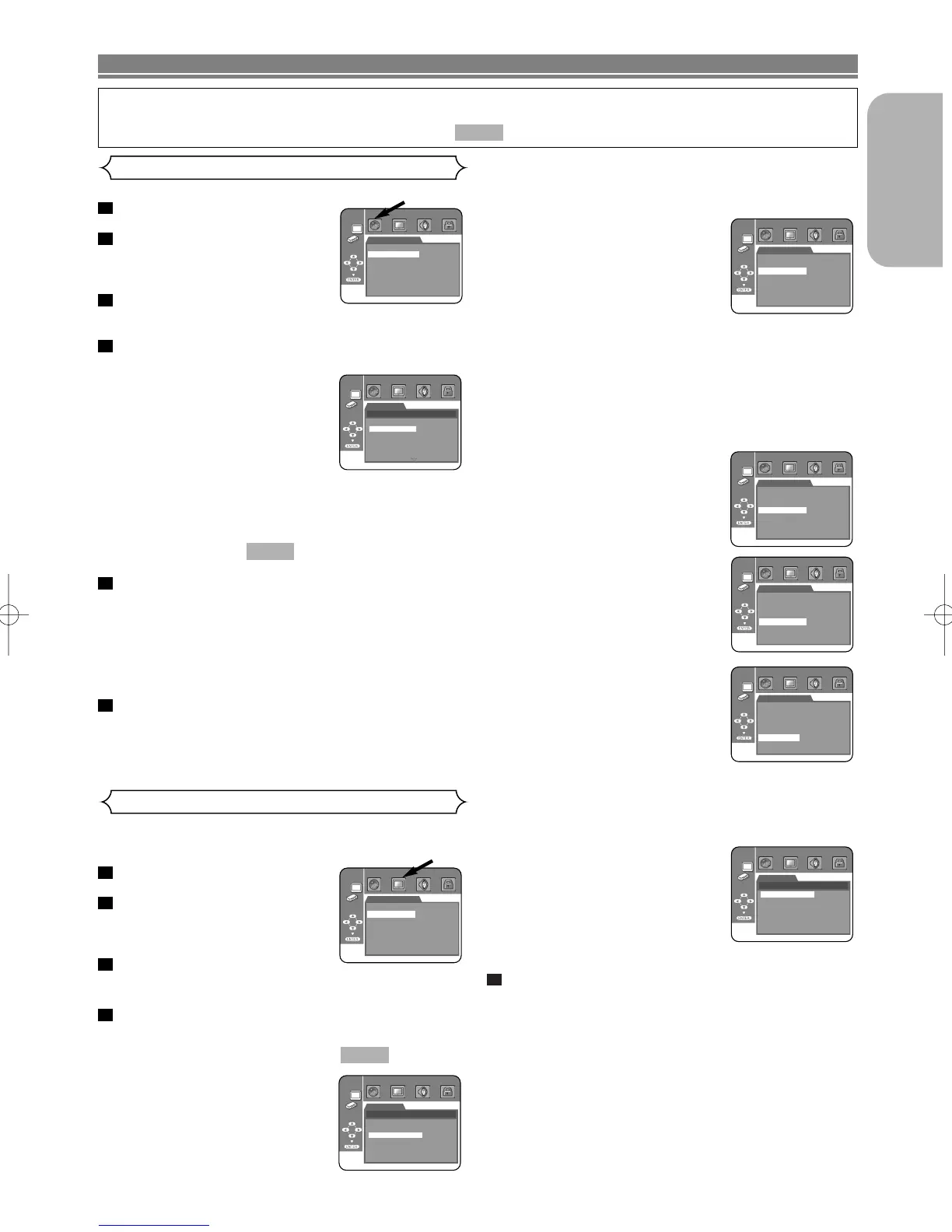
TV ASPECT
(Default : 16:9 WIDE)
• Press the Cursor buttons ( K or
L ) for an item selection, then
press the ENTER button.
• Select 16:9 WIDE if a wide-
screen TV is connected to the
DVD player.
QUICK
4
3
2
1
Language options are not available with some discs.
Press the SETUP button in
STOP mode.
Press the Cursor buttons ( s
or B ) to select CUSTOM, then
press the ENTER button.
• CUSTOM mode will appear.
Press the Cursor buttons ( s
or B ) to select LANGUAGE, then press the
ENTER button to confirm.
Press the Cursor buttons ( K or L ) to select the
below items, then press the ENTER button.
AUDIO
(Default : ENGLISH)
• Sets the audio language.
SUBTITLE
(Default : ENGLISH)
• Sets the subtitle language.
DISC MENU
(Default : ENGLISH)
• Sets the language for DVD Menu.
PLAYER MENU
(Default : ENGLISH)
• Sets the language for the On-Screen display.
Press the Cursor buttons ( K or L ) to select a set-
ting, then press the ENTER button.
• If OTHER is selected in the AUDIO, SUBTITLE or DISC
MENU screen, press 4-digit number to enter the code
for the desired language. (Refer to the language code
list on page 25).
• Only the languages supported by the disc can be
selected.
Press the SETUP button to exit.
NOTE:
• Language Setting for AUDIO and SUBTITLE is not
available with some discs. Then use the AUDIO and
SUBTITLE buttons. Details are on page 21.
6
5
QUICK
4
3
2
1
Language Setting
–
23
–
EN
DVD SETUP


 To Next Page