8
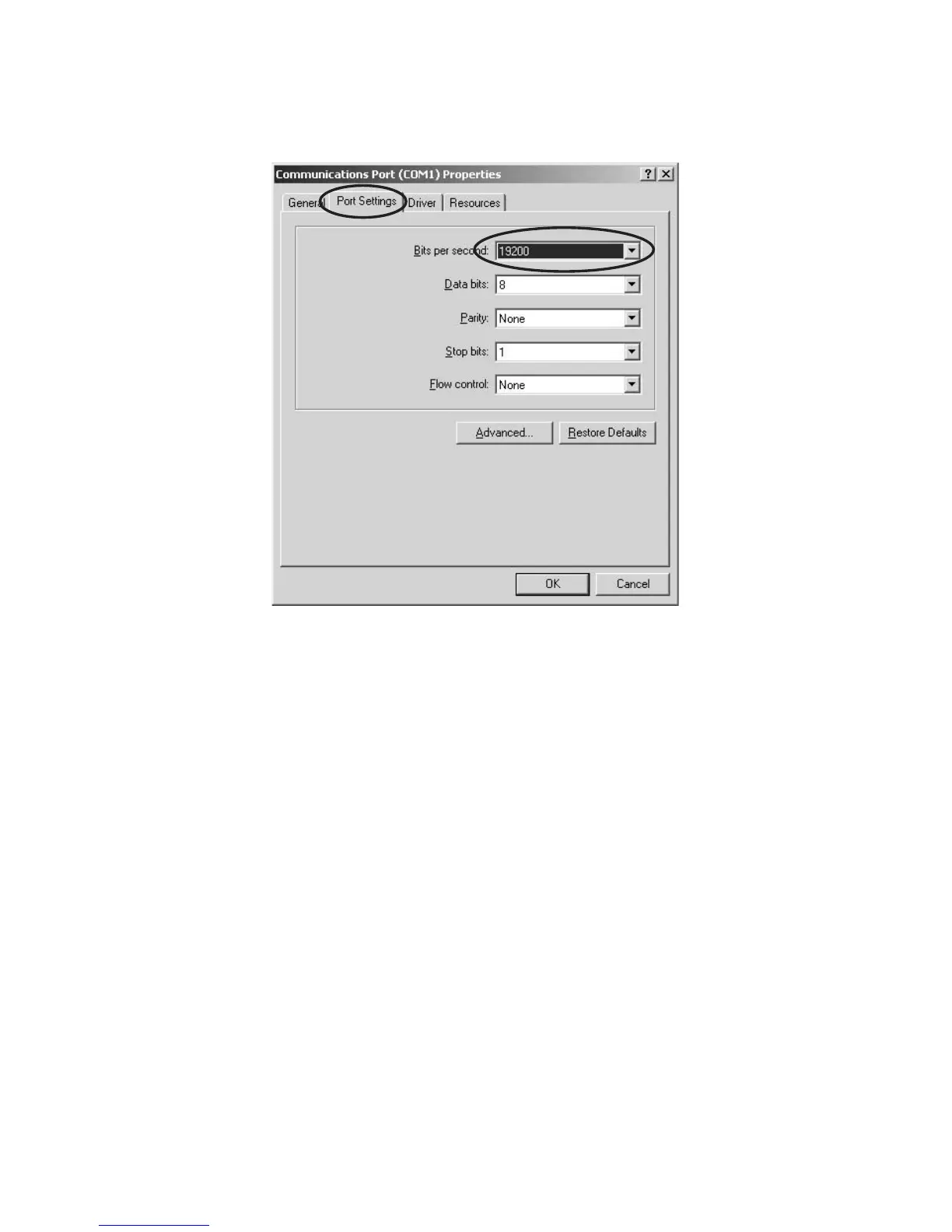
1.4 Click Port Settings tab on the “Communications Port
Properties”, and Check the value of “Bits per second”,
which is 19200. When it is other values, it is change
into 19200.
1.4
Port SettingsPort Settings
Port SettingsPort Settings
Port Settingsのタブをクリックし、Bits per
second:の値が
1920019200
1920019200
19200 か確認します。ほかの値に
なっている場合は
1920019200
1920019200
19200 に設定します。
1.5 Click OK, and close the “Communications Port Prop-
erties”.
1.6 Click the x icon of upper right, and close the “Device
Manager”.
1.7 Click OK, and close the “System Properties”.
1.8 Click the Exit in the File of menu bar, and close the
“Control Panel”.
Remark: It recommends rebooting PC, when the “Bit per
second” is changed.
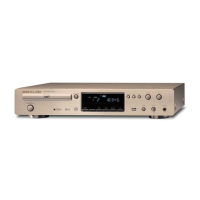
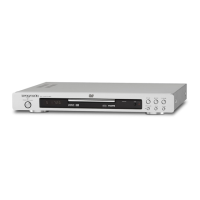
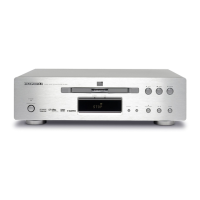
2. Connect RC-232C on the rear panel of DVD Player and
Serial Port of windows PC with RS-232C cable.
3. Turn on the power of DVD Player into the writing mode.
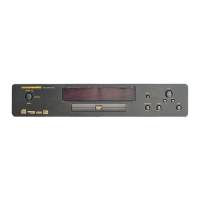
3.1 Press the POWER ON/OFF button while pressing
STOP and DISPLAY OFF buttons in front panel of
DVD Player.
3.2 The front display indicates “S-MODE_NO.”.
3.3 Press the 1, 3, 1 and PLAY buttons of the remote
controller in order, while indicating “S-MODE_NO.”.
3.4 The front display indicates “DSP_WRITE”.
1.5 OKをクリックし、CommunicationsPortProperties
を閉じます。
1.6 右上のxアイコンをクリックし、DeviceManagerを
閉じます。
1.7 OK をクリックし、SystemProperties を閉じます。
1.8 メニューバーのFileからExitをクリックしてControl
Panel を閉じます。
注意) PCの種類によっては再起動をしないと正しく設定
できない場合があります。Bitpersecond:を変更
したときは PC の再起動をすることを勧めます。
2. WindowsPC の SerialPort と DVDPlayerのリアパネル
にあるRS-232CコネクタをRS-232Cケーブルで接続し
ます。
3. DVDPlayer を書き込みモードにします。
3.1 DVD Player のフロントパネルにある STOPと
DISPLAY OFFボタンを押しながらPOWER ON/OFF
を押します。
3.2 フロントディスプレイに S-MODE_NO. と表示され
ます。
3.3 この表示が出ている間に(10 秒間)リモコンから 1、
3、1、PLAY を押します。
3.4 フロントディスプレイにDSP_WRITEと表示されま
す。


 To Next Page