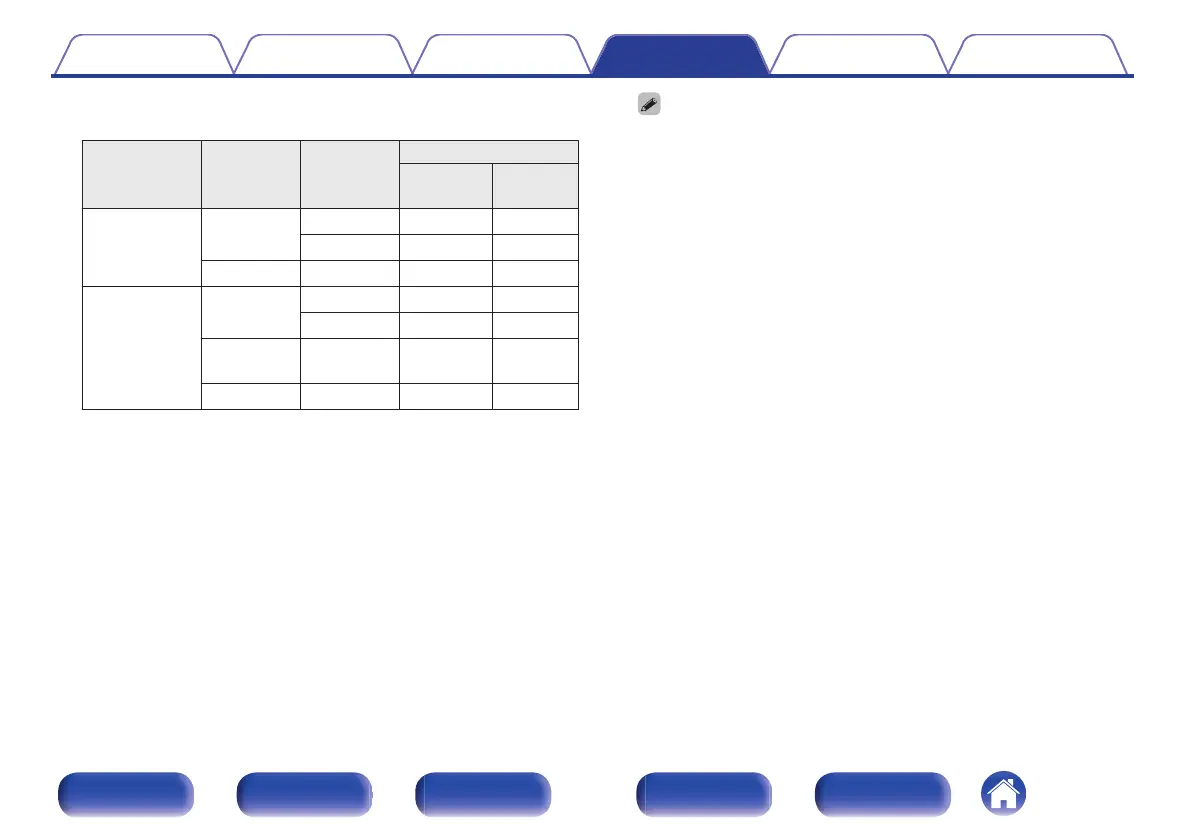
GRelation between the “4K Signal Format” setting and supported
resolutionsH
Support
Resolution
Color
Space
Pixel
Depth
4K Signal Format
Enhanced
Standard
(Default)
4K 24p, 4K
30p, 4K 25p
RGB /
YCbCr 4:4:4
8 bit
P P
10,12 bit
P
–
YCbCr 4:2:2 12 bit
P P
4K 60p, 4K 50p YCbCr 4:2:0 8 bit
P P
10,12 bit
P
–
RGB /
YCbCr 4:4:4
8 bit
P
–
YCbCr 4:2:2 12 bit
P
–
0
When setting this to “Enhanced”, we recommend using a “Premium High
Speed HDMI Cable” or “Premium High Speed HDMI Cable with Ethernet” that
has an “HDMI Premium Certified Cable” label attached to the product
package.
0
When this setting is “Enhanced”, configure the television or playback device
settings to match this setting.
0
When this setting is “Enhanced”, video may not be output correctly depending
on the connected playback device or HDMI cable. In this case, change this
setting to “Standard”.
0
“Custom” is displayed for the setting item if our service engineers or custom
installers has configured the HDMI signal format for this unit.
0
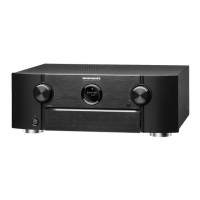
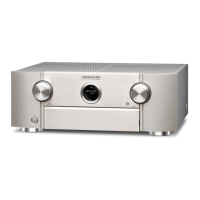
“4K Signal Format” can also be set by the following procedure. However, the
menu screen is not displayed. Watch the display while configuring the setting.
1. Press and hold the main unit’s ZONE2 SOURCE and STATUS at the same
time for at least 3 seconds.
“Video Format <NTSC>” appears on the display.
2. Press the main unit's DIMMER.
“4K Format < Std >” appears on the display.
3. Use the main unit's TUNER PRESET CH + or TUNER PRESET CH - and
select the 4K Signal Format.
4. Press the main unit’s STATUS to complete the setting.
Contents Connections Playback Settings Tips Appendix
184
Front panel Display Rear panel Remote Index


 To Next Page