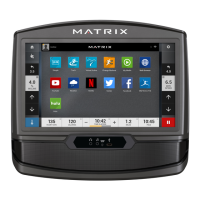
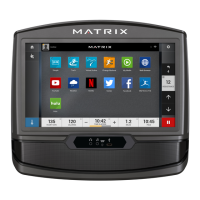
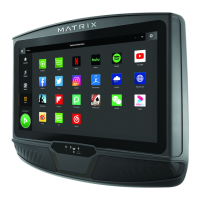
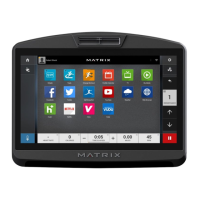
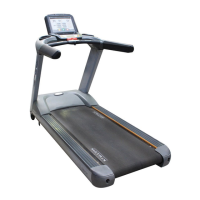
This document serves as a comprehensive guide for the Matrix Touchscreen Consoles, specifically models XUR, XIR-02, and XER-02. It details various functions, settings, and maintenance procedures to ensure optimal use and troubleshooting.
Function Description:
The Matrix Touchscreen Consoles are interactive interfaces for fitness equipment, providing users with a range of features for workout management, entertainment, and system diagnostics. These consoles are designed to enhance the user experience by offering personalized workout options, connectivity features, and easy access to system information.
Usage Features:
The console offers several key features for user interaction and customization:
- Console Codes and Service Mode: Users can access advanced settings and diagnostic tools through specific console codes.
- Option 1 (Product Dashboard): Pressing and holding the "Featured Exercises" logo for 5-7 seconds displays the Product Dashboard. This dashboard provides usage statistics (miles and time), console software version, Wi-Fi network information, and memory usage. It also includes a "Bandwidth Test" to check internet speed, requiring 3Mbps for standard streaming and 5Mbps for high-definition streaming.
- Option 2 (Machine Settings): Alternatively, users can access Machine Settings by pressing the Gear icon in the upper right-hand corner of the screen and selecting "Machine Settings."
- Service Mode (Code 3001 Enter): Entering "3001 Enter" on the keypad grants access to the Service Mode, allowing users to view and edit various settings through a menu on the left side of the screen. This mode includes options for Date and Time Setup, General, Workout, Setup Default, Update, Network Setup, Weather, Applications, Calibration, Hardware, Error, and Analytics.
- Setup Wizard (Code 3002 Enter): Entering "3002 Enter" launches a series of console setup screens, also known as Setup Wizard or First Time Setup, which can be used to restore factory defaults. This wizard guides users through setting language, time zone, date format, and connecting to a network.
- Software Updates: The console supports software updates for both connected and not-connected consoles.
- Connected Consoles: Updates can be initiated from the "Update" menu in Service Mode (Option 1 or 2) by pressing "Check for Updates." If updates are found, an "Update" button appears to download and install them. Users can also enable "Automatically check for update."
- Not-Connected Consoles: For consoles not connected to the internet, software updates can be downloaded from the Matrix Fitness website (https://www.matrixfitness.com/us/eng/home/support) to a USB drive. The USB drive is then inserted into the console's USB port, and the update is initiated from the "Update from USB" option in the Service Mode.
- Bluetooth Device Connectivity: The console allows pairing with compatible Bluetooth devices.
- To pair, turn on the BT device, press the Gear icon, and select "Device Pairing."
- Users can choose to connect "Speakers/Headphones" or "Heart Rate Monitors."
- Matrix uses short-range BT functionality, meaning devices may need to be re-paired if the user walks away during a workout.
- The console displays its serial number (FTMS) for pairing with devices like TVs, ensuring users connect to the correct machine.
- App Management: Users can customize the app display on the console screen.
- From Machine Settings (Option 2), select the "Applications" menu.
- Apps can be hidden by dragging them to the "Inactive" area or rearranged by dragging them to a new spot on the screen.
- Volume and Brightness Control:
- Volume Control: To adjust the volume of apps, TV, or BT devices, enter Service Mode (Option 1), go to the "Hardware" menu, and adjust the "Master Volume" slider.
- Screen Brightness: Similarly, screen brightness can be adjusted from the "Hardware" menu in Service Mode (Option 1) using the "Backlight Brightness" slider.
- Workout Defaults: Default workout times, minimum/maximum speed, and incline settings can be changed.
- Enter Service Mode (Option 1) and select the "Workout" menu to modify settings such as Maximum Workout Time, Pause Time, Start Speed, Maximum Incline, Maximum Workout Distance, Maximum Workout Calories, Cooldown Time, Maximum Speed, and Keyboard Disable Threshold.
Maintenance Features:
The guide also covers essential maintenance procedures and troubleshooting for common issues:
- Error Message 0304 (Headphone Insertion Count): This message indicates that the headphone insertion count has reached a threshold, suggesting a potential failure of the earphone board.
- To resolve, enter Service Mode (Option 1), select "Hardware," and press "Reset" for the "Console Headphone Insertions."
- Contact Customer Technical Support to report the error and order a new earphone board.
- No Belt Movement or Resistance: If the running belt is not moving, check the "Demo Mode" setting.
- Enter Service Mode (Option 1), select the "General" menu.
- Ensure "Demo Mode" is NOT checked. Demo Mode stops communication between the console and the frame, often used in sales environments.
- After unchecking, press the Home icon and cycle power from the frame power switch.
- Lube Belt Message: This notification appears when the treadmill belt needs lubrication, typically every 150 miles for silicone running surfaces.
- After lubricating the belt according to the Treadmill Deck and Belt guide, enter Service Mode (Option 1), go to the "Hardware" menu, and press "Reset" for "Accumulated Distance Since Belt Was Last Lubed."
- If the message persists, cycle power on the frame.
- Keypad Test: To diagnose unresponsive handgrip buttons.
- Enter Machine Settings (Option 2), select "Calibration," then "Keypad Test."
- Press the unresponsive button; its input should display on the screen.
- If the key does not display, the button or wire harness is faulty, requiring replacement and contact with Customer Technical Support.
- If the key displays but the unit remains unresponsive, check the "No Belt Movement or Resistance" section and contact Customer Technical Support if Demo Mode is off.
- Cleaning the Console:
- Use a micro-fiber cloth and LCD screen cleaner to clean the touchscreen.
- For screens without a dedicated cleaner, a damp (with water) micro-fiber cloth can be used. Regular cleaning helps reduce touch-related issues.
Important Technical Specifications (Derived from context):
While specific hardware specifications are not explicitly listed in a dedicated section, the document implies the following:
- Software Versions: The console runs on various software components, including OS (e.g., OS 1.0.3.4), IO (e.g., IO: 4.9), LCB (e.g., LCB: 0), and VA (e.g., VA: 2021.3.30.0). App versions for third-party applications like Hulu, Netflix, Spotify, etc., are also managed.
- Connectivity: Supports Wi-Fi for internet access and Bluetooth for connecting external devices like speakers/headphones and heart rate monitors.
- Storage: The Product Dashboard shows memory and storage usage (e.g., Memory 24%, CPU 35%, Storage 16%, SD Card).
- USB Port: Used for manual software updates.
- Serial Numbers: Console and frame serial numbers are tracked (e.g., CTM7532011K00080 for console, FTM703C1906CA01234 for frame).
- Internet Speed Requirements: 3Mbps for standard streaming, 5Mbps for high-definition streaming.
- Screen Timeout: Configurable in Service Mode (e.g., 120 seconds).
- Motor Type: Indicated in the Hardware menu (e.g., Motor Type 0).
Useful Resources:
The document directs users to the Matrix Fitness website (https://www.matrixfitness.com/us/eng/home/support) for additional resources, including product registration, warranty information, FAQs, troubleshooting videos, and software updates. Customer Technical Support contact information is also provided for both in-warranty and out-of-warranty products.

 Need help?
 General

 To Next Page