En 36
4-5 LCD Setup-continued
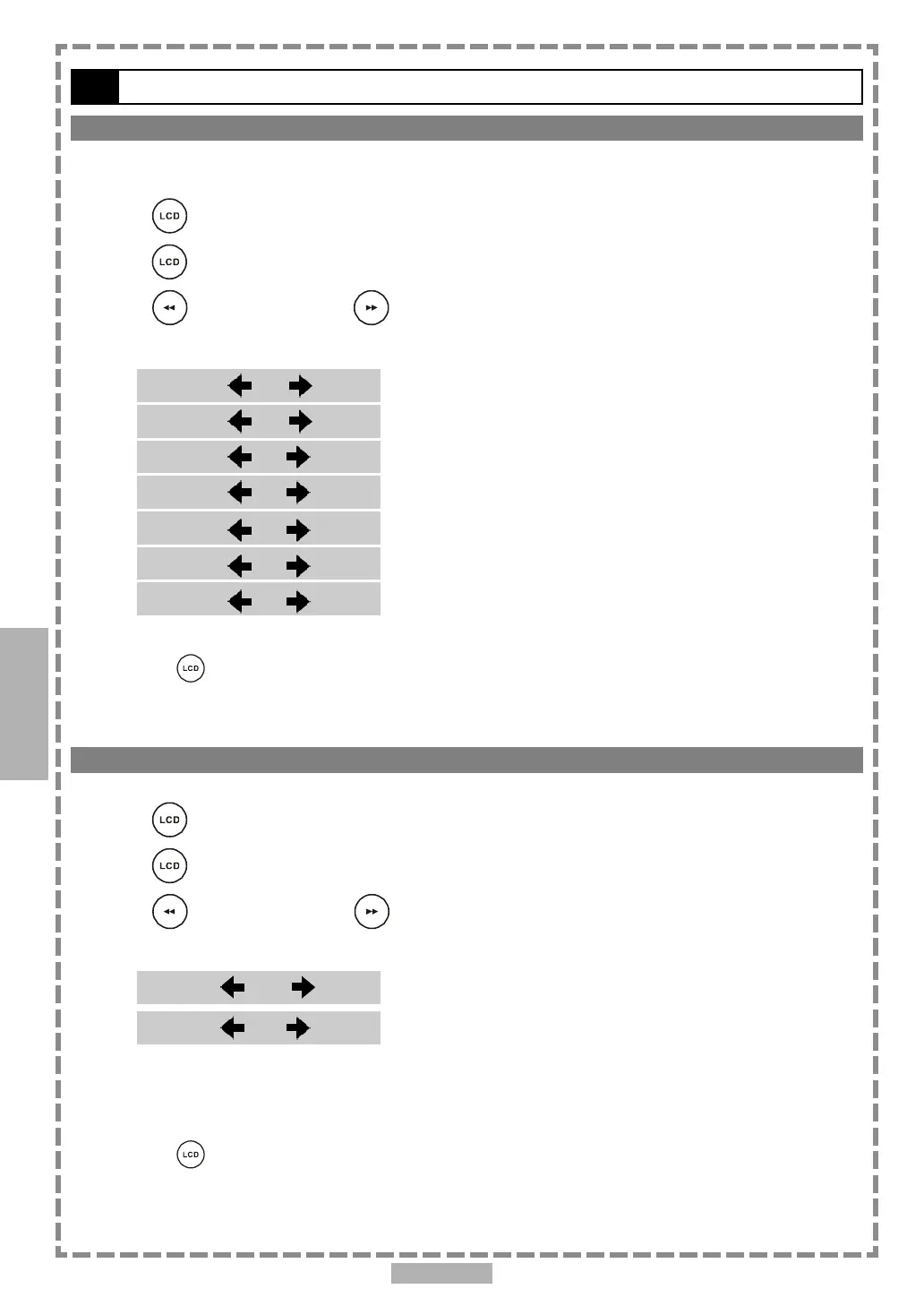
Brightness Setting
You can manually increase or decrease the brightness of the video.
1 Press <LCD>, the LCD setting information shows on the screen.
2 Press <LCD> a number of times to select “Bright”.
3 Press <LEFT> button or <RIGHT> button to choose the preferred bright
setting. The panel will change to the selected setting.
*To finish the setup operation
Press <LCD> again until the LCD setting information disappears.
Setup
Bright: +3Bright: +3
Bright: +3Bright: +3
Bright: +3
Bright: +2Bright: +2
Bright: +2Bright: +2
Bright: +2
Bright: +1Bright: +1
Bright: +1Bright: +1
Bright: +1
Bright: 0Bright: 0
Bright: 0Bright: 0
Bright: 0
Bright: -1Bright: -1
Bright: -1Bright: -1
Bright: -1
Bright: -2Bright: -2
Bright: -2Bright: -2
Bright: -2
Bright: -3Bright: -3
Bright: -3Bright: -3
Bright: -3
4
Panel Close Setting
1 Press <LCD>, the LCD setting information shows on the screen.
2 Press <LCD> a number of times to select “Close”.
3 Press <LEFT> button or <RIGHT> button to choose the preferred panel
setting. The panel will change to the selected setting.
Close: OffClose: Off
Close: OffClose: Off
Close: Off
Close: OnClose: On
Close: OnClose: On
Close: On
<< NOTE: When you choose “Close” in the panel setting, the LCD turns off and the power indicator will
blink in yellow light.>>
*To finish the setup operation
Press <LCD> again until the LCD setting information disappears.



 To Next Page