11
After starting the power supply there is a short delay while the system starts up. Once the
screen has turned on, press Menu to display the programming menu. To return to the
main menu press Menu . The icons below represent the buttons.
TO PROGRAM THE DATE AND TIME
Press Menu to enter the programming mode, then use Down to select the clock icon
(6 clicks down), then press Enter . Select date in the format DD/MM/YYYY and 24hr clock
as displayed.
To change the date and time, use Up and Down to change number displayed. Confirm
selection with Enter and move on. Press Menu at any point to move back. When you
have confirmed the minutes with Enter , the program will change automatically to the
main screen PROGRAMMING MODE.
TO PROGRAM A LINE
Press Menu to get to the programming menu. The five lines are automatically labelled
1-5. Use Up and Down to select a line and press Enter .
Choose a device description (see list on next page) with Up and Down through device
options. The line will be renamed with selected device name. Press Enter to select one.
Each line can have up to five different program time slots which are labelled “a” through to
“e”. Use Up to turn a program slot on, a check mark will appear to show that a program
slot is being set. Press Enter to proceed to set ‘on’ and ‘off’ times with Up and Down .
Use Menu at any point to move back through the options. When you have finished
programming, press Enter repeatedly to scroll through the remaining program slots.
The screen will display a large TICK to confirm that program slot changes
have been recorded.
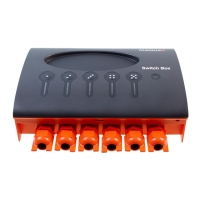
When a line switches on, the light on the Switch Box will illuminate to show the
line is on.
PROGRAMMING (SWITCH BOX TIMER, AND TIMER + PG)
MENU ENTER UP DOWN


 To Next Page