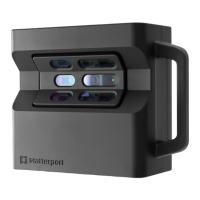
Part 810-00008Model PRO3
Made in Taiwan
352 East Java Drive
Sunnyvale, CA 94089 U.S.A.
ISED ID 12345678
Contains
FCC ID 12345678
Complies with 21 CFR
1040.10 and 1040.11
except for conformance
with IEC 60825-1 Ed. 3.,
as described in Laser
Notice No. 56, dated
May 8, 2019.
Serial Number
9
EN
Wi-Fi Network
4 Open the Matterport app.
In the app, open an existing job or start a new
one by tapping the button. Then tap the
source selector button and select Matterport
Pro3 to connect to your camera. If you don’t have
Bluetooth enabled, you can manually connect to
your camera’s Wi-Fi network (which will appear
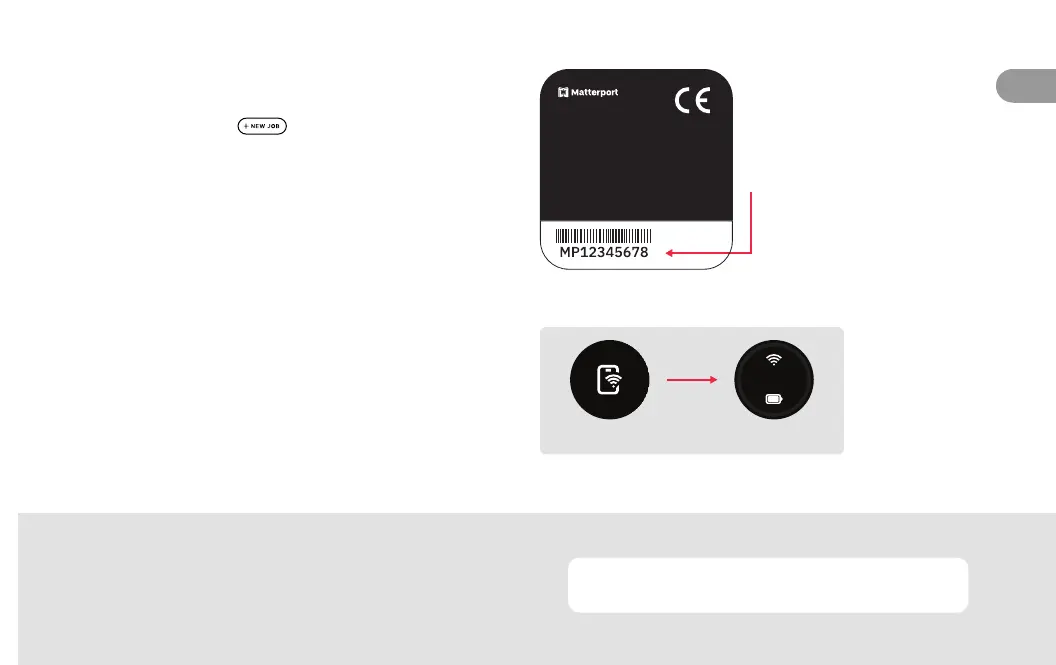
as its serial number located on the bottom panel
of your Pro3) through your device settings.
5 Check connection.
When your camera and device are connected, the
Connected symbol will appear (and time out to
the Ready to Scan symbol) on the display screen
of your Pro3. Additionally, Matterport Pro3 will
appear above the camera button within the app.
Connected Ready to Scan
Camera Display
matterport.com/pro3-help
Support
To troubleshoot and see video tutorials and FAQs, visit


 To Next Page