24. COMPUTER SETTINGS AND USER ACCOUNT MANAGEMENT
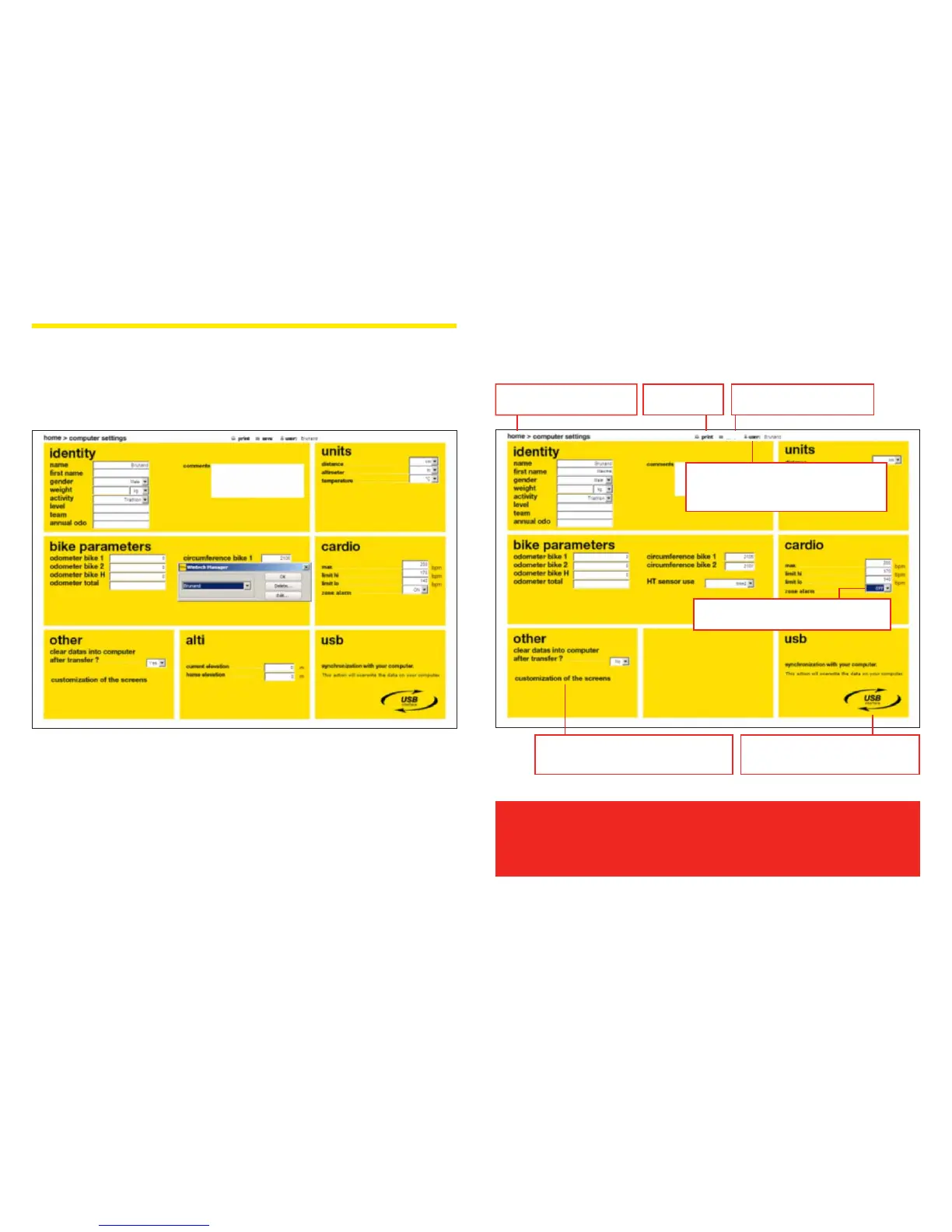
As you can manage up to 3 dierent users on the same PC, when you click on Computer
settings, the next screen asks you to choose among the registered users, to make sure you will
change the parameters of the correct user.
You can also choose to:
– add a new user by choosing “New user” in the user list
– edit an already existing user prole
– delete an already existing user prole
When the user name is conrmed, you can read the user account and associated computer
settings:
All information on this screen can be modied and downloaded to the Wintech
computer (if pluged) by clicking on the USB logo.
The modied information will become the default settings of the user.
You can also make these changes by following the instructions described in
section 10 of this user guide.
Click on “User” to edit any of the settings
indicated on that screen, click on User to
display the user choice dialog box again
(see section 24.1. of this user guide)
Set your workzone and turn ON and OFF the
audible alarm of the workzone
Click on the “USB interface” logo to upload
the user prole changes you have made to
the Wintech computer of the selected user
Click on Screen customization to customize the
screens of your Wintech computer
(see section 24.2. of this user guide)
Navigation menu: click “Home”
to go back to main menu
Print the current
screen
Saves the current weekly report
as a .jpg le
save


 To Next Page