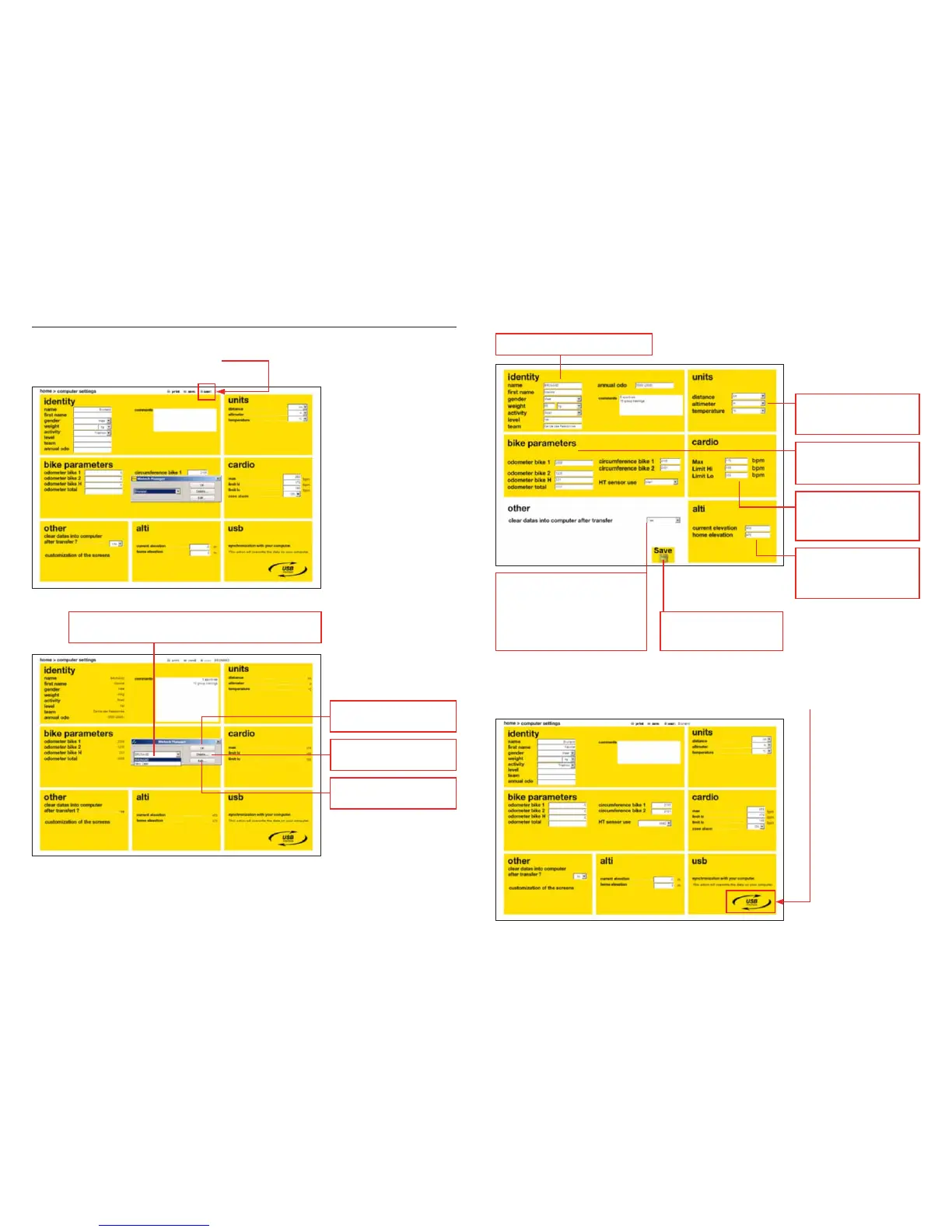
24.1 Create a new user or edit an already existing user
To display the user management dialog box:
– From the main menu, click on “Settings”
– From the Settings screen, click on “User”:
Chose “Edit” to go the settings screen and edit the user account:
*When you click on “save”, the modication are saved but not yet uploaded to the Wintech
computer. To do so, on the main Settings screen, click on the “USB interface” logo:
Edit User’s personal information
Edit User’s heart rate
information
(for Wintech USB HR and
Wintech USB Ultimate only)
Edit User’s preferred
distance, altitude and
temperature units
Edit User’s elevation
information
(for Wintech USB Alti and
Wintech USB Ultimate only)
Will save the settings*, and
return to the Settings main
display
If you choose:
– Yes: the Wintech computer data
will automatically be cleared once
downloaded to your PC
– No; the Wintech computer
data will not be cleared once
downloaded to your PC
Edit the bike parameters
associated to each sensors
you may have paired
Choose in the list the user name of whom you wish to edit the
prole. Choose New User to create a new user
Displays the chosen user’s
settings information
Delete the chosen user’s
account
Edit the chosen user’s
settings


 To Next Page