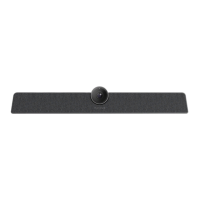
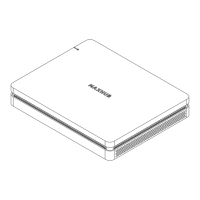
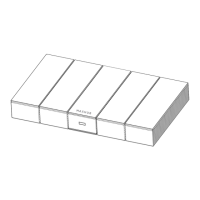
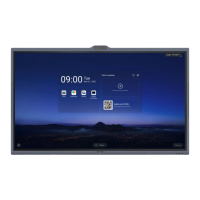
UC S10 HOST Setup
Because the UC S10 has an integrated Android OS, it can also work totally independent as a Host, there
is no need for any 3
rd
party HUB or NUC.
You can install all Video Conference apps into the unit and start your call directly from the device, only
connecting a Display to it via HDMI. You can download and install the respective VC Apps like TEAMS,
ZOOM, etc. from this link:
https://cutt.ly/ucs10
Please save these applications to a Flash drive and insert the drive into the USB connection of the UC
S10. You can use the IR remote control unit to click on the FINDER button and install the apps on the
UC S10. The IR remote will also be helpful to navigate between the different apps and enter text or
digits, you can also use a 3
rd
party wireless mouse and keyboard (with USB Dongle), so the entry of
data is much easier and faster. Also, a small 3
rd
party USB Hub can be convenient, so you have multiple
USB ports on the unit, no need to change devices to connect to it. Due to the fact, that you can still use
the wireless screen sharing app from the UC S10, it is very simple to connect your own device (Laptop,
Tablet, Smartphone) and share the screen, as mentioned above.
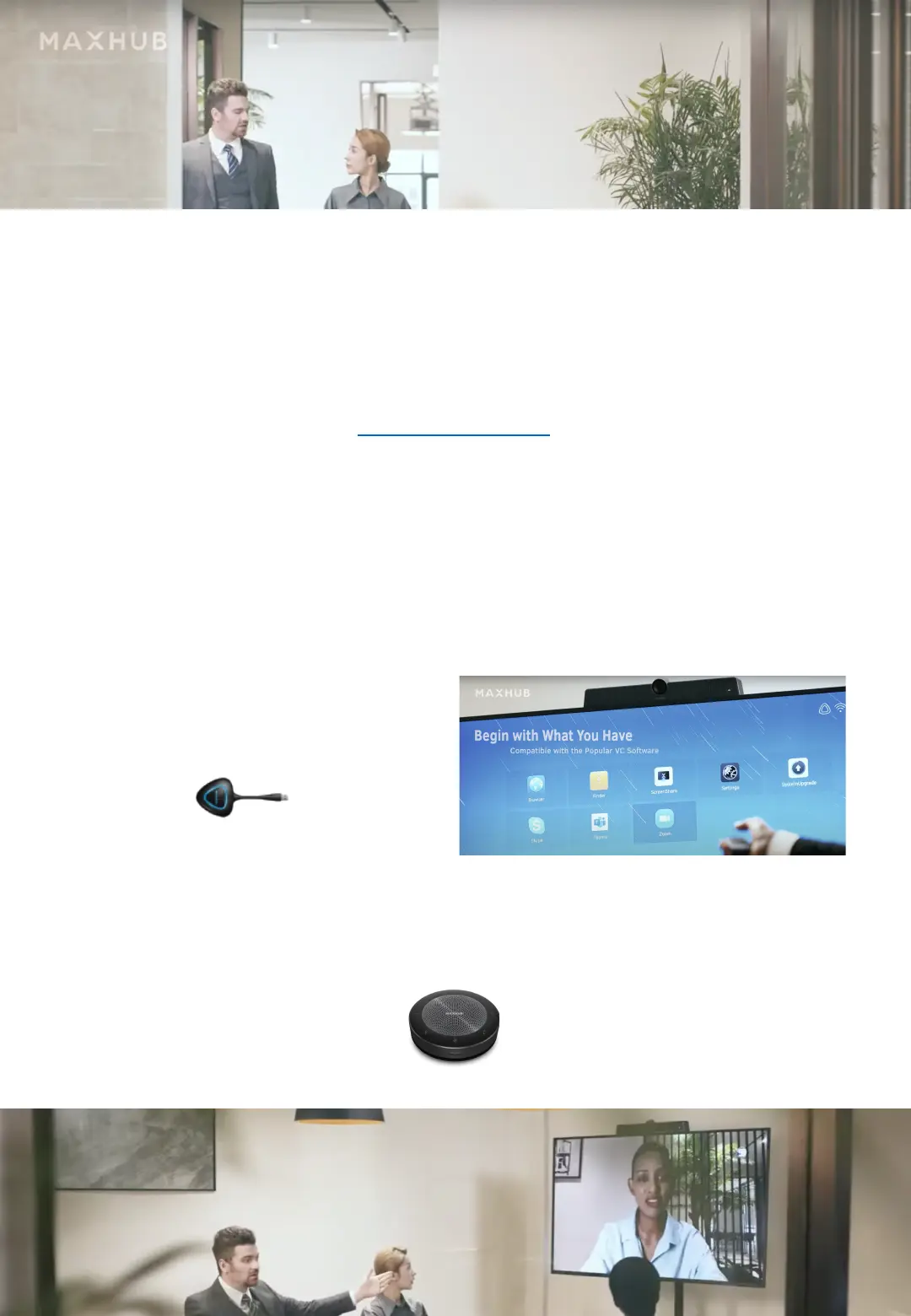
Please use the MAXHUB WT 04 Dongle,
if you want to connect Android or
Windows devices.
Of course, some other applications using a HUB and a Display are possible with the UC S10. But there is
also a chance to extend the Mic and Speakers of the UC S10 with another product from MAXHUB, the
BM21 Speakerphone:


 To Next Page
 Loading...