108
tapping the
○
> button on its right side. The screen displays the
complaint session details.
5. Tap the Post Reply button on the upper right side after viewing,
to make a reply. An edit screen displays.
6. Input the content in the input field, and if necessary, upload an
attaching file.
7. Tap Submit to post the reply.
8. Tap the States selection drop-down menu to reset a case state.
9. Tap the Update button to commit the newest update.
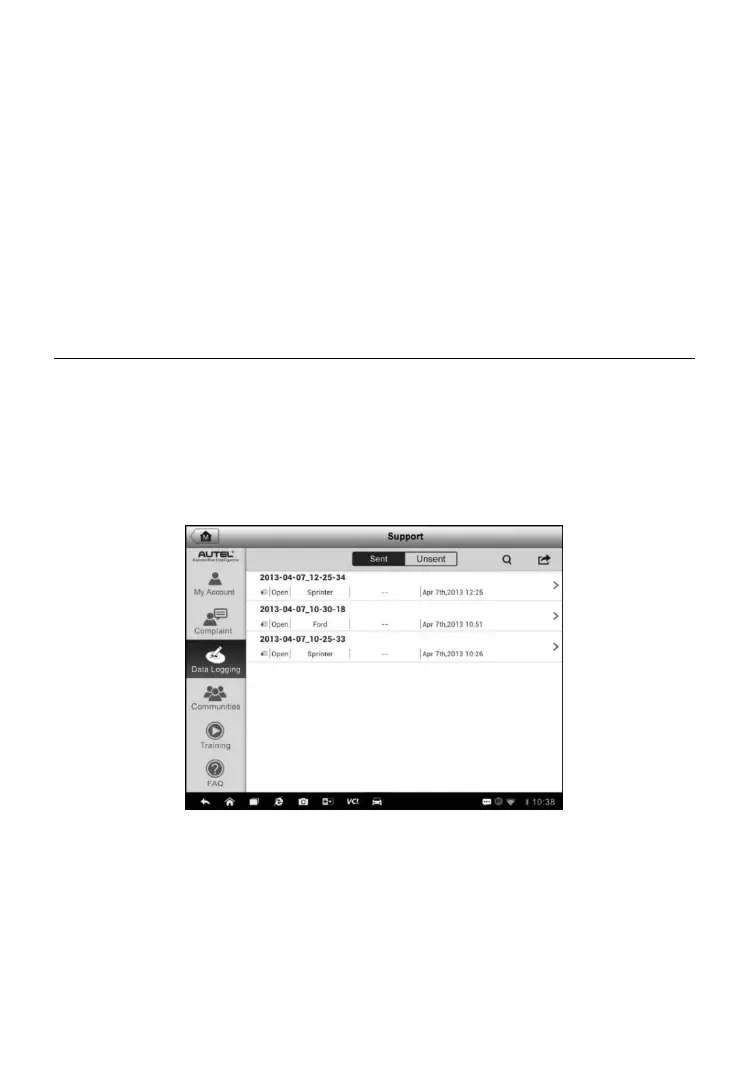
Data Logging
The Data Logging section keeps records of all sent or unsent (saved) data
loggings on the diagnostic system. The support personnel receive and
process the submitted reports through the Support platform, and send back
problem solutions within 48 hours to the corresponding Data Logging session,
on which you are also allowed to have a direct conversation with the support
personnel.
Figure 10-0-3 Sample Data Logging Screen
To make a reply in a Data Logging session
1. Tap on the Sent tag to view a list of submitted data loggings.
2. Select a specific item to view the latest update of the processing
progress.


 To Next Page