15
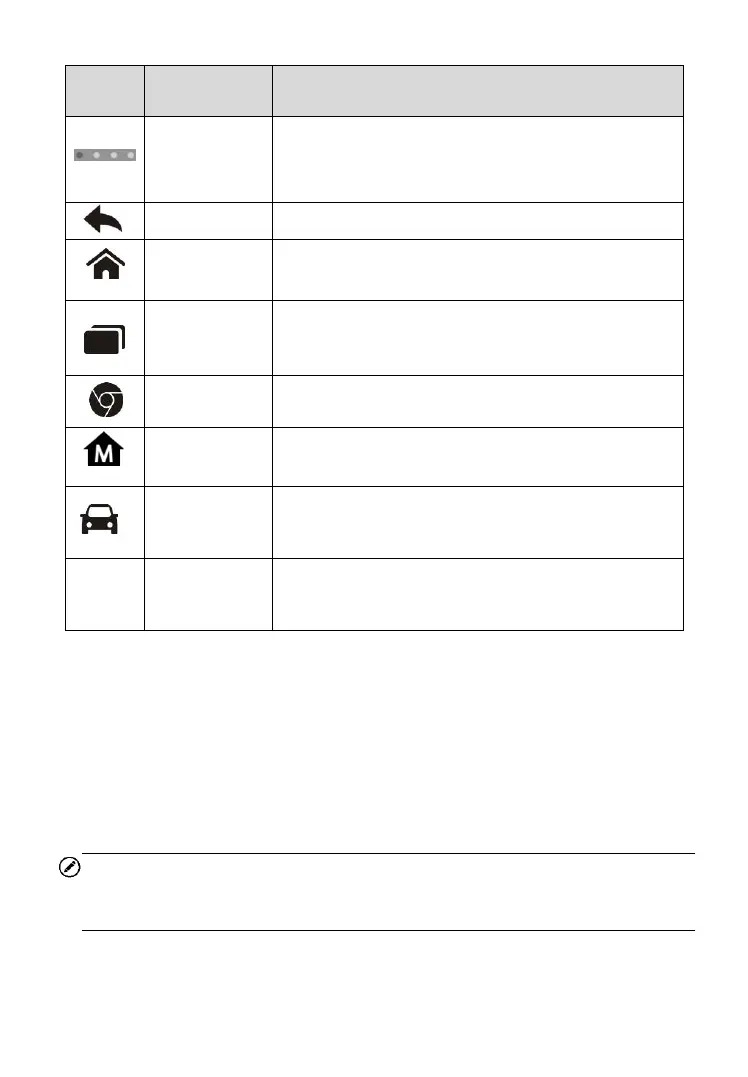
Indicates the location of the screen. Swipe the
screen left or right to view the previous or next
screen.
Returns to the previous screen.
Returns to Android System’s Home screen.
Displays a list of applications that are currently
working. To open an app, touch it. To remove an
app, swipe it to the top or bottom.
Launches the Android built-in browser.
Returns to MaxiSys Job Menu.
Returns to the MaxiSys operation interface from
other Android applications.
Returns to the Service operation interface from
other Android applications.
System Status Icons
As the Display Tablet is working with the Android operating system, you may
refer to Android documents for more information.
By tapping on the bottom right corner, a Shortcuts Panel will be displayed, on
which you are allowed to set various system settings of the tablet. Operations
of each button on the panel are described in the table below:
NOTE
The shortcuts buttons will be highlighted when enabled, and dimmed when
disabled.
Table 3-3 Shortcuts Panel Buttons


 To Next Page