116
To receive remote support from a partner
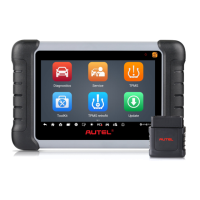
1. Power on the Display Tablet.
2. Tap the Remote Desk application on the MaxiSys Job Menu. The
TeamViewer interface displays and the device ID is generated and
shown.
3. Your partner must install the Remote Control software to his/her
computer by downloading the TeamViewer full version program
online (http://www.teamviewer.com), and then start the software on
his/her computer at the same time, in order to provide support and 、、
4. Provide your ID to the partner, and wait for him/her to send you a
remote control request.
5. A popup displays to ask for your confirmation to allow remote control
on your device.
6. Tap Allow to accept, or tap Deny to reject.
Refer to the associated TeamViewer documents for additional information.


 To Next Page