
 Need help?
Do you have a question about the MAXPEEDINGRODS Q92 and is the answer not in the manual?
General guidelines for safe operation and usage.
Recommendations for professional installation and repairs.
Essential electrical safety steps before unit installation.
Legal compliance and warranty information regarding video features.
Note on potential variations in screen examples from actual product.
List of accessories included with the audio/video receiver.
Overview of main UI elements and their functions on the device.
Detailed guide on connecting various cables for different functions.
Explanation of how to interact with and navigate the device's interface.
Instructions for connecting and using phone features like CarPlay and Android Auto.
Guide on using online and offline GPS navigation features.
Information on managing and downloading applications on the device.
Instructions for tuning and using the FM radio features.
Guide on playing music files from various sources.
Instructions for making and receiving calls using the device's interface.
Guide on configuring and adjusting subwoofer settings.
How to connect and manage Wi-Fi and internet tethering.
Configuration options for display, sound, and radio.
Settings for auto-running navigation and map preferences.
Steering wheel learning and radio settings configuration.
Configuration for FM RDS frequency and sensitivity.
Settings for rearview camera display and parking assist lines.
Control options for the panel's LED lighting based on headlights or power.
Options to select the display language for the system.
Configuration of date, time, and time zone.
Details about kernel version, memory, storage, and software versions.
Options for importing/exporting configurations and other settings.
Solutions for problems like no sound, media not supported, and poor radio reception.
Solutions for issues with phone link not starting or connecting.
Solutions for Bluetooth connectivity and pairing problems.
Troubleshooting for GPS signal reception and backup camera compatibility.
This document serves as a comprehensive user manual for the Maxpeedingrods Q92 Audio/Video Receiver, providing detailed instructions for its operation, settings, and troubleshooting. The device is designed to enhance the in-car entertainment and navigation experience, offering a range of features that integrate seamlessly with modern mobile technology.
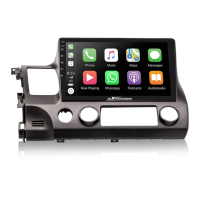
The Maxpeedingrods Q92 is an advanced audio/video receiver for vehicles, primarily functioning as a central hub for multimedia playback, navigation, and communication. It supports both online and offline GPS navigation, allowing users to find their way efficiently regardless of internet connectivity. The device also features an FM RDS radio for accessing local broadcasts, and a robust music player that supports various audio file formats from USB or internal storage. For communication, it offers Bluetooth connectivity for hands-free phone calls and integrates with popular smartphone mirroring technologies like CarPlay and Android Auto, enabling users to access their phone's apps and features directly on the car's display. The system also includes a subwoofer function for enhanced audio output and supports a back camera for improved parking and reversing safety.
The Q92 receiver boasts a user-friendly interface, designed for intuitive navigation and control. The main menu provides quick access to core functions such as Wi-Fi, Bluetooth, Equalizer, and Screen Saver. Users can easily connect to Wi-Fi networks for online services and updates, or pair their smartphones via Bluetooth for calls and media streaming. The device supports voice control, adding a layer of convenience for hands-free operation.
For navigation, the system offers "Here we go" for both online and offline mapping, and "Google Maps" for online navigation, requiring an internet connection for the latter. Users can download maps for offline use, ensuring navigation capabilities even in areas without network coverage. The GPS antenna ensures accurate location tracking.
The music player is versatile, supporting a wide array of audio formats including MP3, M4A, WAV, AMR, WMA, OGG, ACC, and MID. Users can browse their music library by songs, artists, albums, or folders. The FM RDS radio allows for both fine-tune and automatic search storage of radio stations, with options to adjust tuner region and sensitivity.
Phone connectivity is a key feature, supporting both CarPlay and Android Auto. For CarPlay, users can connect via a USB port or wirelessly, mirroring their iPhone's interface for navigation, music, messages, and calls. Android Auto offers similar functionality for Android users. The device facilitates hands-free phone calls through Bluetooth, with a dial pad, call log, and contact list accessible on the screen. Pairing a phone is a straightforward process, involving enabling Bluetooth on the phone, searching for the device, and entering a password if prompted.
The audio experience is customizable with a subwoofer function, allowing users to select from predefined sound styles like Metal, Subwoofer, Voice, Rock, Pop, Jazz, and Classical, or to create their own custom style. The system settings provide extensive customization options, including display brightness, wallpaper, media volume, Bluetooth volume, and button tone.
The device also integrates with vehicle-specific settings. The "Car settings" menu allows for adjustments related to display, sound, radio region, and system updates. "EasyConnection" enables SpeedPlay, while "Navigation Settings" allows users to select their preferred navigation app and manage auto-run navigation. "Assembly" settings include "Steering wheel learning" for integrating steering wheel controls, "Radio setting" for FM RDS frequency adjustments, "Back car set" for configuring back camera mirror and track lines, and "Panel LED control" for managing the panel's LED lighting based on headlight or power status.
The manual provides guidance on maintaining the device's optimal performance and addressing common issues. For general maintenance, it advises against operating mobile video equipment while driving and recommends setting the volume at a comfortable level to avoid distortion. It also cautions against using the car stereo for extended periods when the car engine is off to prevent battery drain and emphasizes keeping the product away from water.
In terms of troubleshooting, the manual offers solutions for various problems:
The manual also includes a "Factory setting" menu, which allows for advanced configurations such as logo settings, radio settings, gain settings, CAN type settings, touch study, and display setup. This section is intended for more experienced users or professional installers. The "System Setting" menu provides information about the device's language, date & time, and system details, including kernel version, memory, storage, platform version, MCU version, APP version, and BT version, which can be useful for diagnostics and support.
 General
| RAM | 2GB |
|---|---|
| ROM | 32GB |
| AUX Input | Yes |
| Rear Camera Input | Yes |
| Operating System | Android |
| Screen Size | 9 inches |
| Resolution | 1024x600 |
| CPU | Quad-core |
| Features | GPS Navigation |
| Display | Capacitive Touchscreen |
| Wi-Fi | Yes |
| GPS | Yes |
| Radio | FM |
| USB Port | Yes |
| Steering Wheel Control | Yes |
| Power Output | 4x45W |

 To Next Page