EasyManua.ls Logo

Maytronics Dolphin Liberty 200 - User Manual

Maytronics Dolphin Liberty 200
12 pages
Print Icon
To Next Page IconTo Next Page
Loading...
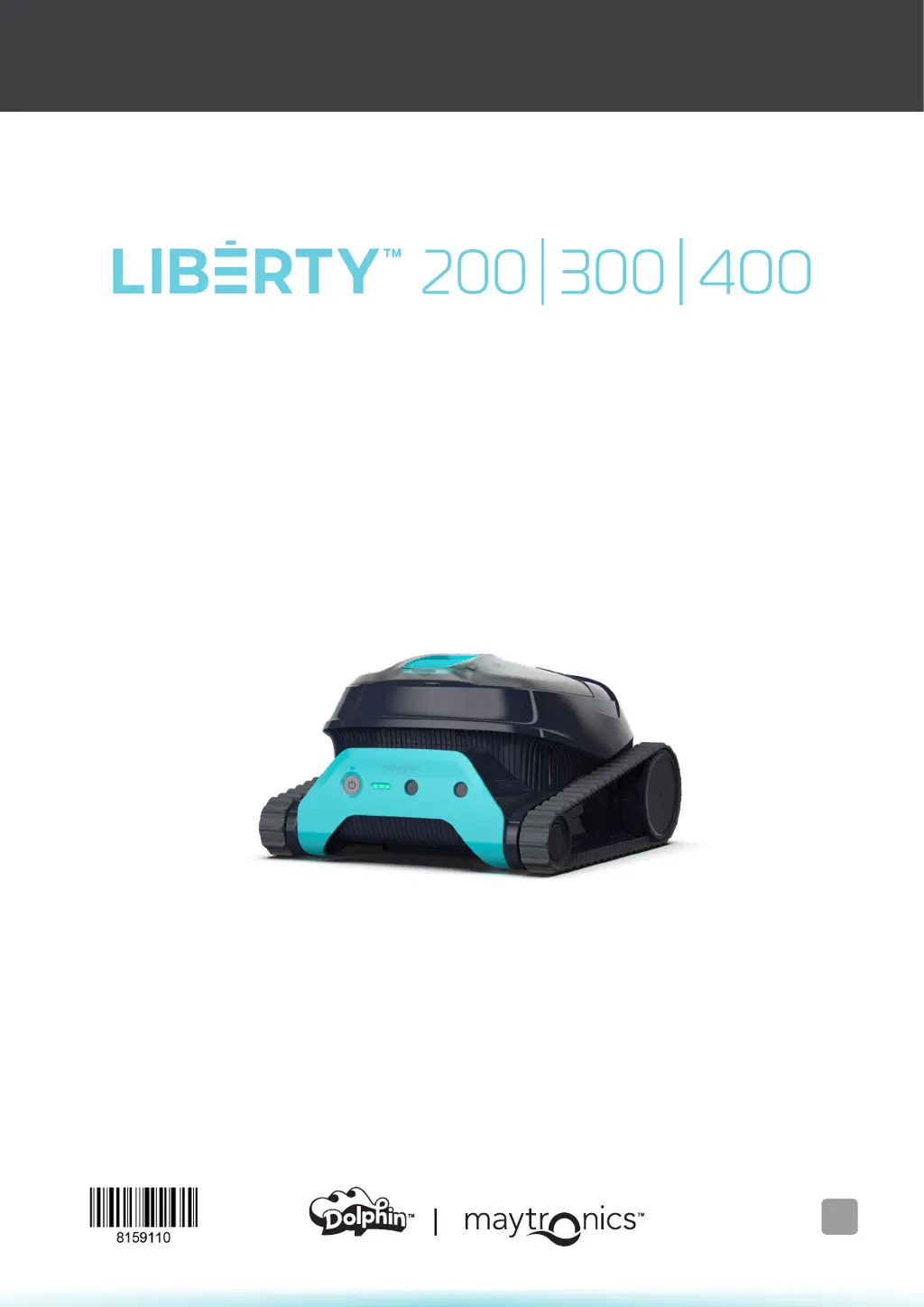
Robotic Pool Cleaner LIBERTY
User Instructions
8159110-WEB
EN

Questions and Answers

  • G
    Gabriel PachecoAug 12, 2025
    What to do if my Maytronics Swimming Pool Vacuum charging progress is stuck?
    • L
      linda50Aug 12, 2025
      If your Maytronics Swimming Pool Vacuum's charging progress is stuck, ensure the charger LED turns on, and the charger is properly connected. Check for any obstructions blocking the connection between the charger and the Power Unit. You may also want to charge it overnight in a cooler location.
  • M
    Marilyn EllisAug 16, 2025
    What to do if the Power Button LED is red on Maytronics Dolphin Liberty 200 Swimming Pool Vacuum?
    • L
      ldoyleAug 16, 2025
      If the Power Button LED is red on your Maytronics Swimming Pool Vacuum, try disconnecting the charger from the Power Unit and reconnecting it a few times. Also, check for any objects blocking the connection between the charger and the Power Unit.
  • A
    athompsonAug 20, 2025
    What to do if my Maytronics Dolphin Liberty 200 Swimming Pool Vacuum battery is not full after charging?
    • A
      Amber GrayAug 20, 2025
      If the battery of your Maytronics Swimming Pool Vacuum is not full after charging, fully charge the robot until all battery LEDs are steady green, ensure that the robot is turned off, and do not start the cleaning process. Check the battery status after 2 days. If the battery charge level is significantly lower, contact Customer Care.
  • J
    James YoungAug 25, 2025
    What to do if red LED light appears above the power button on Maytronics Swimming Pool Vacuum?
    • V
      vbautistaAug 25, 2025
      If a red LED light appears above the power button on your Maytronics Swimming Pool Vacuum, ensure nothing is stuck in the tracks or brushes. Clean the filter to make sure it's not clogged. Disconnect and reconnect the charger three times.
  • C
    Carrie HerreraAug 27, 2025
    What to do if the Power Unit doesn't show any LEDs at all on Maytronics Swimming Pool Vacuum?
    • K
      Kenneth KramerAug 27, 2025
      If the Power Unit on your Maytronics Swimming Pool Vacuum doesn't show any LEDs, try connecting the charger to a different power outlet. Make sure that the charger LED is on.
  • Q
    qbarnesAug 31, 2025
    What to do if the charging process stops, and the Power Button LED is blinking red on Maytronics Swimming Pool Vacuum?
    • V
      victoriawelchAug 31, 2025
      If the charging process stops and the Power Button LED is blinking red on your Maytronics Swimming Pool Vacuum, ensure the charger is connected properly and check whether an object is blocking the connection between the charger and the Power Unit.
  • D
    David EatonSep 4, 2025
    What to do if Maytronics Swimming Pool Cleaners does not turn ON from the app?
    • C
      Caitlin CohenSep 4, 2025
      If your Maytronics Swimming Pool Cleaner doesn't turn on from the app, ensure it is fully charged, indicated by all three LEDs being green. Also, the cleaner is designed to operate in the water, so place it in the pool after turning it on.
  • D
    Dr. Nicholas FitzgeraldSep 8, 2025
    Why is Maytronics Swimming Pool Cleaners not waiting at the waterline?
    • D
      David HopkinsSep 8, 2025
      If your Maytronics Swimming Pool Cleaner isn't waiting at the waterline and is instead near a wall, it might be because the cleaner waits for a few seconds and then climbs another wall. After climbing three walls, it will wait by the wall to prevent running out of energy. You can shake the Clicker in the water for 3 seconds to make it climb up.

Summary

Getting Started

Whats in the Box

Lists the components included with the robotic pool cleaner.

First Time Use

Step-by-step guide for initial setup and charging of the robot.

Specifications

Robot Specifications

Technical specifications of the robotic pool cleaner.

Water Conditions

Specifies the acceptable water parameters for pool cleaner operation.

Features and Indications

Cycle Selector

How to select cleaning modes on specific models.

Eco Mode

Details on the energy-saving cleaning mode.

Temperature Warning

Action to take during temperature warnings.

Waterline Scrubbing

Feature for cleaning pool waterlines.

MyDolphin Plus Mobile App

How to use the mobile app for robot control.

Error Notification

Guidance for error notifications.

Charging Recommendations

Removing the Robot from the Pool

Grab Hook Retrieval

Using a grab hook to retrieve the robot from the pool.

ClickUp Retrieval

Using the ClickUp feature for robot retrieval.

End of Cycle Pickup (LIBERTY 400)

How the LIBERTY 400 robot is picked up after cleaning.

Cleaning the Filter Basket

Periodic Cleaning

MyDolphin Plus App User Guide

Getting Started with the MyDolphin Plus App

Requirements and initial setup for the mobile application.

Prepare the Pool Cleaner for Connection

Steps to prepare the robot for pairing with the app.

Activate the Pool Cleaner Using your Mobile Smart Device

Guide to connecting and activating the robot via the app.

MyDolphin Plus Troubleshooting

Robotic Pool Cleaner Troubleshooting

Off-Season Storage

Warnings and Cautions

Warnings

Critical safety warnings for operating and handling the robot.

Cautions

Important precautions for safe use and maintenance.

Maytronics Dolphin Liberty 200 Specifications

General IconGeneral
TypeRobotic Pool Cleaner
Pool TypeIn-Ground
Weight16.5 lbs
Remote ControlNo
Smart NavigationYes
Warranty2 years
Pool SizeUp to 50 ft
Filter TypeFine Filter
Power Supply24V
Cable Length60 ft

Related product manuals