3 4
English
General Safety
DataLogger
®
equipment is not
explosion proof. Operation
of equipment in an explosive atmosphere may
result in serious injury or death.
Do not operate this equipment in an explosive
atmosphere.
DataLogger
®
App
Connect Pressure Transducer to
Fusion Machine
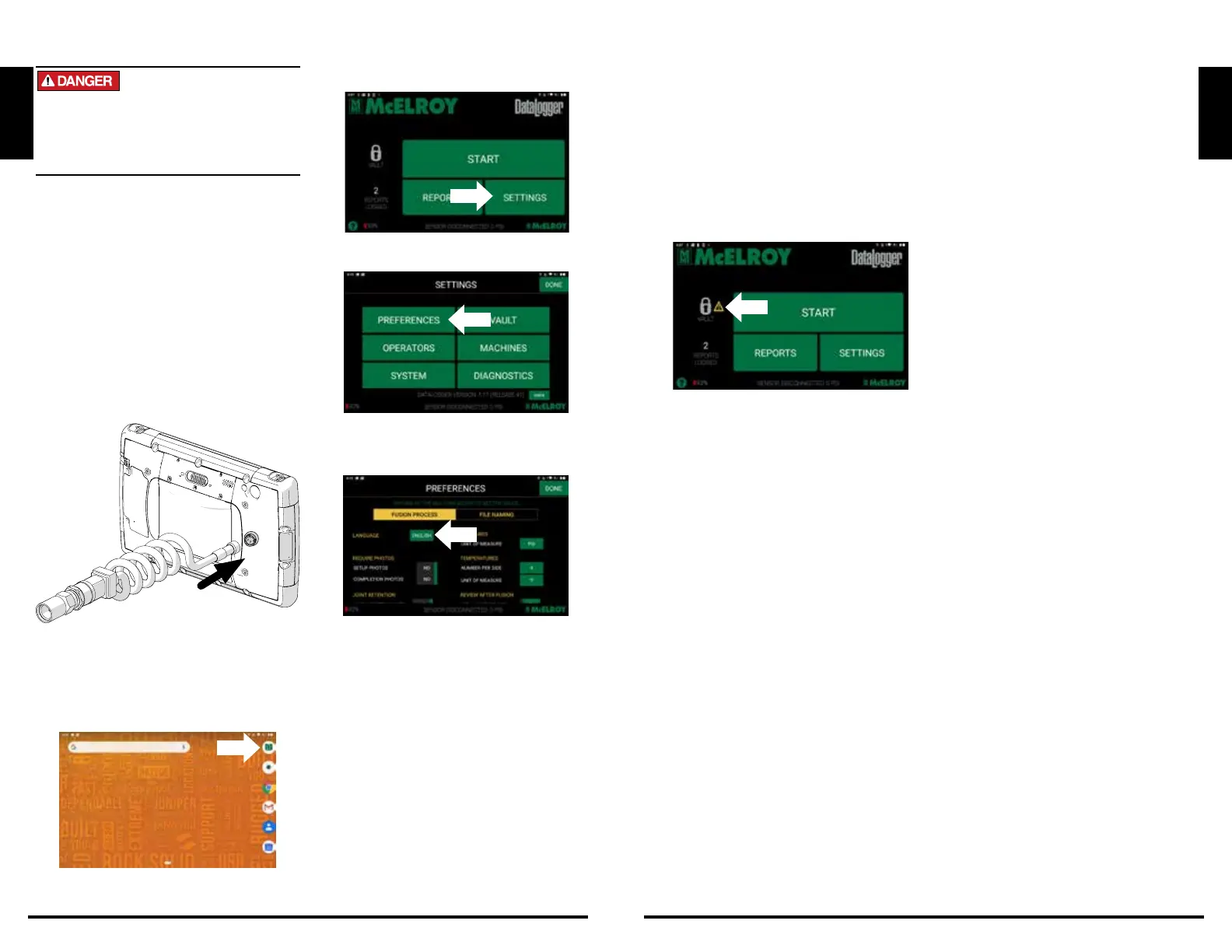
1. Connect the pressure transducer end of
the cable to the DataLogger port of fusion
machine. Refer to the operator’s manual of
the fusion machine for the port location.
2. Connect the connector end of the cable to
the connector port on the back of the tablet.
Starting the DataLogger
®
7 App
1. Open to the Home screen.
2. Tap the DataLogger
®
7 App icon to open
the application.
Select Software Language
1. Tap Settings on the Main Menu.
2. Tap Preferences on the Settings Menu.
3. Tap the Language button and set to the
desired language.
Entering Vault Information
1. Tap the lock icon on the main screen to
open the DataLogger
®
Vault
™
log in screen.
2. Log into a DataLogger
®
Vault
™
account
using a username and password.
If you do not have a Vault account, open
an internet browser on this tablet and go to
vault.mcelroy.com. Create an account and
return to the DataLogger 7 App and enter
the username and password.
Log a Fusion Joint
1. Tap the START button.
2. Follow the on-screen instructions to enter all
the joint information and select the fusion
parameters.
After the setup is completed, logging of the
fusion joint can begin.
Troubleshooting
Perform a Hard Reset
1. If the tablet is frozen and won’t respond,
hold the power key down for 2 to
3seconds to see if the menu with the
“Power off” option appears, then select that
operation.
If the menu doesn’t appear, hold the power
key down for 10 seconds. This causes a
hardware shut off. Press the power key
again to power it on.
If hold the power key for 10 seconds
doesn’t shut off the device, hold the power
button down for 20 seconds. Batteries are
forced to electrically disconnect from the
tablet, causing a complete shut down. The
tablet cannot be powered on again until an
external power supply is attached.
IMPORTANT: To be able to power the
device on again, you will need to be able
to use the external power supply. You will
need to have access to a power source for
the power supply.
NOTICE: Forcing a shut-down while the
unit is running can cause damage to the
device. NEVER force shut-down the tablet
under normal operating conditions.
English



 To Next Page