Record Two Programs at Once
Because your DVR has two tuners, it can buffer (temporarily record) two different
programs at the same time.While recording two programs, you can watch and
control either program up to the point of live TV by using the SWAP button on
your remote.
While Watching a Show:
■
Press RECORD to record the
program you are watching.
■
Press SWAP to switch to the
other tuner and find the second
program you want to record.
■
Press RECORD when you locate
the second program you want
to record.
From the Guide:
■
Highlight a program you want to
record from any listings screen.
■
Press RECORD to set up the first
recording
■
Highlight the second program.
■
Press RECORD to set up the
second recording.
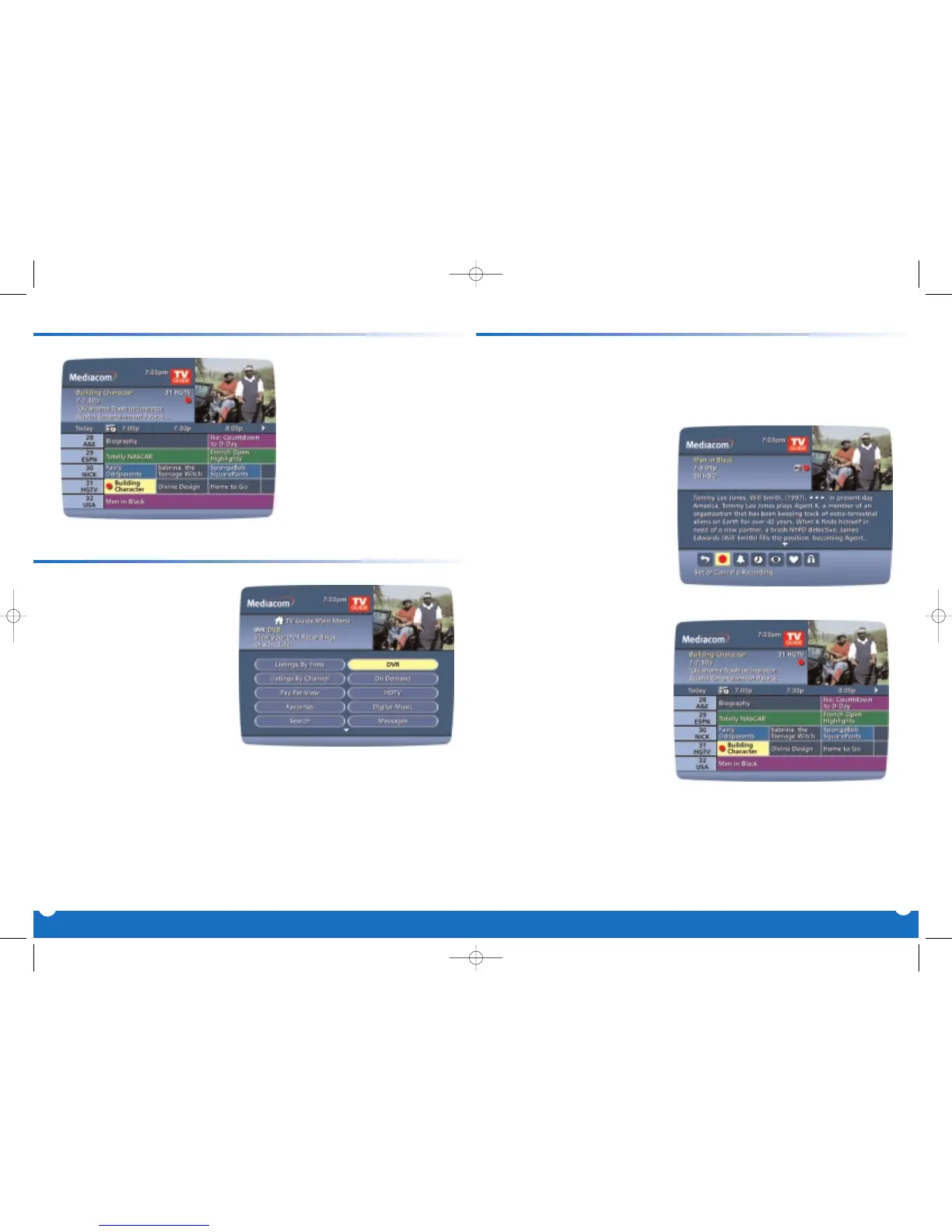
Press RECORD on your remote
any time while watching TV or
while navigating through the
program listings. Recording
begins immediately at the
point you pressed
RECORD for
current programs or a recording
is automatically scheduled for
future programs.Recording
will start at the program's
scheduled start time.
You can set a Manual Recording
to automatically record a specific
time and channel.
Step 1: Select DVR from the
Main Menu, then select
Set a Recording.
Step 2: Select the start and end
times.
Step 3: Select the channel you
want.
Step 4: A “Create a New
Recording”Screen will
appear. Select Create a
Recording
to confirm
your settings or select the
Recording Options Icon
for additional Recording
options.
Record with Just One Touch
Manually Schedule a Recording
16
15



 To Next Page