S
S
E
E
T
T
T
T
I
I
N
N
G
G
U
U
P
P
6
S
S
E
E
T
T
T
T
I
I
N
N
G
G
U
U
P
P
CONNECTING THE CABLES
You can connect the external hard disk to your computer
using a free USB or IEEE 1394 (Firewire) port. If your com-
puter supports USB 2.0, it does not make a big difference if
you connect the hard disk using a USB or IEEE1394. The
speed of transmission is more or less the same for both sys-
tems.
You can also connect the hard disk to computers with a USB
1.1 port. The speed of transmission is then somewhat slower.
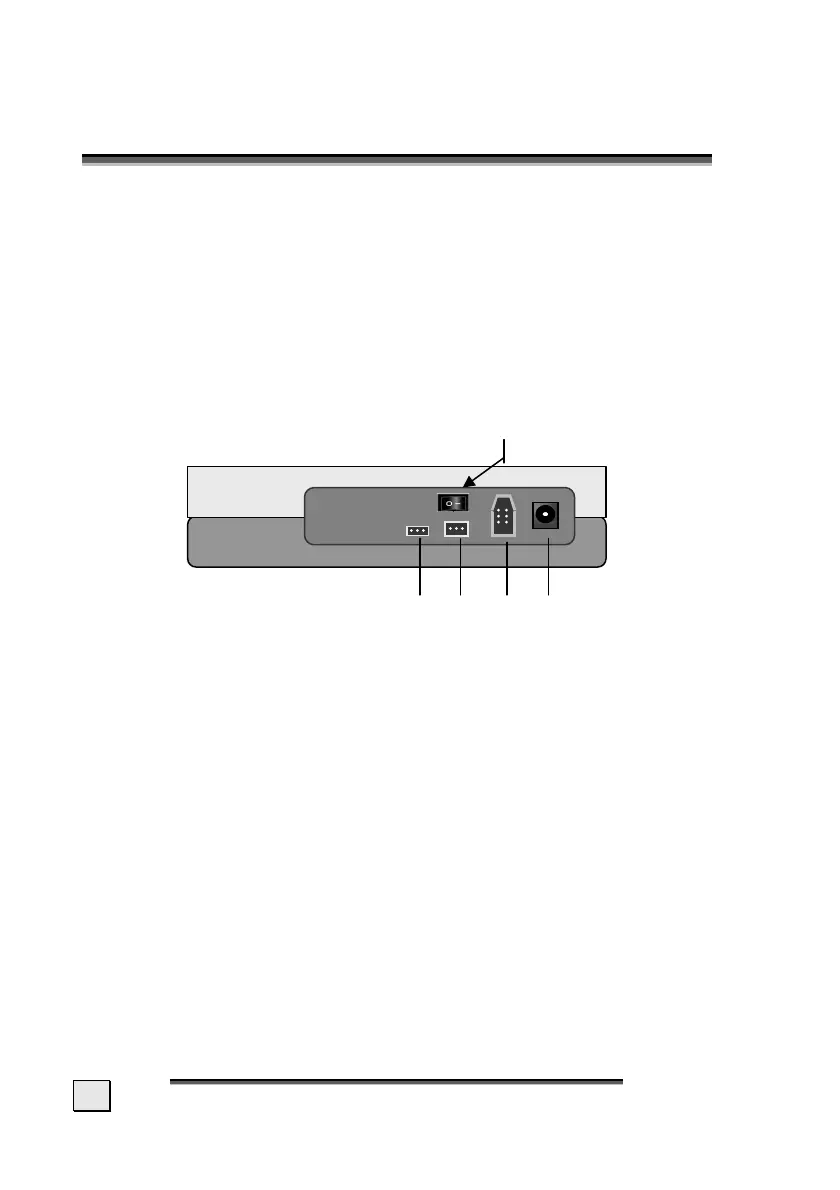
(approximate diagram) n o p q
n Connection for USB 1.1/2.0
o Connection for IEEE 1394 (FireWire,iLink, 4 pole)
p Connection for IEEE 1394 (FireWire,iLink)
q Connection for power adapter
1. Start your computer and wait until Windows
®
has been
fully loaded.
2. Connect the desired data connection cable to the corre-
sponding connection (n, o or p) on your external hard
disk.
3. Connect the other end of the connection cable to your
computer.
4. Now connect the power adaptor to a socket that can
easily be reached. Plug the power adaptor plug into the
corresponding socket (q) in the hard disk.
ON/OFF



 To Next Page