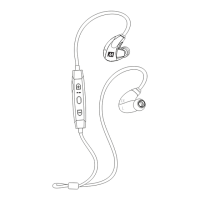
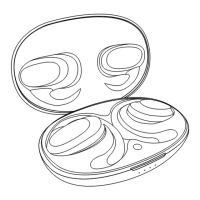
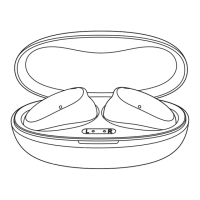
Make sure the M9B is turned off and within 3 feet (1 meter) of the
device you wish to pair. Press and hold the Multifunction button for
about 4 seconds until the headset says “Pairing”. The status indicator light
will flash red and blue in an alternating pattern while the M9B is in pairing
mode.
Note: The M9B will remain in pairing mode for 5 minutes or until paired.
Open the Bluetooth menu on the device you wish to pair.
Wait until you see “M9B” on the screen of your device.
Select “M9B” on your device and follow any further prompts to pair.
Use “0000” if a pin is required. Once connected, the headset will say
“Connected” and the blue indicator light will flash three times every 9
seconds.
6
Computers, Laptops, and Other Devices
Visit the Bluetooth Support Page at
www.MEEaudio.com for pairing and setup information.
BLUETOOTH
®
PAIRING
Your headset must be paired to a Bluetooth device before it can be used.
It is only necessary to pair your headset once with each device.
1.
2.
3.
4.
iPhone, iPad, and iPod touch
On your device, open the
Settings
menu
Select
Bluetooth.
If Bluetooth is not on, turn it on.
The iPhone/iPad/iPod® will automatically search for new devices.
a)
b)
Android™ Phones and Tablets
On your device, open the
Settings
menu
Select
Bluetooth
(on older Android devices
Bluetooth
is
found in the
Wireless & Networks
menu). If Bluetooth is not on, turn it
on. Select “Search for Devices” or “Refresh” if your phone or tablet does
not automatically search for new devices.
a)
b)
Windows® Phone 8 devices
On your device, open the
Settings
menu
Select
Bluetooth. If Bluetooth is not on, turn it on.
Windows Phone 8 will automatically search for new devices.
a)
b)
If pairing fails after several tries, please refer to your device’s
user manual for additional information. Visit the Bluetooth Support Page at
www.MEEaudio.com for instructional pairing videos and troubleshooting
information.



 To Next Page