13
OPERATION (Continued)
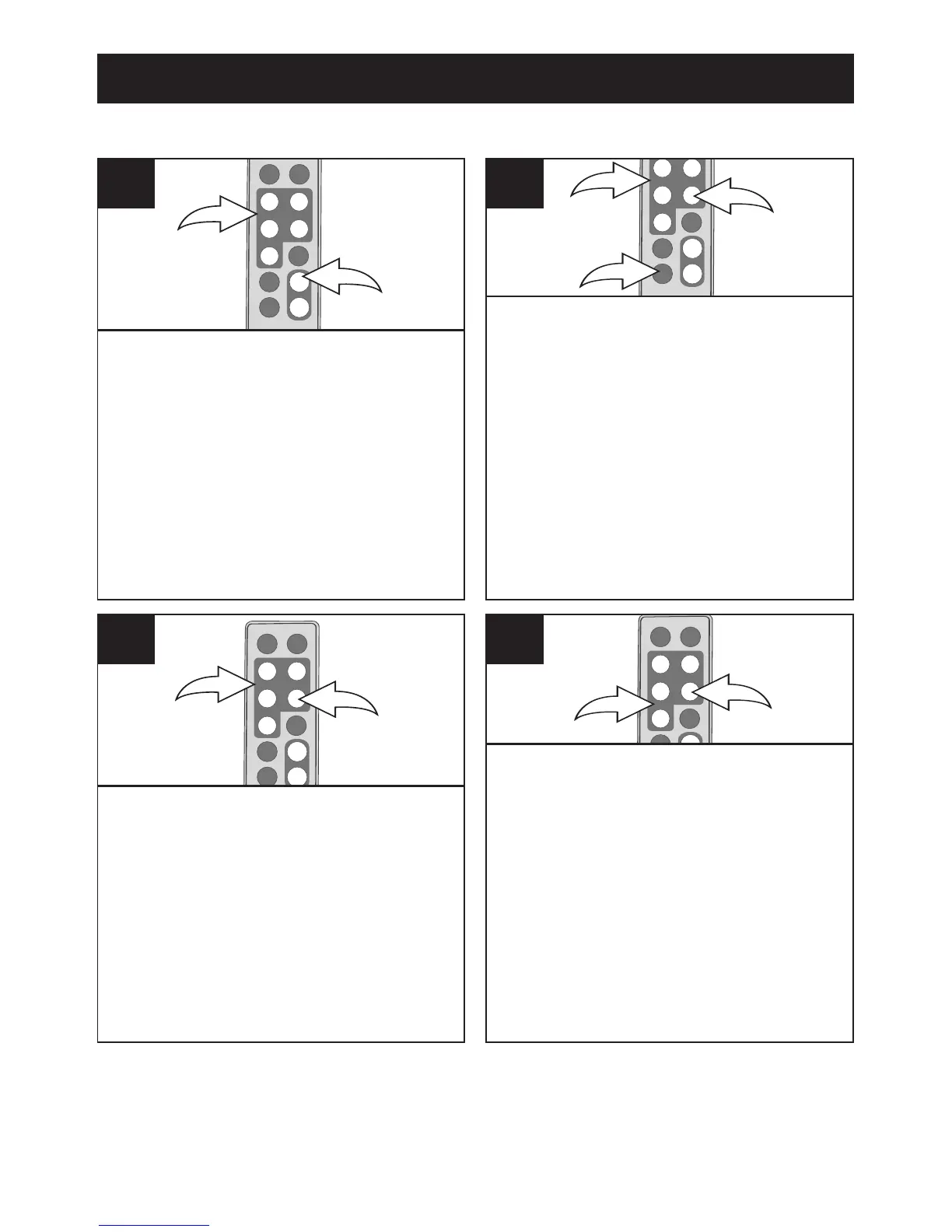
While in Photo Thumbnail view (see
page 11), select a photo to add to
your Favorites using the Navigation
√, ®, π, † buttons 1. Then press
the ZOOM IN button
2 to confirm; a
red frame will appear around the
selected photo.
NOTE: To deselect the photo,
simply press the ZOOM IN
button again.
1
Press the EXIT button 1 to exit to the
Main menu. Select Favorites using the
Navigation
√, ®, π, † buttons 2; then
press the ENTER/PLAY button
3 to enter
the Favorites menu.
To change the favorite’s view (Single
photo or Double photos) on the screen,
select Play Mode using the Navigation
π,
† buttons 2. Then, press the Navigation
√, ®, π, † buttons 2 to select between
Single or Double; then press the OK
button
3 again to confirm.
2
In the Favorites menu, you have the
option of selecting to view your
Favorites in Landscape or
Portrait mode. Press the
ENTER/PLAY button
1 to select
Direction. Then, press the Navigation
√, ®, π, † buttons 2 to select
between Landscape and Portrait;
then press the ENTER/PLAY button
1 again to confirm.
3
Once you have chosen the viewing
mode (if desired), select Play using
the Navigation
π, † buttons 1; then
press the ENTER/PLAY button
2 to
confirm and start playback of your
Favorites.
OR To exit the Favorites
menu and return to the Main menu,
select Exit using the Navigation
π,
† buttons 1; then press the
ENTER/PLAY button
2 to confirm.
NOTE: You can also press the EXIT
button to exit the Favorites menu.
4
PHOTO “FAVORITES” PLAYBACK
TO CLEAR THE FAVORITES PLAY LIST: In Photo Thumbnail view, press the
ROTATE button; a pop-up window will appear. Select “No” (to NOT clear the
Favorites) or “Yes” (to clear the Favorites) using the Navigation
√, ® buttons; then
press the ENTER/PLAY button to confirm.



 To Next Page