Getting Started
20G233-00 E1
2017-10-20
Page 15
2 Getting Started
2.1 Connecting and Starting
You can use the following check list when installing the board in a system for the first
time and with minimum configuration.
2.1.1 Integrating the Board into a System
» Make sure that the slot in which you want to install the G233 supports an Ethernet
connection on CompactPCI Serial connector P6.
» Power down the system.
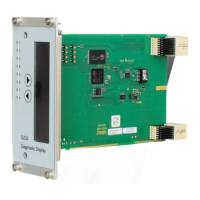
» Insert the G233 into a peripheral slot of your CompactPCI Serial system, making
sure that the backplane connectors are properly aligned.
Note: The peripheral slots of every system are marked by a circle with a plus sign behind
it on the backplane and/or at the front panel:
» Power on the system.
2.1.2 Preparing the Web Server on the Host CPU
The G233 requires the following software infrastructure on the host CPU:
Suitable software querying diagnosis data inside the CompactPCI Serial system, e.g.
CPU temperature.
Web server software, e.g., Apache for Linux or XAMPP for Windows.
Web server scripting environment, e.g., using PHP, to dynamically aggregate data
and provide HTML output.
The HTML files must include an index.html file as the start page for the G233 display
output.
2.1.3 Configuring the Host CPU
» Configure the network adapter of the host CPU:
- Static IP address: 192.168.3.60
- Netmask: 255.255.255.0
» Set up the web server, e.g., Apache for Linux using the following command:
» Store your HTML files in the corresponding folder on the web server, e.g., for Linux
Apache /var/www/html/.
» Set port 8090.
» Start the web server using, e.g., the following command for Linux:
» If there are problems, check if the firewall blocks the port.
$ sudo apt-get install apache2
$ sudo service apache2 start


 To Next Page