Defining your own presets
24
Defining your own presets
The 541 Surround Controller allows you to modify one of the
built-in presets, and save it for future use.
You can either save the changes to the built-in preset, or you
can create up to 10 presets of your own, with names of your
choice, so you can use them alongside the built-in presets.
To save the preset settings
● Make sure the menus are unlocked; see To unlock the menus,
page 20.
● Press Preset (front panel), or • (remote), to select the preset
you want to modify.
● Change the preset parameters to the values you want to
store; see To change a preset parameter, page 23.
● Press Store on the remote.
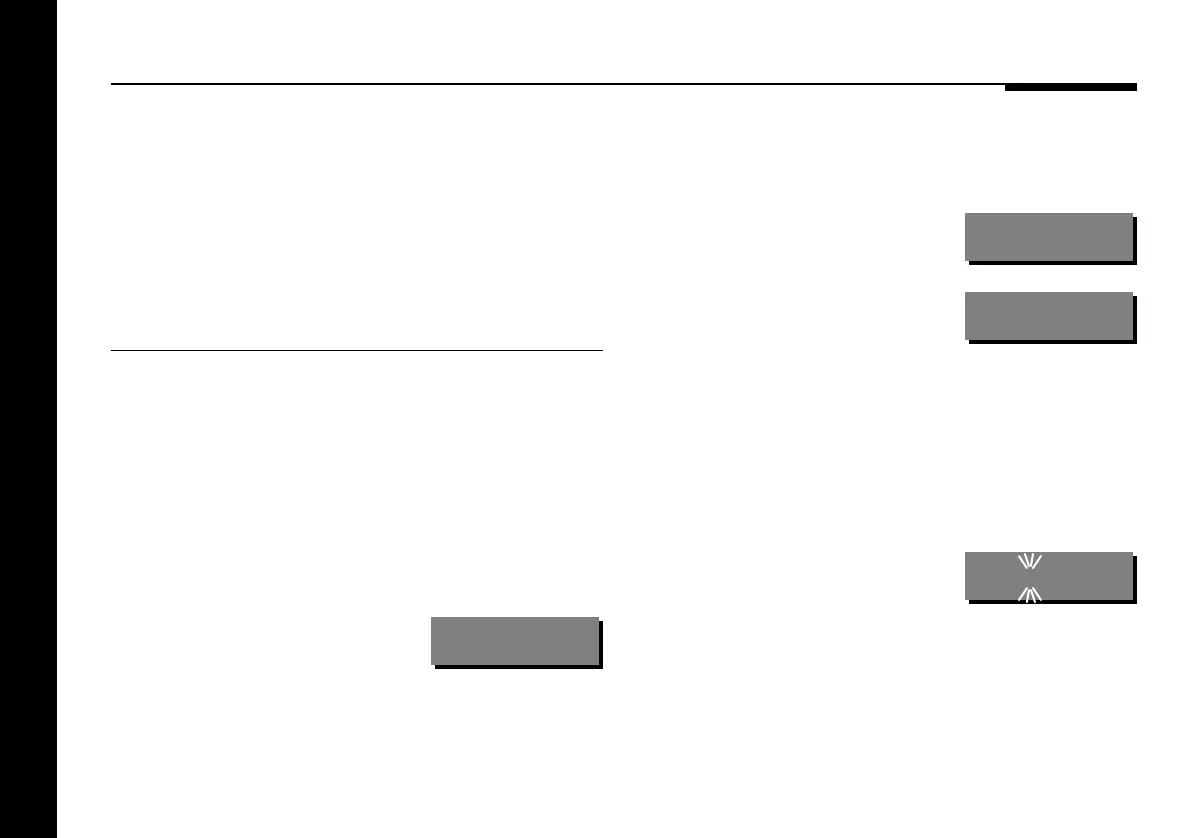
The display shows the next available
user-defined preset; for example:
Sto.User 2
● If you want to overwrite an existing preset press A or V to
select the preset you want to overwrite.
For example:
Sto.User 1
Or you can choose the user-defined
preset you started with; for example:
Sto.Music
● Press Store on the remote.
The settings have been stored in the new or existing preset you
selected.
You can now edit the name of the preset.
A flashing cursor shows the letter you
are editing:
Sto.•ser 2
● Press > or < to select the character position you want to edit.
● Press A or V to change the character.
Each press steps through the sequence A to Z, a to z, 0 to 9, full
stop, and blank. You can also select a blank directly by pressing
Clear on the remote.



 To Next Page