9
www.portableappliancetesters.com.au/support
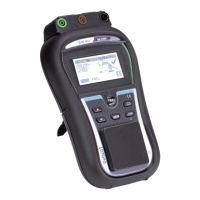
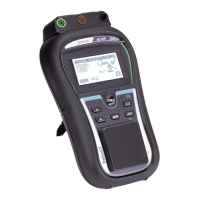
To have the Tester details appear on the tag, you need to specify a user on the Delta Pat.
From the Main menu select Setup and then scroll to User Data. You will be provided with Users 1 - 5, press the Tab
(the left and right arrow buttons) and you can enter the user details you wish to appear on the tag.
There is a maximum of 12 usable characters, you press the up and down buttons to scroll through the letters and
numbers and the press Test to select the character you wish.
Once the correct details are entered, press the Mem button to save the details, then press Test to select that user.
That user will then appear on all future tags, to change the user just go into Setup then User Data and either create
another user, or select a previous one and press Test.
This is a quick guide on retrieving results with the PATLink Pro software from a MI
3309 Delta tester, and creating a report.
Open Metrel PATLink Pro on your computer.
Press on the Instrument menu, then press “Get Results”
You will be prompted to enter the serial information to connect to the device.
You will need to determine what COM port your computer has assigned to the
cable, otherwise you can tick Auto-detect (COM port, Baud rate) and it will
scan through each of the COM ports and baud rates.

 To Next Page
 Loading...