Copyright © 2009-2012 Micca, LTD. All rights reserved.
IV. Micca Speck Startup
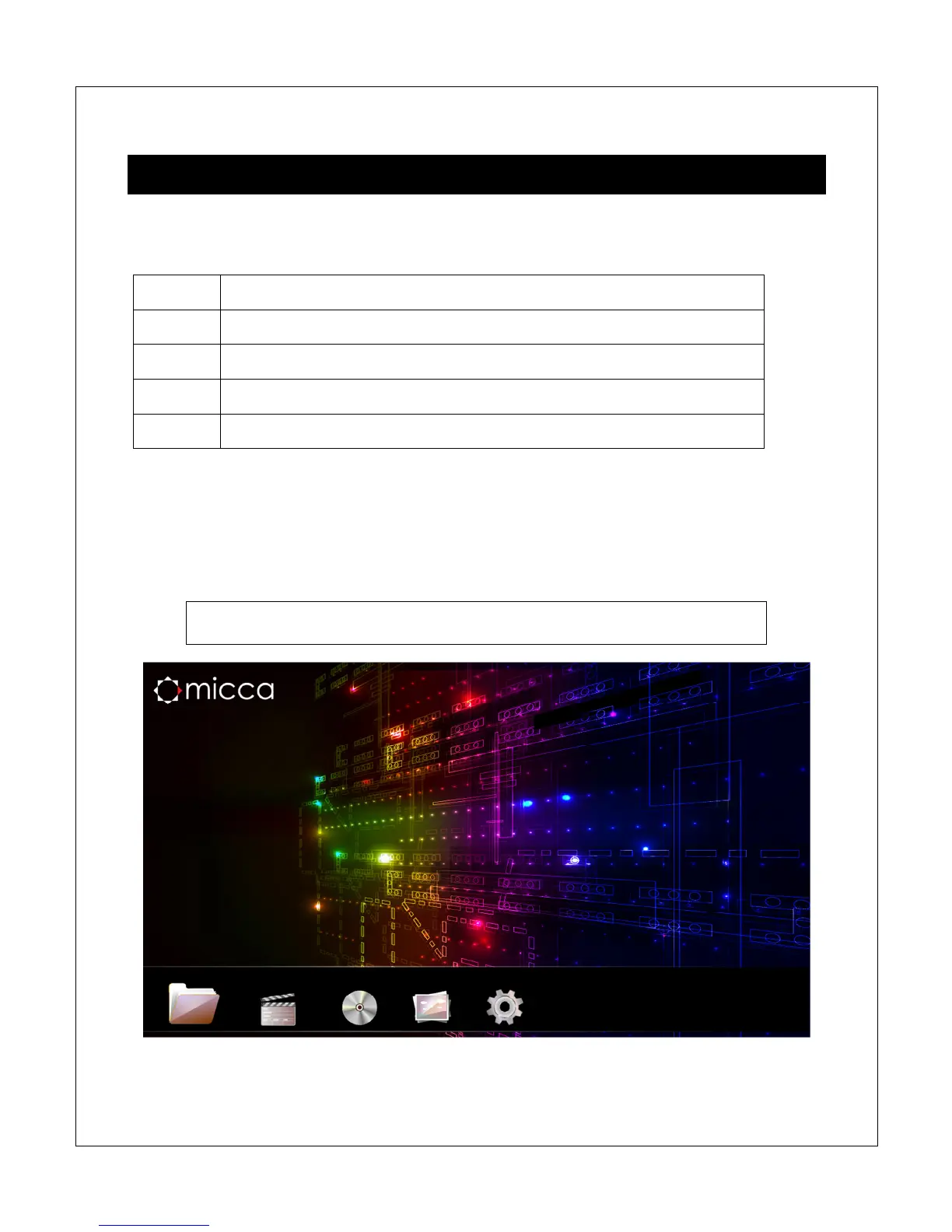
After powering on, the Micca Speck displays the Home screen. The Home screen
presents five icons for access to different types of media files or settings:
Browse and play all compatible file types.
Browse and playback compatible audio files.
Browse and playback compatible video files.
Browse and display compatible image files.
System settings.
Use the <
> and <
> buttons on the remote to highlight the desired media type and
press the <OK> button to select it. Refer to sections for individual media types for
additional information.
Use the <File>, <Photo>, <Music>, and <Movie> buttons on the
remote to quickly select a browsing method from the home screen.


 To Next Page