Micro-Air, Inc. Page 29 EasyTouch 2.5 Operations Manual
Rev 1.0 8/27/14
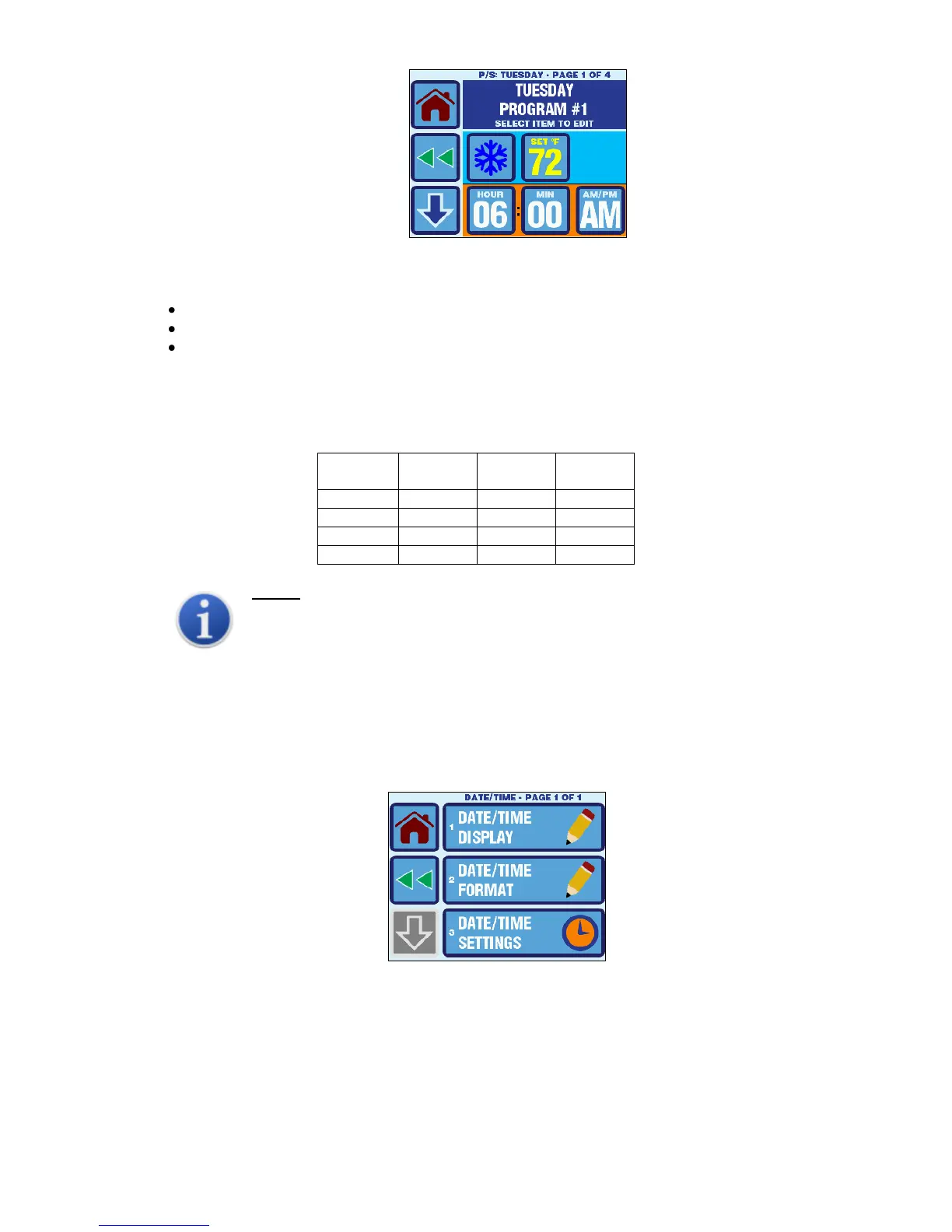
Figure 19 – Program Scheduler Setup Example
The 4 programs can be adjusted simultaneously for an individual day or a group of days:
Program: Mon-Fri
Program: Sat-Sun
Program: Monday, Tuesday, Wednesday, Thursday, Friday, Saturday, and Sunday
The default program settings for each day of the week are shown in Table 5. Use this table as a
guide for how design the Program Scheduler behavior for your particular needs.
Table 5 – Program Scheduler Default Day of the Week
NOTE:
If the same Program Scheduler behavior is desired for Monday-Thursday, but Friday
needs to be different, the best way to accomplish this is to program Monday-Friday as a
group with the desired programs for Monday-Thursday, then go back and individually edit
Friday’s programs to make them different.
13. DATE/TIME MENU
The Date/Time Menu allows the user to control the display of the date & time, change its format, and adjust
its settings. To access the Date/Time Menu, go to Main Menu and then select Date/Time Menu. The
Date/Time Menu has 3 items on 1 page as show in Figure 20.
Figure 20 – Date & Time Settings Menu Screen
13.1 Enabling the Date/Time Display
The Date/Time Display parameter controls the display of date & time on the Main screen only.
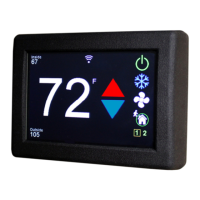
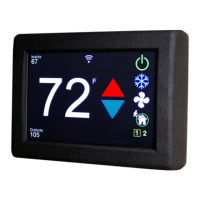
Setting this parameter ON enables the display of the date & time as shown in Figure 21. Setting this
parameter to OFF disables the display of the date & time as shown in Figure 22. When disabled, the
EasyTouch logo is shown in place of the date & time.



 To Next Page