Micro-Air, Inc. Page 30 EasyTouch 2.5 Operations Manual
Rev 1.0 8/27/14
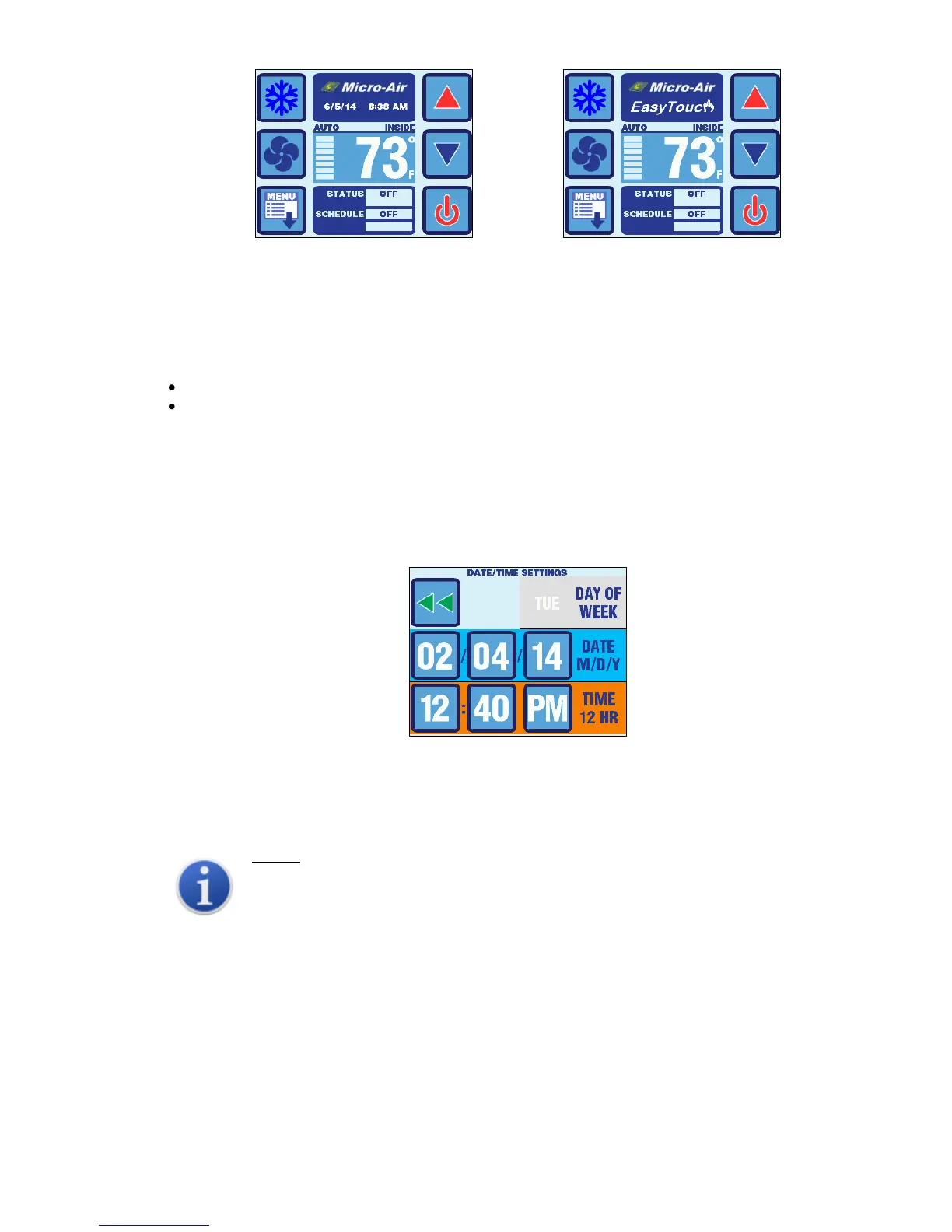
Figure 21 – Main Screen with Clock Figure 22 – Main Screen without Clock
13.2 Changing the Date/Time Format
The Date/Time Format parameter allows the date & time display format to be selected automatically
based on AC power line frequency, or selected deliberately. Setting this parameter to AUTO allows
the AC power line frequency to determine the date & time format.
60Hz: M/D/Y 12-hour format
50Hz: D/M/Y 24-hour format
To fix the date & time display format to a particular setting, choose “M/D/Y 12-HOUR” or “D/M/Y 24-
HOUR”.
13.3 Setting the Date & Time
The Date/Time Settings screen allows each individual value to be adjusted individually. This screen
has 1 page and is shown below in Figure 23.
Figure 23 – Date & Time Setting Screen
To edit a particular value, press the button corresponding to the value. After making the necessary
adjustments in the edit screen, press the SAVE button. The day of the week will automatically be
calculated based upon the set date.
NOTE:
If the EasyTouch battery is ever replaced, the date & time settings will be reset to
01/01/2007 12:00AM. During the first AC power up after a battery replacement, the
EasyTouch will detect this date & time reset and immediately display the Date/Time
Settings screen immediately after power up.
14. SYSTEM MENU
The System menu allows the user to view and modify system settings pertaining to the display itself. For
example, the screen brightness, colors, Sleep Mode behaviors, display lock, etc. To access the System
Menu, go to Main Menu and then select System Menu. The System Menu has 5 items on 2 pages as show
in Figure 24.



 To Next Page