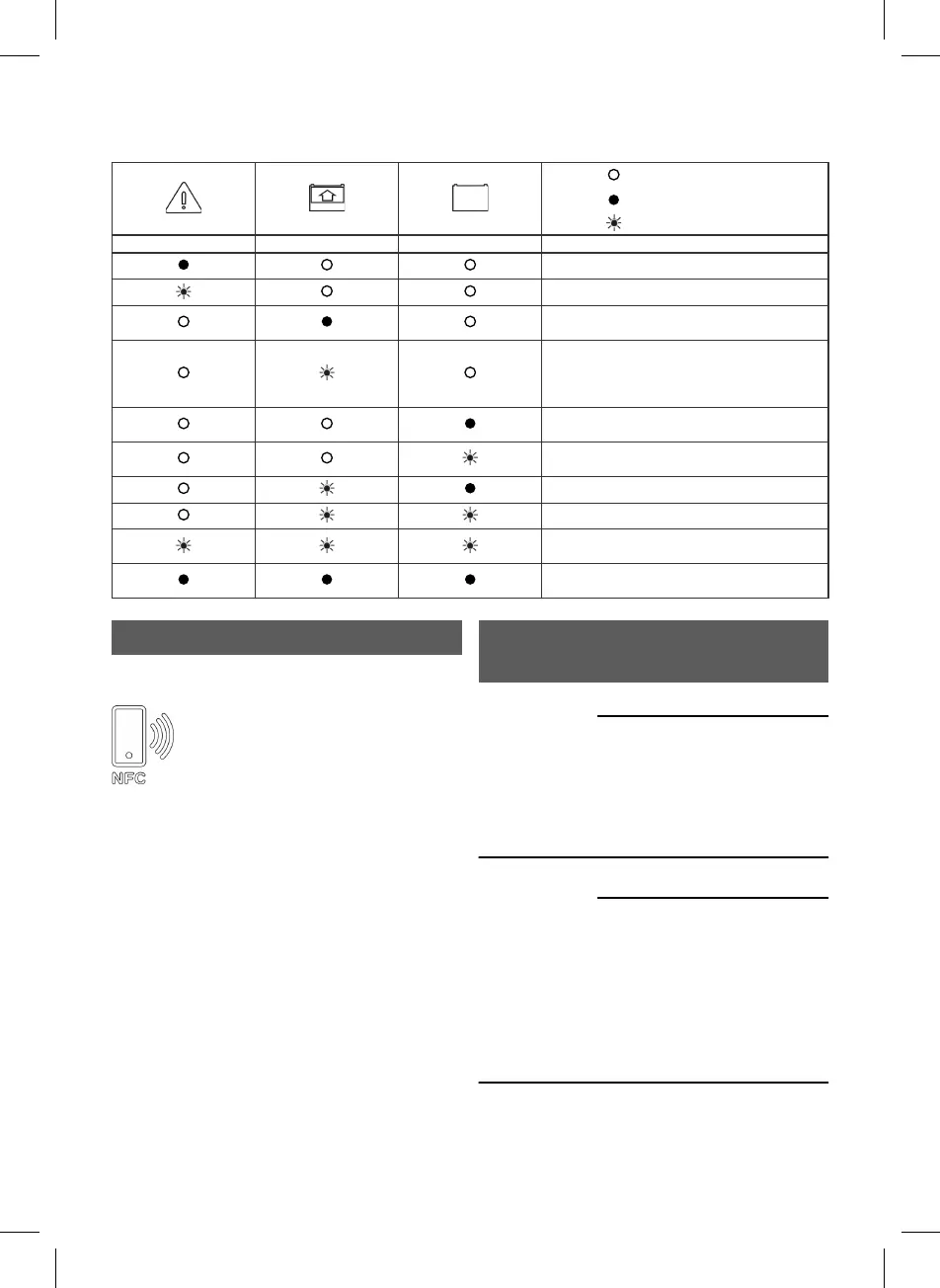
LED indication
Off
On
Flashing
Red Yellow Green Information
An alarm is active.
Software malfunction
A battery is connected to the charger and
charging is in progress.
A battery is connected to the charger but
charging is restricted. The restriction can be
due to settings in the Time restriction or
Remote in function.
A battery is connected to the charger and the
charging process is completed.
The charging process has been manually
stopped. Press ESC to resume charging.
Equalize charging in process.
–
An indication request has been sent from
Service Tool.
Charger is in bootloader mode. Wait until
charger automatically restarts.
GET Ready
Micropower Group GET App
The unit has Near Field Communication
(NFC) and can communicate with compatible
iOS-/Android devices.
1. Activate NFC on the current iOS-/Android
device.
2. Put the iOS-/Android device on the unit's NFC
symbol.
For further information, refer to GET APP
information on Micropower Support Center.
GET Cloud
The charger can connect wirelessly to GET Cloud
for fleet management and additional smart
services. For further information about the GET
system, see Micropower Support Center or
contact your local Micropower Representative.
Maintenance and
troubleshooting
WARNING
RISK OF ELECTRIC SHOCK!
Only qualified personnel should install, use,
maintain and service this product.
Disconnect the battery and power supply before
maintenance, servicing or dismantling.
WARNING
RISK OF ELECTRIC SHOCK!
Do not use the battery charger if it is damaged.
Disconnect the mains immediately.
Do not touch damaged parts, uninsulated battery
terminals, connectors, or other live electrical
parts.
Contact service personnel.
ENGLISH
8



 To Next Page