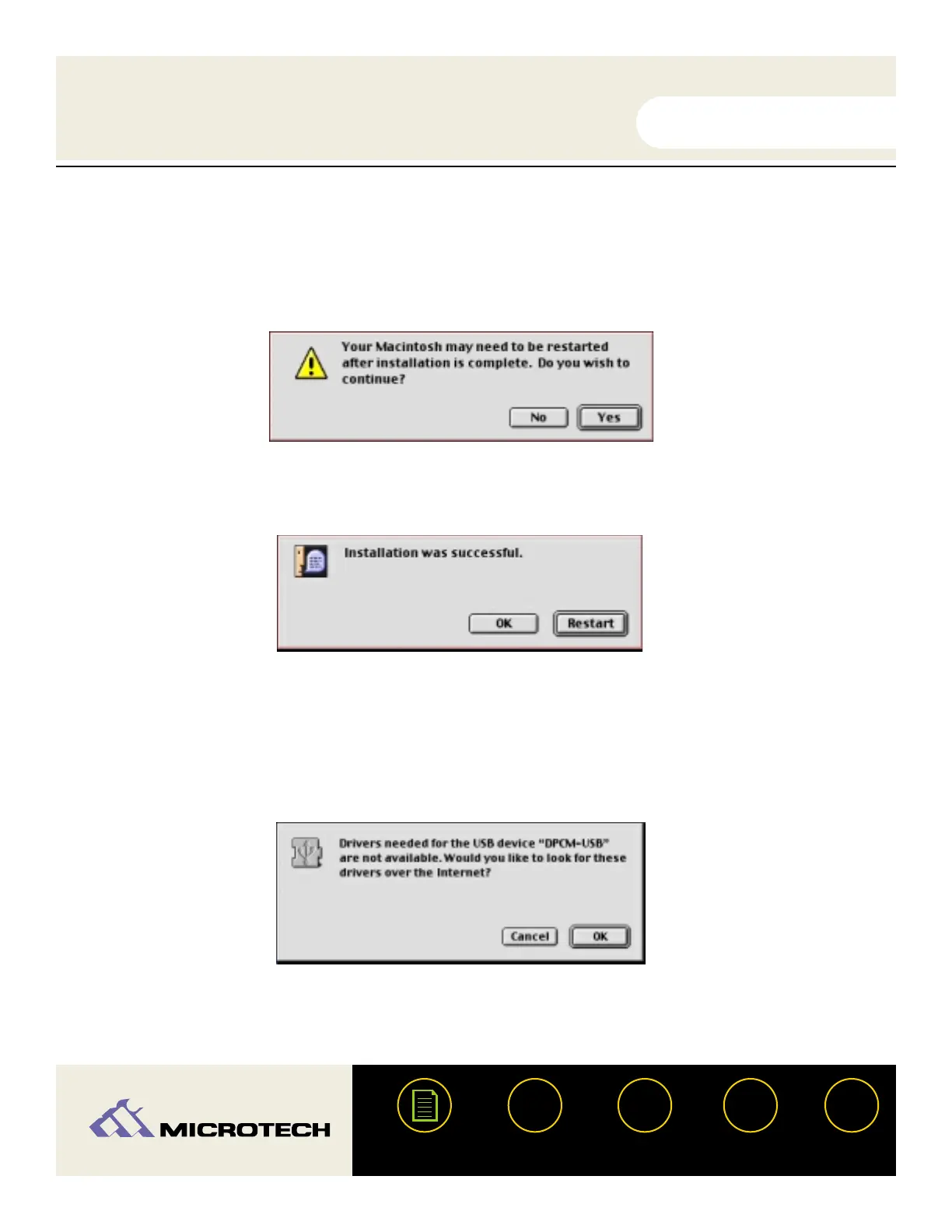
A dialog box will appear advising that you may have to restart your computer after
installing the software, click "Yes" to continue. Your Macintosh will then begin performing
the installation and a status bar will appear displaying the progress of the installation.
Note the actual driver installation should take only a few seconds.
A final dialog box will appear advising that the software was successfully installed. Click
"Restart" to complete the installation.
Congratulations! Driver installation is now complete. You may now connect the Microtech USB
CameraMate to your computer after restarting. Proceed to the next page for instructions on
connecting the Microtech USB CameraMate.
Installation note: If you attempt to attach the USB connector of the USB CameraMate to the
computer prior to installing the drivers, you will receive the following (or a similar) message:
If this occurs, click "Cancel", install the driver software, and then attach the USB connector. For
more information on attaching USB devices proceed to the section "Connecting to the USB Port"
(page 12) or "Connecting to a USB Hub" (page 13).
USER'S
MANUAL
USER'S
MANUAL
USB CameraMate
?
HELP
CONTACT
NEXTBACK
CONTENTS
11
6.
7.


 To Next Page