'
Shooting Movies
Movie mode allows you to record movie clips, the
length of which is determined only by the size of your
available memory. Clips are recorded at a resolution of
320x420 pixels, at 15 frames per second. Movies are
saved in memory in the AVI file format.
1. Switch mode to
/ (Movie/Audio).
Recording Audio
The audio feature allows you to record audio clips of
unlimited length (limited only by the size of your
camera's memory).
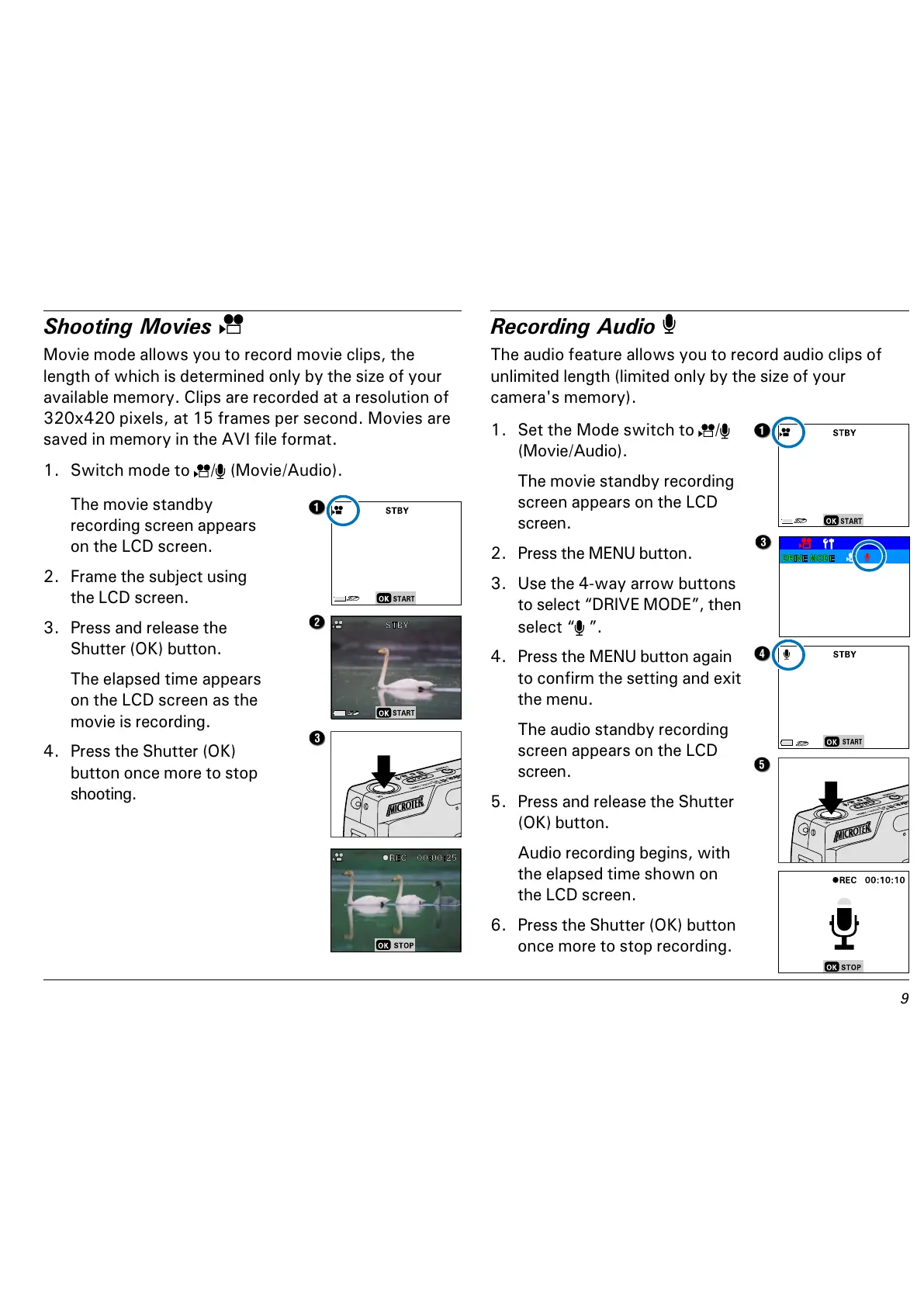
1. Set the Mode switch to /
(Movie/Audio).
The movie standby recording
screen appears on the LCD
screen.
2. Press the MENU button.
3. Use the 4-way arrow buttons
to select DRIVE MODE, then
select
.
4. Press the MENU button again
to confirm the setting and exit
the menu.
The audio standby recording
screen appears on the LCD
screen.
5. Press and release the Shutter
(OK) button.
Audio recording begins, with
the elapsed time shown on
the LCD screen.
6. Press the Shutter (OK) button
once more to stop recording.
The movie standby
recording screen appears
on the LCD screen.
2. Frame the subject using
the LCD screen.
3. Press and release the
Shutter (OK) button.
The elapsed time appears
on the LCD screen as the
movie is recording.
4. Press the Shutter (OK)
button once more to stop
shooting.



 To Next Page