4
2.3
Preparing for a game
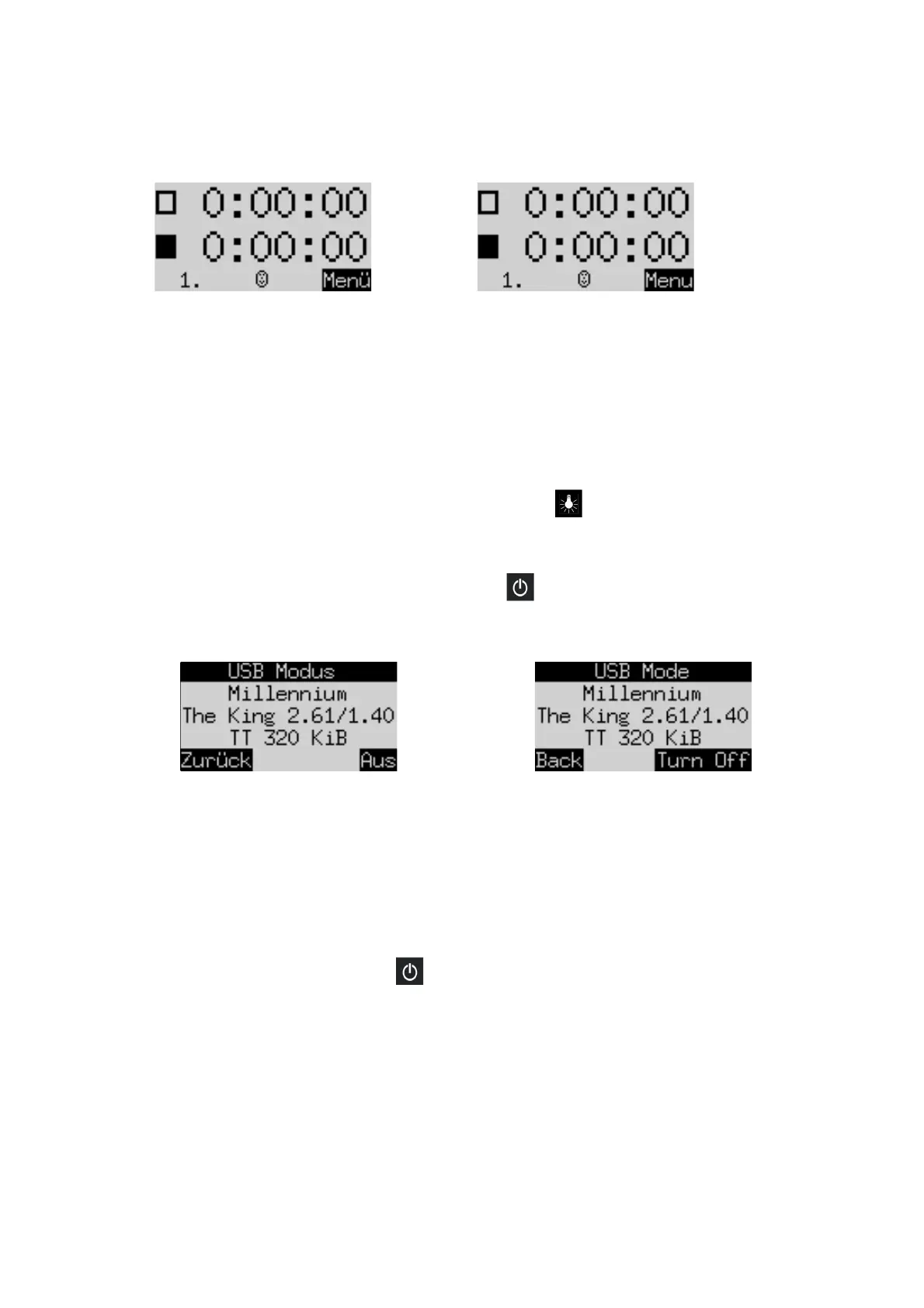
After you have selected the language, the ‘Clock’ display appears:
Place the chess pieces on their starting squares. Initially the computer assumes that White is playing ‘up the
board’, i.e. the white pieces are starting from the 2 rows next to the control panel. If you want Black to play
‘up’, give the ‘Invert board’ command as described in Sections 5.1, 5.5.
You can now begin a game against the computer on its ‘A2 Normal’ level of playing strength. (For how to
alter the level, see Sections 5.1-3.)
If you want the computer to play White, give the ‘Move’ command as described in Sections 5.1, 5.5.
2.4
Adjusting the backlight
The LCD display has a backlight that you can adjust by pressing the button as many times as necessary.
2.5
Switching on and off
If the computer is running and you press the On/Off button , the following display (featuring the
program’s version number) appears:
If the computer is connected to a PC or laptop via a USB cable, you can now perform operations such as
loading or saving games. For this, see the ‘Expert’ user manual on the Millennium website.
If instead you press the GREEN button, the computer switches off.
Or if you press the RED button, it reverts to the ‘info’ screen (see Section 4) or the menu (Section 5.1).
If switched off in the correct manner (as above), the computer will still retain the current game in its memory,
even if you afterwards disconnect the power. The parameters (level, etc.) that you have specified will remain
unchanged.
When the power is reconnected, the computer automatically switches on. To switch on when the
power has
not
been disconnected, press the button.
After switching on, you can resume play from where you left off.
2.6
Reset
To delete previous data:
• Disconnect the computer from the power supply.
• Hold down the RED button and reconnect the power.
• Keep the RED button held down until the start screen appears (as in Section 2.2).


 To Next Page
 Loading...