8
In either case, after pressing the GREEN or RED button, you may continue the current game if you wish – or
press NEW to start a new game.
Note:
the computer will not resign or offer a draw when playing on its lowest level (‘Play & Win’).
3.8
Starting a new game
You can start a new game any time, except in the middle of some special operations described in Section 5.
Press the NEW button. The screen shows ‘New Game?’ and
either
the word ‘Classic’
or
an arrangement of
pieces to start a game of ‘Chess 960’. To switch between these displays, use ñ or ò.
To begin a game of ordinary (‘classical’) chess, press GREEN when the screen shows ‘Classic’.
A press on RED would cancel the ‘new game’ command and leave the position unaltered.
For an explanation of ‘Chess960’ (also known as ‘Fischer Random Chess’), and how to play it with the
computer, see the Millennium website: http://www.computerchess.com/.
4
The info screens
4.1
Switching between info screens
In ‘Comfort’ mode the computer offers two different screens or ‘pages’ of information. The ‘Clock’ screen
displays the thinking times for the two players. The ‘Game score’ screen records the moves of the game. To
switch from one screen to the other, press ï or ð.
When either of these ‘info’ screens is displayed, you may press GREEN to access a menu of the computer’s
special functions. See Section 5.1.
4.2
Info screen: Clock
This screen was displayed when you first connected the power and selected the language – see illustration in
Section 2.4.
If the ‘Timer’ (see Section 5.4.7) is ‘off’, the screen shows the total thinking time taken so far by White and
Black.
If the Timer has been switched on, each side is allotted 15 minutes’ thinking time for the entire game, and
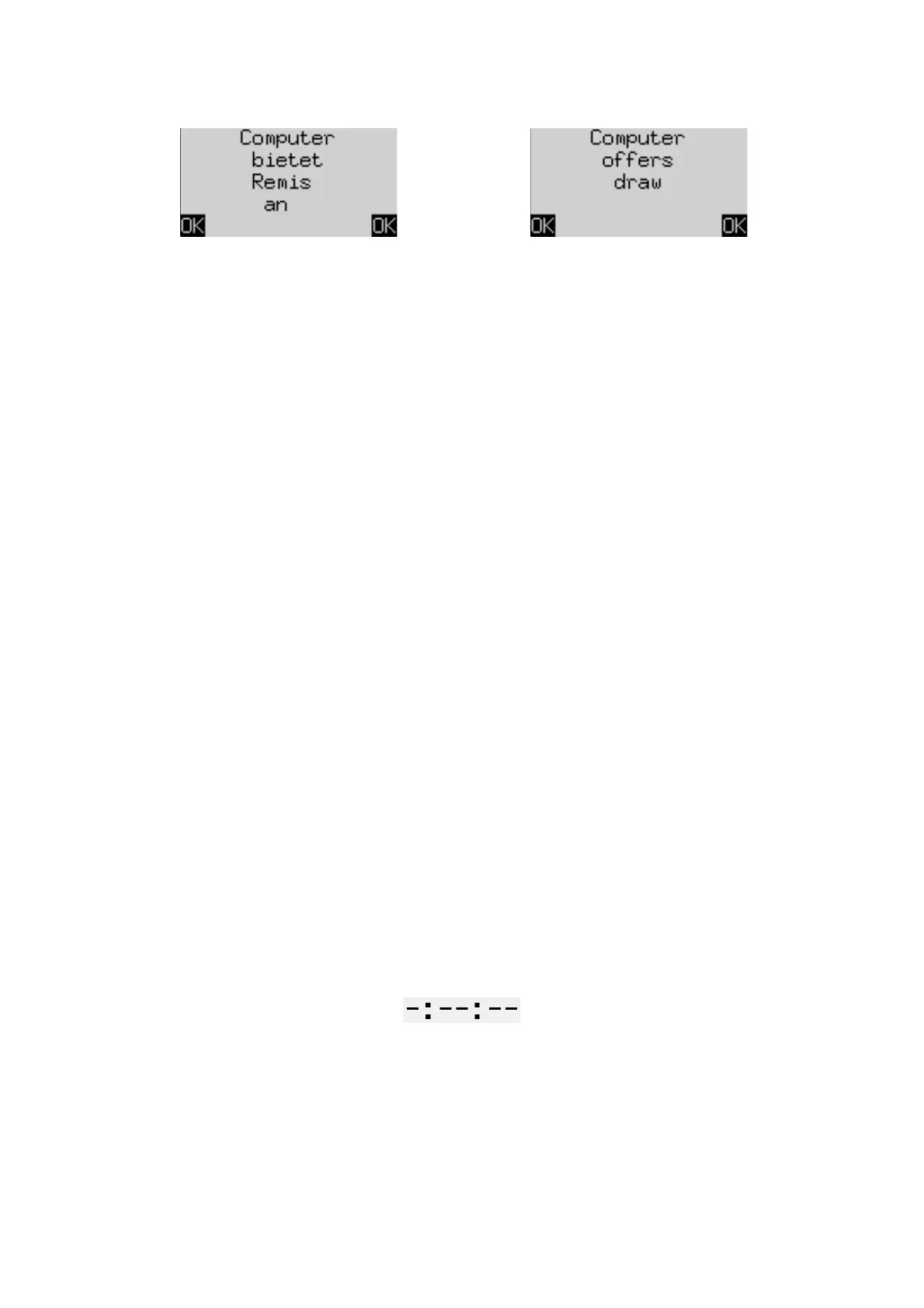
the time counts down. If a player exceeds the time limit, the ‘Clock’ screen shows the following:
However, the game may be continued even after the player has ‘lost on time’.
Note that your own clock time remains ‘frozen’ until you have carried the computer’s move out. This means
that the playing conditions are fair, especially with the Timer ‘on’ – you don’t have to move your opponent’s
piece in your own thinking time.


 To Next Page
 Loading...