
 Need help?
Do you have a question about the Milenium The King Performance and is the answer not in the manual?
Product safety guidelines, including warnings against misuse, heat, moisture, and electromagnetic fields.
Guidelines for connecting and safely using the AC power adaptor.
Instructions for connecting the AC adaptor to the computer unit and power supply.
Guide to choosing the display language, with supported languages listed.
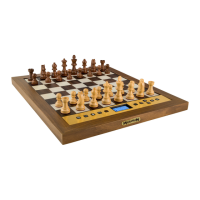
Steps for setting up the chessboard and starting a game against the computer.
Procedure for powering the computer on, off, and resuming play.
Instructions for resetting the computer to its default settings, deleting previous data.
How to make your move, including standard moves and special captures like en passant.
Explanation of how the computer indicates its move and the display feedback.
This document is a user manual for 'The King Performance' M830 chess computer, software version 1.40 (November 2020). The computer offers two modes of operation: 'Comfort' mode for inexperienced players and 'Expert' mode for strong players. This manual focuses on the 'Comfort' mode, with full instructions for 'Expert' mode available on the Millennium website.
The computer is initially set to 'Comfort' mode. To switch to 'Expert' mode, refer to Sections 5.4.1-3 of this manual. Users are advised to read all safety notes and operating instructions before use and to store the manual for future reference.
The product is not a child's toy. Children using the device should be instructed and supervised to ensure proper use. Packaging materials should be kept away from babies and small children to prevent suffocation. The device should not be exposed to heat (e.g., radiators, direct sunlight) or moisture. To avoid malfunctions, do not operate the device near magnetic fields or electromagnetic radiation sources like televisions, loudspeakers, mobile phones, or WiFi devices. The device should not be opened as it contains no serviceable parts; contact the service address or local shop for malfunctions.
The device is made of real wood and requires careful handling. Store it in a dry place, away from strong sunlight. Clean the surface with a slightly damp cloth, ensuring no moisture penetrates the device. Avoid using solvents or aggressive/abrasive cleaning agents, as these can damage the surfaces.
Only use the supplied AC adaptor. Input: 100-240 V 50/60 Hz, 0.45A max; Output: 9V DC 1A. The power socket should be close and easily accessible. Do not connect the device to more power sources than recommended. Electrical contacts must not be short-circuited. Disconnect the adaptor from the mains before cleaning. Regularly check the product and AC adaptor for damage; do not use if damaged and never open them. Observe all safety information printed on the AC adaptor.
The package includes:
The computer unit has three sockets at the rear. Insert the small connector of the AC adaptor into the right-hand socket, then connect the adaptor to a power supply. A sound signal will be emitted.
The LCD display supports 7 languages: English, German, French, Dutch, Italian, Spanish, and Russian. Upon connecting power, 'English' and the software version appear. Press the GREEN button to confirm English, or use the down-arrow button to select another language, then confirm with GREEN. The language can be changed later via 'Options' (Section 5.4).
After language selection, the 'Clock' display appears. Place chess pieces on their starting squares. The computer assumes White plays 'up the board' by default. To invert the board for Black to play 'up', use the 'Invert board' command (Sections 5.1, 5.5). A game can be started against the computer on its 'A2 Normal' level. To change the level, see Sections 5.1-3. To make the computer play White, use the 'Move' command (Sections 5.1, 5.5).
The LCD display backlight can be adjusted by pressing the backlight button multiple times.
Pressing the On/Off button while the computer is running displays the version number screen. If connected to a PC via USB, operations like loading/saving games can be performed (refer to 'Expert' manual). Pressing GREEN switches the computer off. Pressing RED reverts to the 'info' screen (Section 4) or the menu (Section 5.1). When switched off correctly, the computer retains the current game and specified parameters (level, etc.). It automatically switches on when power is reconnected. To switch on without disconnecting power, press the On/Off button. After switching on, play can resume from where it was left off.
To delete previous data, disconnect power, hold down the RED button, and reconnect power. Keep RED held until the start screen appears (Section 2.2). This restores the computer to its initial state, except for saved games (Section 5.10).
The computer announces its move with a 'beep', and red lights blink alternately on 'from' and 'to' squares. The move is also shown as a 'prompt' (e.g., "$f6_g8"). Press down on the squares as you move the piece. If the computer gives check, a high triple buzz sounds, and lights around your king's square and checking piece(s) blink.
The computer may prompt to complete special moves. For castling, press the square h8, then f8 for the rook (e.g., "Rook f8_h8"). For underpromotion (pawn to rook), press b2, then b1 (e.g., "_b1_b2"). Any prompt can be cancelled by pressing RED, which also switches off chessboard LEDs, allowing you to perform the move or other operations without pressing squares.
If you press a piece but decide not to move it, press the square again or RED. Lights go out, and you can restart. An illegal move is rejected by a low triple buzz; simply complete a legal move. For piece verification (e.g., if pieces are knocked over), use the 'Verify' function (Section 5.9).
The final move is accompanied by three 'beeps', and the result is announced:
Press NEW. The screen shows 'New Game?' and either 'Classic' or a 'Chess 960' arrangement. Use arrow buttons to switch between displays. To start a classical game, press GREEN when 'Classic' is shown. Pressing RED cancels the command. For 'Chess960' (Fischer Random Chess), see the Millennium website.
In 'Comfort' mode, there are two info screens: 'Clock' (thinking times) and 'Game score' (moves). Switch between them using the left/right arrow buttons. From either screen, press GREEN to access the menu of special functions (Section 5.1).
This screen shows total thinking time for White and Black if 'Timer' (Section 5.4.7) is off. If 'Timer' is on, each side gets 15 minutes, and time counts down. If a player exceeds the limit, the screen shows a specific symbol. The game can continue even after losing on time. Your clock time is frozen until you complete the computer's move, ensuring fair playing conditions.
This screen displays recent moves (e.g., "22 Ne3-g3 Nc6-b5"). It also shows the computer's evaluation of the position (e.g., "+0.27 00:05" means a 0.27 pawn advantage for White, and 5 seconds for the last move). Other evaluations include disadvantages (e.g., "-1.89"), 'Book' for standard openings, or forced checkmate (e.g., "+M 7"). Retracted moves are indicated (e.g., "13 a4-a5 <<<"). The 'score' is not shown on the lowest level ('Play & Win').
Press GREEN from an 'Info' screen to access the menu. In 'Comfort' mode, there are 9 functions: 'Comfort levels', 'Elo levels', 'Options', 'Move', 'Hint', '2 Players', 'Position setup', 'Verify', and 'Save/Load game'. Four functions are listed at a time, with one highlighted. Use arrow buttons to rotate and highlight. Select an item by pressing GREEN. Return to the info screen by pressing RED. Note: RED and GREEN button uses are indicated by inverted wording. Arrow signs indicate enabled buttons. A blinking cursor indicates an alterable parameter.
Offers 4 adaptive playing strength levels: 'A0 Play & Win', 'A1 Friendly', 'A2 Normal', 'A3 Advanced'. The asterisk indicates the current level. Use arrow buttons to highlight, then GREEN to select. RED returns without changing the level. These levels adapt to your strength. 'A0' is for beginners. Stronger levels are in 'Elo' category (Section 5.3).
Offers 9 levels in 'Normal', 'Advanced', and 'Club' categories, showing estimated Elo ratings (e.g., "Advanced 1600 Elo"). Use arrow buttons to highlight, then GREEN to select. RED returns without changing the level.
In 'Comfort' mode, there are 7 modifiable options. Select 'Options' from the menu to view them (e.g., 'Menu Comfort', 'Language English', 'Invert board X', 'Tutor X'). A blinking character indicates the cursor. Use arrow buttons to move the cursor and view all options.
Move the cursor to the desired option and use left/right arrow buttons to change it. For example, to switch 'Tutor' on/off, move to 'Tutor' line and use arrow buttons. To adjust 'Contrast', move to 'Contrast' line (10 settings) and use arrow buttons. After changes, press GREEN to return to the menu, or RED to return to the info page.
Use arrow buttons to switch between 'Comfort' and 'Expert' modes. 'Expert' mode displays 12 functions; see the full instructions on the Millennium website.
Choose from 7 languages listed in Section 2.2. Use arrow buttons until the desired language appears.
If White plays 'up the board', the option shows "Invert board X". To have Black play 'up', change 'X' to a checkmark and rearrange pieces. The 'Verify' function (Section 5.9) can help.
Switch 'Tutor' on to have the computer point out errors. If 'Tutor' is on and the computer detects a weak move, a warning appears (e.g., "Bad move? 0.00 d8-h4+ +M 2 TakeBack Continue"). The screen shows the computer's assessment before your move, its possible reply, and its assessment after that reply. You can press RED (or clockwise arrow button) to take back your move, or GREEN (or G) to accept it. Note: 'Tutor' is not active on the lowest level ('Play & Win').
If 'Timer' is 'on', each player's thinking time counts down from 15 minutes (Section 4.2).
Settings range from 0 (very weak) to 9.
Six volume settings: "Off" and 1-5.
If selected on your turn, the computer calculates and plays the next move, and you take the other color. To have the computer play White, select 'Move' to begin. If selected on the computer's turn, it cuts calculations short and plays immediately.
Select 'Hint' for a move suggestion. The move is indicated by chessboard lights and notation at the bottom left (e.g., "H:Nc3") for about 2 seconds. You can follow the advice or play another move.
If selected, the computer does not play. It allows two humans to play, checking legality, recording the game, and acting as a chess clock. A pair of 'faces' appears in the bottom line. To exit this mode, select '2 Players' again, use 'Move' command (Section 5.5), or alter the 'level' (Sections 5.2-3).
To construct a special position, select 'Position setup' from the menu. The screen shows options (e.g., "* 001 Move number", "* Clear board", "White to move"). A blinking cursor moves between lines. Repeated presses bring up 4 additional items.
Displays half the chessboard diagrammatically with pieces in current positions. Switch between halves using up/down arrow buttons. This helps adjust pieces on the board. Press RED to return to the 'info' screen.
The computer has 9 'slots' for saving games. Saved games can be loaded to continue or replay moves. Select 'Save/load game' from the menu. The screen shows slots (e.g., "Game 123456789 Load Save Moves 38"). A blinking cursor moves with direction buttons. In the example, slots 1-3 are occupied, 4-9 are vacant, and game 1 is 38 moves long.
Dispose of packing materials environmentally friendly using relevant collection containers. Within the European Union, the device must be disposed of properly at the end of its service life according to EC Directive 2012/19/EU for recycling and reducing environmental pollution. Contact local waste disposal company or municipal administration for more information.
 Hardware Specifications
| CPU type | ARM Cortex M7 |
|---|---|
| CPU frequency range | 10–300 MHz |

 To Next Page