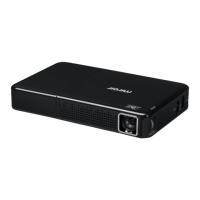
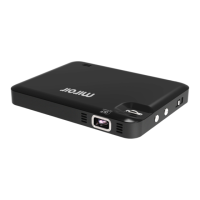
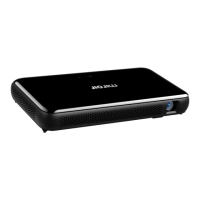
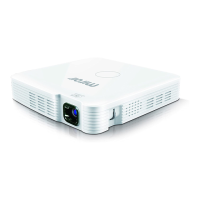
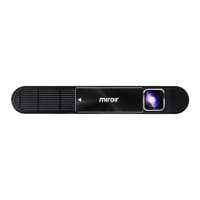
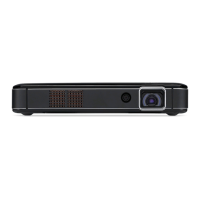
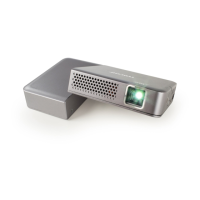
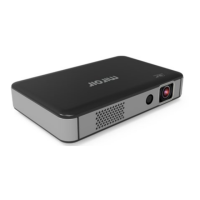
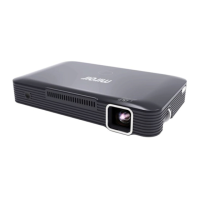
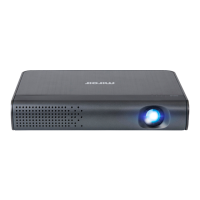
Cooling Vent – IMPORTANT: Do not cover or block airflow to the vent.
Kick Stand – Kick Stand out to elevate front.
Troubleshooting
The image is blurry
Adjust the projected image’s focus by rolling the focus wheel forwards or backwards.
Check that the surface you are projecting on is smooth and non-reflective.
Check that the projector’s lens is clean and free of debris.
The image is not square
Check that the projector’s lens is parallel to your projection surface and that your projection surface is flat.
No sound
Check the volume control on your source device to ensure the volume is turned up.
Check the volume control on the projector to ensure the volume is turned up.
If you are using an adapter, verify that the adapter supports audio.
Check that the HDMI cable is fully plugged into the HDMI port.
No Signal Message
Check that you are using the required cable and/or adapter.
If you are using a digital AV adapter, check that the adapter is an authentic Apple adapter and is compatible
with your model phone or tablet.
If you are connecting via USB-C, check that you are using the USB-C video cable that came with the projector –
this cable is labeled “USB-C Video Connector.” Some USB-C cables do not support video.
If you are connected to a laptop or computer, check your computer display settings to ensure a multiple display
option is selected (such as “duplicate these displays”).
Check that your source device supports HDMI video out or USB-C video out.
Projector will not power on, or stay powered on
Check the battery life of the projector by briefly pressing the power button on the projector. If one or fewer lights
illuminate, charge the battery with the USB-C cable or power adapter.
Check that you are plugging the USB-C cable into the USB-C power Input port and not the USB-C Video input
port on the projector.
www.miroirusa.com
MICRO190.07.26.2021
File Downloads
Miroir User Guide
M190 Mini Pro Projector
Download [optimized]
Download


 To Next Page