ENGLISH
ENGLISH
© Mitchell Acoustics Limited UK 2021 uStream One IB Ver 2.0 Rev 1
19 of 11618 of 116
6. Initial Set Up
Power Connection
1. UK use there is an adaptor into which the two-pin European cable should be inserted as shown in the
Quickstart Guide. Connect the relevant AC power cable to the supplied AC adaptor.
2. Connect the AC adaptor cable to the back of each device.
3. Connect the AC power cable to the mains supply.
4. Switch the power on via the on/off switch on the rear of each speaker.
Initial Positioning and Power On
1. The LEFT speaker should be powered on FIRST and will always be Speaker 1.
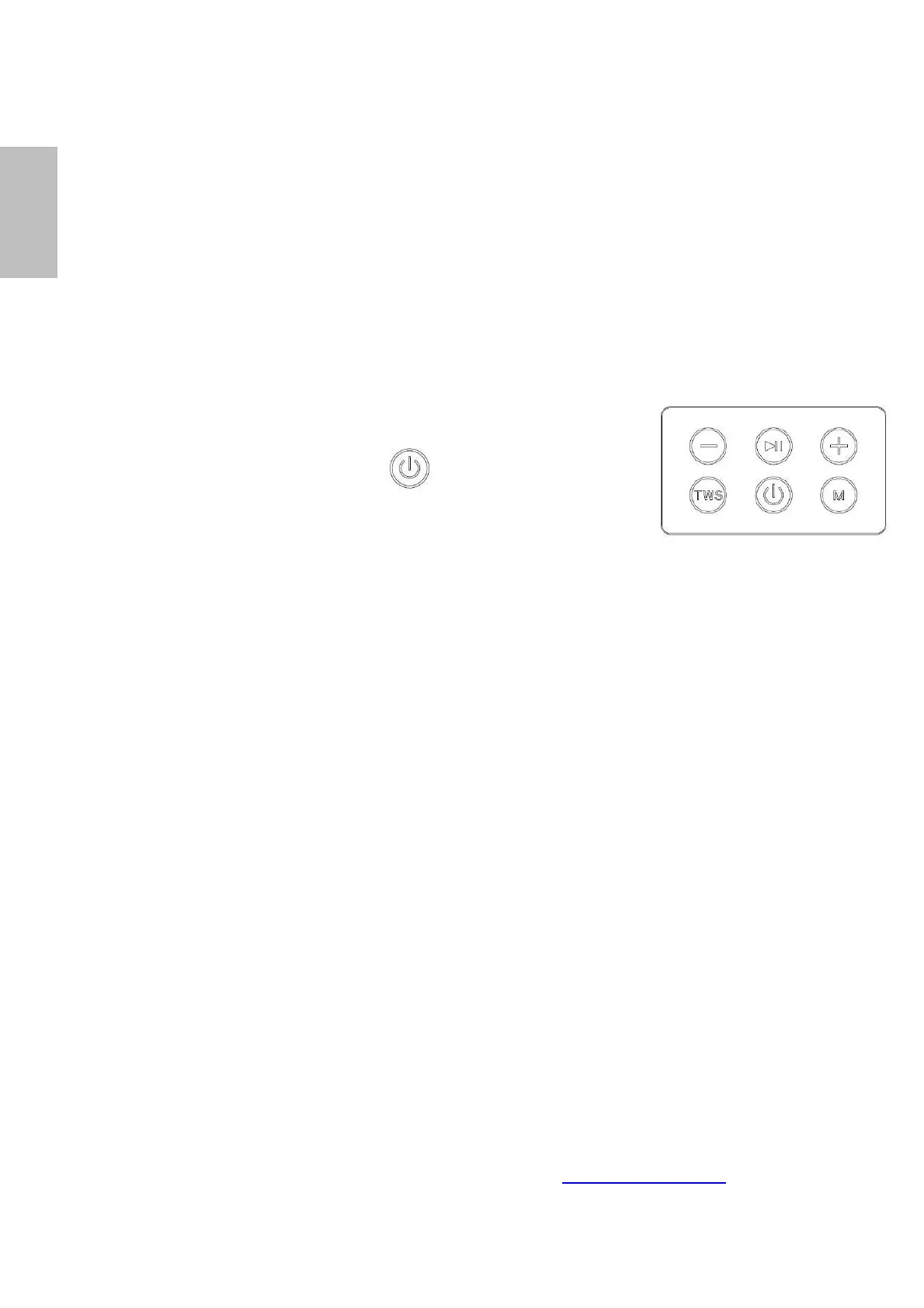
2. Power on the speakers by pressing on the top panel for 2 seconds.
3. Confirmation voice will be audible. ‘Power on’ with confirmation of mode.
TWS (True Wireless Stereo) Connection
1. Make sure that the speakers do not have an active Bluetooth connection with a device. Turn off
bluetooth on the device you intend to connect to the speakers before pairing the speakers to each
other.
2. Press the “TWS” button on Speaker 1 (Left speaker) to initiate the automatic pairing mode between the
two units. There is a voice confirmation ‘Connecting to Speaker 2’ followed by ‘Speaker 2 connected’.
NB: In True Wireless Stereo mode, only ‘Speaker 1, LEFT’ supports AUX / LINE IN /OPTICAL connections.
It is not necessary to complete the TWS steps above for each use. Once completed during initial setup, the
speakers will automatically connect to each other.
Bluetooth Connection
1. Enable Bluetooth on the device you wish to connect. On your device’s Bluetooth menu, look for ‘uStream One’
and select it to connect. You will hear a voice command ‘Connecting to Bluetooth’
2. You will hear a voice confirmation from the speaker to confirm connection. ‘Bluetooth Connected’
3. You can now enjoy music from your device via any of your music apps and the sound should be in stereo from
both speakers.
Connecting to a Smart Device to use as preferred sound source
You can use the uStream Ones as your preferred Bluetooth speaker with any smart home device such as an Amazon ™ Echo
or Google ™ Home. This means you can use voice control to select what music to playback and listen in full stereo via your
uStream One speakers.
Follow the instructions via your smart devices app on your mobile device or visit www.mitchellacoustics.co.uk for more a
detailed explanation.
Adjusting the volume with remote control handset
Point the remote control at Speaker 1 (Left) and repeatedly press the Volume + button on the remote control
handset. (Do not simple press and hold)
An audible beep will be heard when max volume is reached.
You can now use your device to adjust the volume up and down.
Connecting Other Devices
You may wish to connect other devices to the uStream One such as a TV, an external music player or a
turntable.
There are 3 external auxiliary connections that can be used, but remember, they must be connected to
‘Speaker 1’ in order to hear stereo sound from both speakers simultaneously.
The possible connections are:
1. RCA left and right
2. 3.5mm stereo line in jack
3. Optical TOSLINK
Connection of Analog RCA Audio Cables
Pay attention to the plug colours and the left and right channels when connecting RCA audio cables.
Ensure a good connection by making sure to insert plugs completely. Failure to insert fully can cause noise or
malfunctions.
Correct Connection of Optical TOSLINK Cables
The speakers contain a high quality optical input which works with most televisions via a
standard TOSLINK cable. Make sure your television is set to output digital audio in PCM
format. Refer to the user manual of your television for details. Be careful to match the
shapes correctly on the optical cables.


 To Next Page
 Loading...