This document is the User's Manual for the Mitsubishi Diamond Plus 230SB color monitor. It provides comprehensive information on the monitor's features, specifications, controls, and troubleshooting.
Function Description
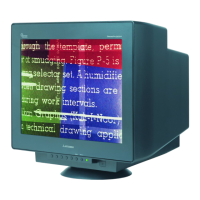
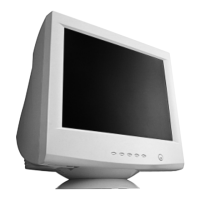
The Mitsubishi Diamond Plus 230SB is a color monitor designed for display purposes, featuring a Flat Aperture Grille CRT for a virtually flat image, reduced distortion, and glare. It utilizes a striped phosphor alignment for superior vertical definition and uniform image contrast. The monitor is equipped with OptiClear Screen Surface technology to further reduce reflection and glare while increasing contrast. Dual Dynamic Beam Focus ensures precise and continuous focus adjustments across the entire screen.
The monitor incorporates a Colour Control System, allowing users to select from five color settings to match personal preferences. It also features OSM (On-Screen Manager) Controls for quick and easy adjustment of screen image elements via on-screen menus. ErgoDesign Features are included to enhance human ergonomics, improve the working environment, and protect user health, with OSM controls for adjustments, a tilt/swivel base, and MPRII compliance for lower emissions.
The Diamond Plus 230SB supports Plug and Play functionality with Windows 95/98/2000/Me/XP operating systems, automatically optimizing display performance by communicating its capabilities to the computer. The IPM (Intelligent Power Manager) System provides power-saving methods, allowing the monitor to reduce power consumption when idle, saving energy costs and reducing emissions. Reduced Magnetic Field Technology minimizes magnetic and alternating electric field emissions and static electricity, addressing ergonomic concerns. Multiple Frequency Technology automatically adjusts the monitor to the display card's scanning frequency, ensuring the required resolution is displayed. FullScan Capability allows the use of the entire screen area in most resolutions, expanding image size. GlobalSync/Corner Purity Control automatically eliminates picture impurities from stray magnetic fields and allows for easy adjustment of impurities in the four corners. Convergence Control enables adjustment of horizontal and vertical convergence for crisp and clear white lines. Auto Adjust and GTF Auto Adjust functions provide automatic horizontal and vertical size and position settings. Constant Brightness sustains consistent brightness and color levels over the monitor's life. The SB (Super Brightness) Mode offers different brightness levels suitable for text, images, or moving images like DVD movies.
Important Technical Specifications
- Picture Tube: 22 inch/550 mm Diagonal, 20 inch/508 mm Viewable Image Size. Features a 90° deflection, 0.24 mm grille pitch, medium short persistence phosphor, aperture grille CRT, and G-WARAS coating.
- Input Signal: ANALOG 0.7 Vp-p/75 Ohms Video. Sync includes Separate sync. TTL Level, Horizontal sync. Positive/Negative, Vertical sync. Positive/Negative, and Composite sync. (Negative) (TTL Level).
- Display Colours: Unlimited number of Colours (Analog input).
- Synchronization Range: Horizontal: 30 kHz to 115 kHz, Vertical: 50 Hz to 160 Hz.
- Resolutions Supported:
- 640 x 480 @ 50 to 160 Hz
- 800 x 600 @ 50 to 160 Hz
- 1024 x 768 @ 50 to 138 Hz
- 1280 x 1024 @ 50 to 105 Hz
- 1600 x 1200 @ 50 to 91 Hz
- 1800 x 1350 @ 50 to 81 Hz
- 1800 x 1440 @ 50 to 76 Hz
- 1856 x 1392 @ 50 to 79 Hz
- 1920 x 1440 @ 50 to 76 Hz
- NEC-Mitsubishi Electronics Display recommends 85 Hz for optimal display performance.
- Active Display Area (Factory Setting): Horizontal: 396 mm/15.6 inches, Vertical: 297 mm/11.7 inches.
- Active Display Area (Full Scan): 406 mm/16.0 inches, 304.6 mm/12.0 inches.
- Power Supply: AC 100-120 V/220-240 V, 50/60 Hz.
- Current Rating: 1.25A @ 100-120 V / 0.6A @ 220-240 V.
- Dimensions: 495 mm (W) x 484.5 mm (H) x 471 mm (D) or 19.5 inches (W) x 19.1 inches (H) x 18.5 inches (D).
- Weight: 29.0 kg / 64.0 lbs.
- Environmental Considerations:
- Operating Temperature: +5°C to +35°C/+41°F to +90°F, Humidity: 10% to 90%, Altitude: 0 m (0 ft) ~ 3,000 m (10,000 ft).
- Storage Temperature: -20°C to +60°C/-4°F to +140°F, Humidity: 10% to 90%, Altitude: 0 m (0 ft) ~ 15,000 m (50,000 ft).
Usage Features
The monitor's front panel includes OSM control buttons for easy navigation and adjustment of settings.
- EXIT: Exits the OSM menu or returns to the main menu. Deactivates/activates the OSM menu when off.
- CONTROL </➤: Moves highlighted areas left/right in sub-menus or controls. Acts as a Hot key for Brightness when OSM is off.
- CONTROL -/+: Moves bars in the - or + direction for adjustment. Adjusts Contrast with Hot key set "ON" when OSM is off.
- SELECT/SB MODE: Enters sub-menus. When OSM is off, acts as the SuperBright (SB) function key, cycling through SB MODE OFF (normal text), SB MODE1 (images), and SB MODE2 (moving images like DVD movies). Color temperature adjusts for each SB Mode, except sRGB.
- RESET: Resets all controls within the highlighted menu or a specific control to factory settings. A warning window appears for confirmation.
Brightness/Contrast Controls:
- Brightness: Adjusts overall image and background screen brightness.
- Contrast: Adjusts image brightness relative to the background.
- Degauss: Eliminates magnetic field build-up affecting screen color purity, focus, and convergence. A minimum of 20 minutes should elapse between uses.
- Constant Brightness: Maintains consistent brightness and color levels over the monitor's life, requiring a 30-minute warm-up.
Size and Position Controls:
- AutoAdjust: Automatically adjusts horizontal and vertical size and position for applicable timings. (Unavailable without image signal or narrow image signal input).
- Left/Right: Moves the image horizontally.
- Down/Up: Moves the image vertically.
- Narrow/Wide: Decreases or increases horizontal image size.
- Short/Tall: Decreases or increases vertical image size.
Colour Control/Colour Control System:
- Colour Presets (1-5): Selects desired color settings (Kelvin or Custom). sRGB mode does not allow individual color adjustment.
- Red, Green, Blue: Adjusts the monitor's red, green, or blue color guns.
- sRGB Mode: Provides a suitable color-managed picture image. Colour Control, Brightness, and Contrast are not adjustable in this mode.
Geometry Controls:
- In/Out (pincushion): Adjusts side curvature (inward/outward).
- Left/Right (pincushion balance): Adjusts side curvature to the left or right.
- Tilt (parallelogram): Adjusts side tilt to the left or right.
- Align (trapezoidal): Adjusts bottom of screen to match the top.
- Rotate (raster rotation): Rotates the entire display clockwise or counterclockwise.
- Corner Correction: Adjusts geometry of display corners (Top, Top Balance, Bottom, Bottom Balance).
Tools 1:
- Moiré Canceler: Reduces wavy patterns on screen by adjusting the level.
- Basic Convergence: Aligns R, G, B colors to form a single white color.
- CONVERGENCE (HOR.): Adjusts horizontal alignment of white lines.
- CONVERGENCE (VER.): Adjusts vertical alignment of white lines.
- Linearity: Adjusts spacing of screen areas to ensure true one-inch circles. Involves drawing horizontal lines, using Vertical Balance, and LINEARITY (VER.) to adjust spacing.
- GlobalSync Control: Eliminates picture impurities from the earth's magnetic field. Fine-tune with -/+ buttons in sub-menus (GLOBALSYNC, TOP LEFT, TOP RIGHT, BOTTOM LEFT or BOTTOM RIGHT). Mitsubishi recommends performing GlobalSync correction with a spreadsheet or text document.
Tools 2:
- Language: OSM control menus available in six languages.
- OSM Position: Manually adjusts OSM menu position (left, right, up, down).
- OSM Turn Off: Sets the duration for the OSM menu to disappear after the last button touch (5-120 seconds).
- OSM Lock Out: Locks access to all OSM controls except Brightness and Contrast. Activate by pressing SELECT, then + and holding simultaneously. Deactivate similarly.
- IPM System Off Mode:
- Enable: IPM System works normally, utilizing all energy savings stages.
- Disable: Off Mode of IPM System is not used. (Keep at ENABLE for standard systems/graphics boards).
- NOTE: Do not keep monitor on with 'No Signal' to prevent image burn-in.
- EdgeLock Control: Adjusts images to normal state when operating at non-standard timing to correct darkness or color distortion.
- Hot Key: Allows </➤ for brightness and -/+ for contrast control.
- Factory Preset: Resets most OSM control settings to factory defaults. Individual settings can be reset by highlighting and pressing RESET.
Information:
- Display Mode: Indicates current mode and frequency settings.
- Monitor Info: Displays model and serial numbers.
- Refresh Notifier: Advises if the refresh rate is too low.
Maintenance Features
- Cleaning: The monitor's glass (CRT) surface has a special coating to reduce reflection and static electricity. Use a lint-free, nonabrasive cloth and a non-alcohol, neutral, nonabrasive cleaning solution to minimize dust. For heavier cleaning, apply water or softened neutral detergent to a soft cloth, wringing out excess water. Avoid benzene, thinner, acid/alkaline detergent, alcohol detergent, abrasive powder detergent, antistatic agent detergent, or cleaning detergent as these can damage the CRT.
- Ergonomics:
- Adjust Brightness until background raster disappears.
- Do not position Contrast control to its maximum.
- Use preset Size and Position controls with standard signals.
- Use preset Colour Setting and Sides Left/Right controls.
- Use non-interlaced signals with a vertical refresh rate between 75-160Hz.
- Avoid using primary color blue on a dark background due to difficulty seeing and potential eye fatigue.
- Troubleshooting: The manual provides solutions for common issues such as no picture, scrolling/unstable image, LED not lit, fuzzy/blotchy picture, bouncing/wavy picture, non-square display edges, non-centered/sized image, thin horizontal lines, black vertical lines, and attention messages. It also describes a self-check function to diagnose color display issues.
- Safety Precautions:
- Do not open the monitor due to high voltage components.
- Do not spill liquids or insert objects into the cabinet.
- Avoid placing heavy objects on the power cord.
- Do not place the product on a sloping or unstable surface.
- Keep the monitor away from high capacity transformers, electric motors, and other devices.
- Position the monitor facing east to minimize earth's magnetic field effects.
- Unplug the monitor immediately if the power cord/plug is damaged, liquid is spilled, objects fall in, exposed to rain/water, dropped, or if it does not operate normally.
- Ensure adequate ventilation and do not block openings.
- The power cable connector is the primary means of detaching from the power supply; install close to an accessible outlet.
- Handle with care during transport and save packaging.
- TCO'99 Compliance: The monitor is TCO'99 approved, indicating compliance with environmental and ergonomic standards, including restrictions on heavy metals (lead, cadmium, mercury), brominated and chlorinated flame retardants, and CFCs (freons). It also meets energy consumption requirements for power-saving modes.

 Need help?
 General





 To Next Page