10
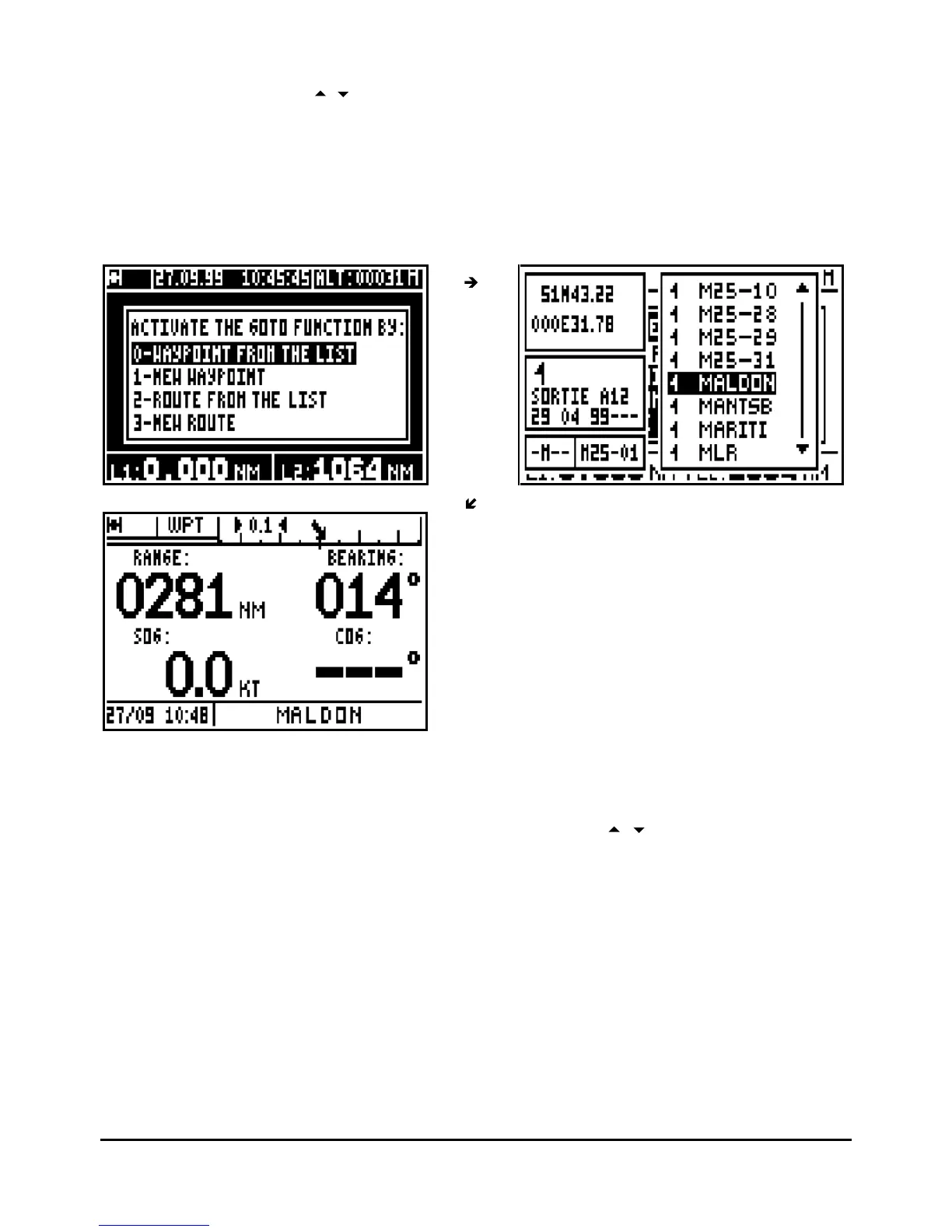
To select a waypoint from the list, press the 0 key (or select 0-WAYPOINT FROM THE LIST
and press
Enter
). Use the
arrow keys to move the cursor in the list and press
Enter
when
you have selected the desired waypoint.
Of course
you can
Enter
a
new waypoint when the list of waypoints is empty (refer to paragraph
3.5 CREATE A NEW WAYPOINT)
You also have the option to activate a route from the list or to create a new route (see Chapter
4-
GOTO ROUTE).
Ti
p: For quick access to the required waypoint, use the alphanumeric keys. For example to
search for a waypoint starting with the letter R, push repeatedly on the 7
PRS
key to bring the
cursor on to the first waypoint starting with a R, then use the
arrow keys to select the
waypoint required.
Tip: The GOTO WAYPOINT function can also be activated from the WAYPOINT MENU by
pressing 0
-
ACTIVATE.
In the COMPASS, 3D ROAD or RADAR mode in the GOTO WPT function you will see on the
left hand side seven lines of information, and on the right hand side a display which can be
either COMPASS, 3D ROAD or RADAR (see chapter B.3.3). At the bottom left of the screen,
the date and time are displayed and on the right, the name of the active destination waypoint. In
the
DATA mode, you will have the navigation information in large character as well as the cross
track error represented by a bargraph.


 To Next Page