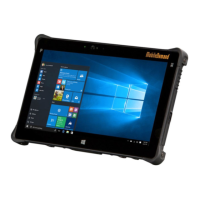
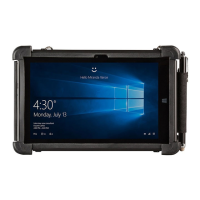
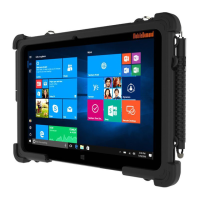
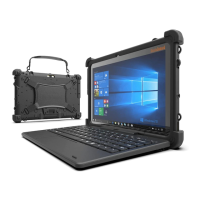
The xTablet T1190 is a rugged tablet designed for demanding environments, offering a blend of durability, performance, and connectivity. It runs on Windows 10 IoT Enterprise 2019 LTSC, providing a familiar and robust operating system.
Function Description
The xTablet T1190 serves as a portable computing device, capable of handling various tasks in challenging conditions. Its primary functions include data processing, communication, and multimedia display. The tablet is equipped with a front and rear camera for photos, video recording, conferencing, and other interactive applications. It supports wireless connectivity via Wi-Fi and 4G LTE, enabling seamless communication and data transfer. The device also features a barcode scanner (optional) for efficient data capture in industrial or retail settings.
Important Technical Specifications
The xTablet T1190 boasts a robust set of specifications tailored for rugged use:
- Dimensions: 282.4 W x 192.0 H x 15 D mm
- Weight: 2.3 lbs
- Display: 10.1" sunlight viewable WUXGA 1920x1200H IPS, 800 NITS 10-point multi-touch capacitive screen.
- CPU: Intel® Celeron N4120 Quad Core; 1.10GHz burstable to 2.60GHz
- Memory: 8GB LPDDR4
- Storage: 128GB eMMC
- Operating System: Windows 10 Professional 64-bit or Windows 10 IoT Enterprise 2019 LTSC
- Ruggedness:
- MIL-STD 810G: (5' drop)
- Sealing: IP65 (dust and water)
- 1M Tumble Test: (40x)
- Steel Ball Drop Test: (25mm diameter, 250gm from 50cm)
- Screen Protector: Oleophobic, scratch-resistant glass
- Operating Temperature: 14° F to +122° F (-10° C to +50° C)
- Storage Temperature: -4° F to +140° F (-20° C to +60° C)
- Operating Humidity: 5% to 95%
- Cameras: Front - 2MP, Rear - 8MP AF with flash, Hello Camera
- Audio: Realtek Audio, dual microphone array, 2 integrated speakers
- Scanner: Optional: High performance Honeywell N6703 2D barcode scanner
- Buttons: Barcode scan, Function (2), Power, Volume +/-, Reset hole
- Sensors: Accelerometer, Gyroscope, E-Compass, Proximity, Light
- Battery System: 7.6V, 36.5Wh, 4800 mAh Lithium Polymer. Battery life varies significantly depending on settings, app usage, and other factors.
- Wireless/Network:
- WLAN: Wi-Fi 802.11 a/b/g/n/AC/AX, Intel Wireless-AX200
- LAN: Gigabit Ethernet
- Bluetooth: 5.2, BLE Support
- GPS: Ublox NEO-M8N
- 4G LTE: Optional Sierra Wireless EM7565 (North America/EMEA)
- Security: Kensington Lock, TPM 2.0
- Agency Approvals: FCC, IC, CE, RoHS, WEEE
Usage Features
The xTablet T1190 offers a variety of features for user convenience and functionality:
- Front Camera (1): Located at the top of the display.
- Status LEDs (2):
- Power (A): LED glows when the tablet power is turned on. LED flashes when the tablet goes to the sleep state. LED goes off when the tablet is turned off.
- Wireless LAN (WiFi) (B): LED glows when WLAN (WiFi) function is enabled. LED goes off when this function is disabled.
- Battery (C): LED glows when the battery is being charged. LED goes out when the battery is fully charged or when the AC/DC adapter is connected. LED blinks slowly when battery capacity is lower than 7%. LED blinks fast when there's a battery error.
- Touch Screen (3): The touch screen will automatically orient itself and expand to fit the display whenever the display is rotated.
- Internal Microphone (4): For audio input.
- Power Button (1, Top View): Press and hold for 8 seconds to shut down the tablet.
- Barcode Scanner (2, Top View): Optional feature.
- Dock Connector (1, Bottom View): Connects with external Docking station to increase more I/O functions.
- Boss Hole (2, Bottom View): Used for locking the boss hole of the dock.
- DC-in Jack (1, Right Side View): The electrical connector for supplying direct current (DC) power.
- Kensington Lock (2, Right Side View): Allows users to secure the tablet in place.
- Volume Up + / Volume Down - Button (1, Left Side View): For adjusting audio levels.
- Nano SIM Card Reader (2, Left Side View): Supports various types of 4G/LTE.
- Reset Hole (3, Left Side View): Insert a straightened paperclip into the reset hole if the tablet cannot be turned off normally or is unresponsive after pressing the power button for 8 seconds. Note: AC power must be connected before restarting the tablet.
- Headphone Jack (4, Left Side View): Port for connecting to speakers or headphones.
- Micro SD Card Reader (5, Left Side View): Supports SD cards.
- Micro HDMI Port (6, Left Side View): Micro HDMI (High-Definition Multimedia Interface) technology is the industry-leading interface and de-facto standard connecting high-definition equipment.
- USB 3.1 Gen 1 Port 1 (7, Left Side View): USB 3.1 Gen 1, the SuperSpeed USB, supports high-speed data transfer for the connected devices, such as storage devices, hard drives, or video cameras.
- USB 3.1 Gen 1 Port 2 (Type-C) (8, Left Side View): USB 3.1 Gen 1, the SuperSpeed USB, supports high-speed data transfer for connected devices such as storage devices, hard drives, or video cameras. The slim, sleek USB Type C connector offers reversible plug orientation and supports 5V/1.5A portable charging power when AC power is connected. However, the maximum portable charging power limitation may be up to 5V/1.5A when DC power is connected.
- RJ-45 Connector (9, Left Side View): The Ethernet connector, with bandwidths 10/100/1000 Mbps, is used to connect a LAN cable for network connection.
- Rear Camera (1, Back View): This built-in rear camera can be used for photos, video recording, conferencing, and other interactive applications.
- Flash (2, Back View): For the rear camera.
- F2 Function (3, Back View): Programmable function key and default setting is Barcode Scanner trigger function (optional). User Defined programmable function key.
- Speakers (4, Back View): For audio output.
- Battery (5, Back View): The main battery pack.
- F1 Function (6, Back View): Programmable function key.
Maintenance Features
The xTablet T1190 is designed with maintenance and safety in mind:
- Safety Instructions: Read all cautions and warnings in the user manual. Keep the equipment away from humidity and high temperature. The openings on the enclosure are used for air convection to prevent the equipment from overheating; do not cover the openings. Do not leave the equipment in an unconditioned environment with a storage temperature above 60°C (140°F) or below -20°C (-4°F), which may damage the equipment. This unit should be operated under maximum ambient temperature of 50°C (122°F) or under 60°C (140°F) for light loading applications.
- Battery Storage:
- Storage temperature up to 3 months should remain between -20° ~45°C.
- Storage temperature of 3 months to 1 year should remain between 23°± 2°C.
- The battery capacity should remain at 50 ± 5%.
- The storage humidity should remain at 65 ± 25%RH.
- The battery charging temperature 10° ~45°C, discharging temperature -20° ~60°C.
- For the maximum battery discharging performance, storage temperature = 25°C.
- Power Supply: Ensure the power voltage is within a safe range and has been adjusted properly to the value of 100~240V before connecting the equipment to the power outlet. Always unplug the AC power cord before installing any add-on card or module to the equipment. Always disconnect the AC power cord or uninstall the battery pack or switch off the wall socket if the equipment would be left unused for a certain time to achieve zero energy consumption.
- Placement: Place the power cord in a way that people are unlikely to step on it. Do not place anything on top of the power cord.
- Magnetic/Electrical Objects: Always keep strong magnetics or electrical objects away from the tablet.
- Liquid Spills: To avoid damage or electrical shock, never pour liquid into the opening.
- Troubleshooting: If any of the following situations arise, have the equipment checked by a service personnel:
- The power cord or plug is damaged.
- Liquid has penetrated into the equipment.
- The equipment has been exposed to moisture.
- The equipment is no longer working properly.
- The equipment was dropped and damaged.
- The equipment has obvious signs of breakage.
- Battery Care:
- The built-in battery pack can be recharged when the Tablet is connected to the AC power. Please pay attention to the following tips before recharging the battery.
- You can use the system, suspend system operation or shut down and turn off the system without interrupting the charging process.
- The built-in battery pack uses Lithium-ion Polymer battery cells that have no "memory effect." It is unnecessary to discharge the battery before recharging. However, to optimize the life of the battery, we suggest that consuming the battery power completely once a month is necessary.
- The actual charging time will be determined by the applications in use.
- Do not charge the battery in temperature below 0° or above 45°C, it may cause safety issue.
- AC/DC Adapter Usage:
- Dos: Use only the adapter that shipped with xTablet T1190. Be aware of heat from the adapter. Unplug the AC power cord before disassembly.
- Don'ts: Never cover an adapter in use as it can generate heat.
- Environmental Policy: The product has been designed to enable proper reuse of parts and recycling and should not be thrown away at its end of life. Users should contact the local authorized point of collection for recycling and disposing of their end-of-life products.

 Need help?
 General

 To Next Page