Make sure that no other network device uses the camera's IP address:
• Open a command shell (Windows) or a terminal (Linux/UNIX/OSX) and enter
the following command:
ping <factory IP address>
If you receive an answer from another network device although the camera is not
connected, you will have to remove that device until you have reset the MOBOTIX
camera to a free IP address. We recommend using the Quick Installation wizard for
assigning a new IP address to the camera.
If your computer does not use an IP address in the 10.0.0.0 network (e.g. a
192.168.x.x or 172.x.x.x network), you should temporarily set a new IP
address in the 10.x.x.x range:
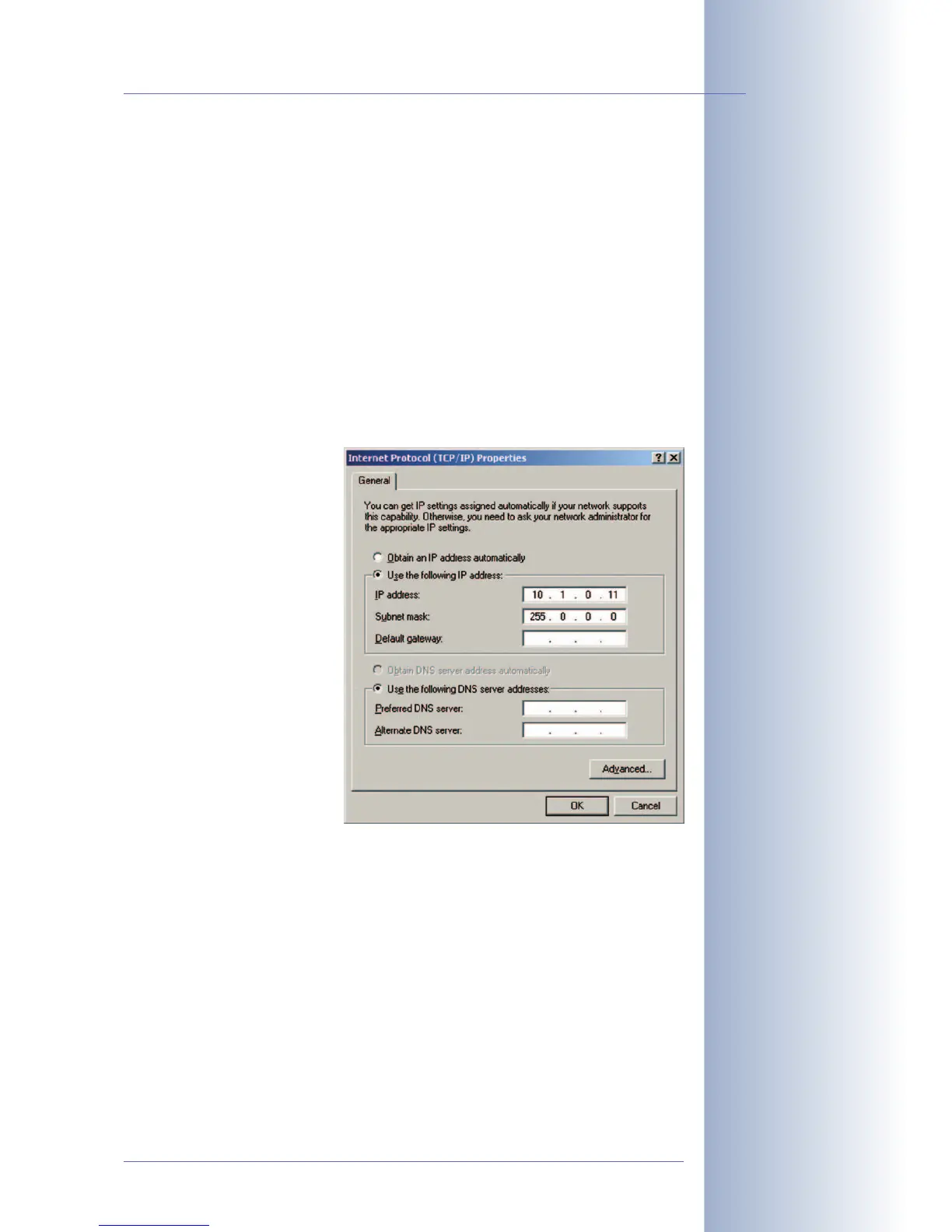
Windows 2000/XP
(1) Open the Network Con-
nections and open the
Properties of LAN Con-
nection.
(2) Double-click Internet
Protocol (TCP/IP).
(3) On the General tab, acti-
vate the Use the follow-
ing address option.
(4) Enter an IP address (e.g.
10.1.0.11) in the class
A network (10.x.x.x)
that is unique in your
network and that is not
the same as the cam-
era's IP address.
(5) Close all dialogs by click-
ing on OK.
Linux/UNIX/OSX
(1) Open a terminal as root user and enter the following command (eth0
usually is the first network interface):
ifconfig eth0:1 10.1.0.11
The computer now has the additional IP address 10.1.0.11, allowing it to ac-
cess the camera with its factory IP address in the 10.x.x.x network
(10.1.0.99 in this example).
© MOBOTIX AG • Security-Vision-Systems • Made in Germany
www.mobotix.com • sales@mobotix.com
95/124
D12 Camera Manual Part 1
The factory IP address is
printed on the sticker on
the camera housing
Example: 10.1.0.99
Make sure that you use
the IP address of your
camera instead of
10.1.0.99!
Setting up an IP address
on Windows computers
Setting up a second IP ad-
dress on Linux/UNIX
computers


 To Next Page