DATA ENTRY KEYS
The data entry keys provide two different operations.
1) The twelve keys add counts to different cell channels in COUNT
mode; or,
2) Enable the entry of specific numeric values [0-9] for identification
numbers, quantifiers, etc.
The [INC] and [DEC] keys provide two functions:
1) Screen cursor controls; or,
2) Pointer to memory locations for accessing data stored within the
batch memory.
COMP-U-DIFF QUICK DEMO
Note: This demonstration is intended as a quick introduction of the COMPUDIFF.
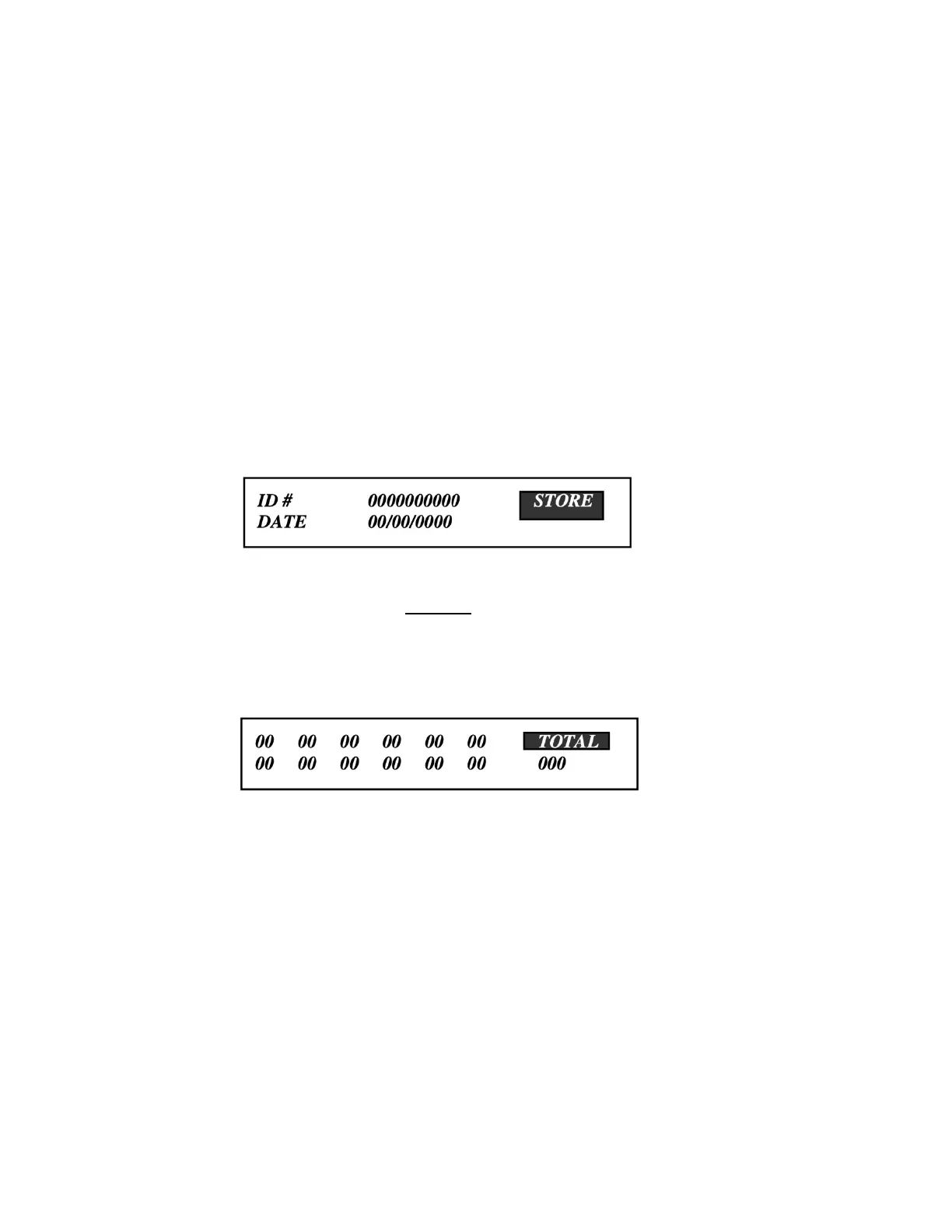
STEP 1. Plug the power to the wall socket. The screen default will appear as shown below. Note
that the Unit is in the STORE mode.
STEP 2. Enter Specimen ID Number (up to ten digits).
STEP 3. At this step the user could optionally press the [SEND] key transmitting the specimen
number to the Lab. Computer requesting Hemogram data to be displayed on the screen.
[see discussion on Hemogram lookup]; or,
STEP4. Press [COUNT] function key. The screen will display the twelve counting channels and
the three digit total count as shown below:
STEP 5. Depress the counting key as required. Each key depression will add a count to the
appropriate channel and add a count to the total count (except to the upper right key if it
has been designated as a non-totalizing channel for counting NRBCs).
When the user has completed counting cells, he/she may then optionally save the
specimen count results by pressing [EXEC] key, send the results to the laboratory
computer by pressing the [SEND] key; or if there is morphology or comments to be
entered proceed to the next step.
STEP 6. Press [MORPH] Key. Note that the cursor will be located on the ACANthocytes field.
Enter a quantifier (one of the lower sic keys) for the selected Morphology. To enter
additional morphologies on the same page, press the [INC] or [DEC] keys to select the
desired morphology. Note that the morphologies are presented in alphabetical order. To
select other pages depress the [MORPH] key through the four pages.



 To Next Page