Potensi Elevator
3
/
13
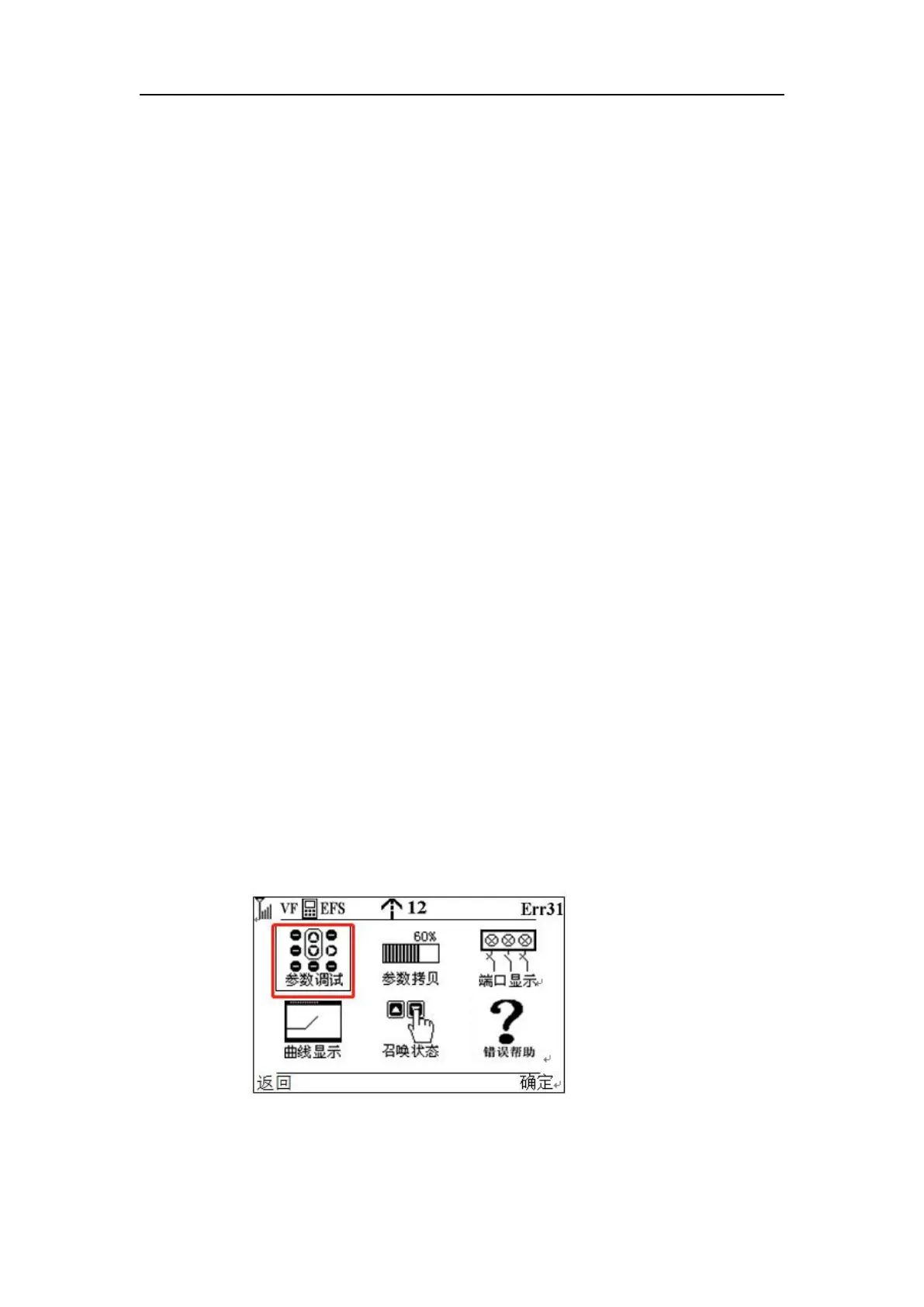
Parameter debugging: The function of this icon is to modify or view all the function codes in the
integrated controller. There are three levels of menus in this icon. The last level menu can modify
the value of the function code and read the value of the function code.
Parameter copy: The MDKE3 LCD operator provides the function of parameter copy and
parameter download for the operator. The operator can copy the parameter values in the
integrated controller to the MDKE3 operator through the functions in this icon, and can also use
the hand-held operation In the integrated controller that downloads the parameters in the
controller, this function is particularly important when the debugging personnel debug multiple
identical elevators, which can save a lot of time for the debugging personnel.
Port display: The port display icon provides an interface for debugging personnel to view the
status of each input and output port of the integrated controller. Through the functions provided
by it, the status of each port in the integrated controller can be clearly seen, whether it is
normally open or not. Normally closed, valid or invalid.
Curve display: Commissioners can observe the curve of specific parameters in the integrated
controller changing with time through the function provided by this icon, which brings
convenience to analysis.
Error Help: Debuggers can use this function to find the cause of the integrated controller error
and the solution.
Keyboard setting: (this item is in another interface, not shown in the figure) This function
provides the user to modify the parameters of the MDKE3 LCD operator to operate its own
parameters, which has nothing to do with the integrated controller.
Key function: function key 2 confirms to enter the secondary menu, function key 1 returns to the
monitoring screen, knob confirm key enters the secondary menu, Press the PRG key to return to
the previous menu, and rotate the knob to adjust the selected icon. In keyboard control mode,
the run key runs and the stop key stops.
4. An example to introduce the operation of each function icon
Parameter debugging icon (taking the modification of F2-18 parameters as an example)
Step 1: Use the knob to select the cursor to the parameter debugging icon, as shown in the
figure:
Step 2: Press the knob to confirm or function key 2 to enter the following screen, and use the
knob to adjust the cursor to the F2 group parameter


 To Next Page
 Loading...