PAGE 6
V. CURRENT METER OVERVIEW
Select Sensors from the main navigation menu on iMonnit to access the sensor overview
page and begin making adjustments to your 150 Amp AC Current Meter.
MENU SYSTEM
Details - Displays a graph of recent current meter data.
History - List of all past heartbeats and readings.
Events - List of all events attached to this current meter.
Settings - Editable levels for your current meter.
Calibrate - Reset readings for your current meter.
Scale - Change the scale of readings for your current meter.
Directly under the tab bar is an overview of your current meter. This allows you to see the
signal strength and the battery level of the selected meter.
• indicates the meter is checking in and within user dened safe parameters.
• indicates the meter has met or exceeded a user dened threshold or triggered event.
• indicates that no meter readings are being recorded, rendering the meter inactive.
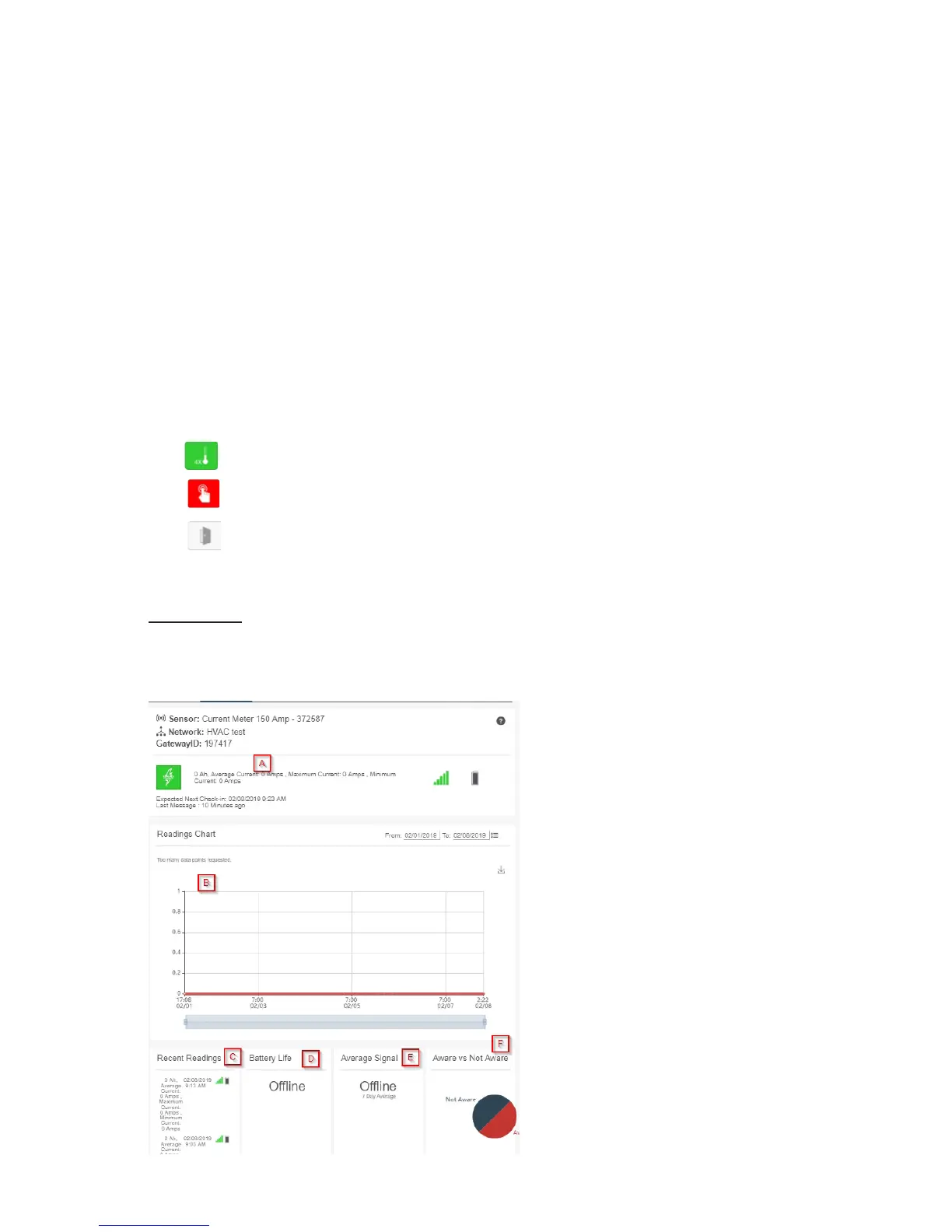
Details View
The Details View will be the rst page you see upon selecting which meter you would like to
modify.
A. The meter overview section will be
above every page. This will display
the present reading, signal strength,
battery level, and status.
B. This graph charts how the meter
uctuates throughout a set date
range. To change the date range
displayed in the graph, navigate up to
the top of the Readings Chart section
on the right-hand corner to change
the from and/or to date.
C. The Recent Readings section
below the chart shows your most
recent data received by the meter.
D. Battery Life displays the current
battery percentage remaining.
E. The Average Signal shows the
most common signal strength of your
meter. Low signal strength could be
a sign the placement of your sensor


 To Next Page