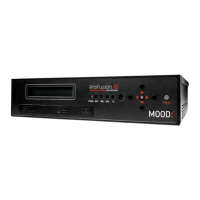
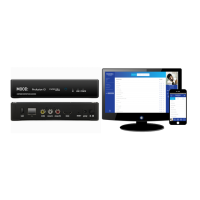
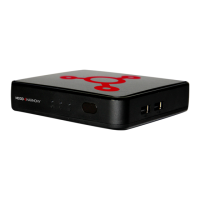
The provided document is a Networking Guide for the ProFusion iO device, a product from Mood Media. This guide focuses on the network setup, troubleshooting, and maintenance aspects of the device, which appears to be an audio player designed for commercial use, likely for background music or in-store media.
Function Description
The ProFusion iO is an audio player that connects to a network to receive updates and stream content. It's designed for commercial environments, providing background music or other media. The device supports both wired Ethernet (CAT5) and optional Wi-Fi connectivity (requiring a Mood-provided USB Wi-Fi adapter). It interacts with Mood Media's content and control centers for updates, playlist modifications, and monitoring. The guide emphasizes the importance of a stable network connection for continuous operation, updates, and heartbeat functionality.
Important Technical Specifications
Connectivity:
- Ethernet: 10/100 Mbps, requiring a Cat5 RJ45 cable or better.
- Wi-Fi: Optional, requires a Mood-provided USB Wi-Fi adapter.
- Network Protocols: HTTPS (ports 443, 80) and FTP (port 21, passive FTP only, ephemeral port range 1025-65535) for updates, and SFTP (port 22) for secure file transfers.
- Heartbeat Functionality: Uses ports 443, 80 externally for status updates and monitoring.
Internet Connection Speed Requirements:
- Consistent Bandwidth: 1 Mbps or more is ideal for all Mood Media audio streaming services.
- Minimum Bandwidth: 150 Kbps for all configurations, can be throttled as low as 64 Kbps for time-boxed and infrequent periodic updates.
- Streaming & Dynamic Playlist Modification (Continuous Connection):
- Each Mix Pro Device: 1 Mbps ideal, 512 Kbps minimum.
- Social Mix: 150 Kbps minimum.
- Single Program Updates/Log Files (Intermittent Connection):
- Ideal: 150 Kbps.
- Minimum: 64 Kbps.
- Heartbeats: Minimal bandwidth (8 Kbps).
Server Addresses:
The device connects to various Mood Media servers for different functions:
- MIX / MIX PRO: s3.aws.amazon.com (Floating IP), mix.moodmedia.com (23.23.195.56).
- US Update Server: fm-wdav-01.moodmedia.com (199.204.61.120).
- US Heartbeat: 184.73.209.217.
- EU Update Server: upd-eu-1.moodmedia.com (193.226.133.17).
- EU Heartbeat: 193.226.133.20.
- Australia Update Server: pubftp.moodmedia.com.au (61.68.11.242).
- Australia Heartbeat: heartbeat.moodmedia.com.au (61.68.11.243).
Usage Features
Control and Access:
- Remote Control: The device can be put into "standby" mode using a remote control.
- Mood Controller App: A dedicated mobile application (available on Apple App Store and Google Play Store) allows users to set up and control the ProFusion iO.
- Web User Interface (WEBUI): Accessible from a PC or mobile device on the same network via the device's IP address or a web link (e.g.,
https://profusion-[DEVICEID].local). The default login credentials are "admin" for username and "23646" for passcode.
- IP Address Discovery: The device can speak its IP address over the speakers when the reset button on the back is pressed and held for 2 seconds with a paper clip.
Network Configuration:
- Viewing/Editing Network Settings: Users can access and modify network settings (including Wi-Fi setup) through the online control panel under the "Administration" and "Network" sections.
- Wi-Fi Setup: The device can scan for available Wi-Fi networks, allowing users to select and enter the password. Note that "Guest" Wi-Fi connections with a "splash" page are not supported.
Status Indicators:
- POWER Indicator Light: Turns red when the device is in standby mode.
- LINK Indicator Light: If red, it indicates either a Wi-Fi connection is established or the player is not connecting to the network for updates.
- SYMBOL Network Light: Located on the front of the player, it should be illuminated to confirm a secure Ethernet connection.
Maintenance Features
Reboot Procedure:
A detailed reboot procedure is provided for troubleshooting:
- Put the player into "standby" mode using the remote or online control panel (POWER indicator turns red).
- Fully power down the player using the ON/OFF button on the back.
- Remove the power cable for 30 seconds.
- Re-insert the power cable.
- Press the ON/OFF button to the ON position.
- Allow the player to initialize and resume music playback.
It's important that the ProFusion iO remains on at all times for successful updates.
Cable Connection Check:
Users are instructed to verify that the Ethernet (CAT5) cable is securely connected to the SYMBOL port on the player and to the appropriate port on their network equipment (router or switch). The SYMBOL network light on the front of the player should be illuminated.
Diagnostic Tools:
- Test Network Connection: An online control panel feature under "Administration" > "Update" allows users to run a "Test Connection" to check connectivity to the update server.
- Diagnostic Test: A more comprehensive "Diagnostic" test is available under "Administration" > "Network" > "Diagnostic" tab. This 7-step test provides detailed results and error codes.
- Diagnostic Results and Troubleshooting: The guide includes a comprehensive table of diagnostic error codes (e.g., E1001, E1002, W2201, W2102, E2110, E4101, E5101, E6101, E7101) with corresponding messages and solutions, covering issues like network interface problems, DHCP/DNS configuration errors, static IP conflicts, proxy server issues, and heartbeat/streaming server connectivity. Users are directed to
support.moodmedia.com for further assistance and a full list of error codes.
Date and Time Confirmation:
Users can confirm and adjust the player's date and time via the online control panel under "Administration" > "Settings". This is crucial for proper operation, especially if the player defaults to an incorrect year after rebooting.
Serial Number Location:
The serial number, important for support, is located on a sticker on the back of the player.

 Need help?
 General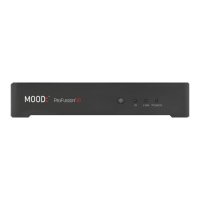

 To Next Page